How to add an accordion (collapsible/expandable section)
Overview
An accordion is a user interface pattern that allows users to expand or collapse sections of content. If you have a lot of content on your page, divided into sections, you may want t make each section expandible/collapsible using an accordion.
How to Set it up in Vacation Labs
Accordions can be set up in various places, such as itineraries, static pages, FAQ sections, etc.
Info
Basically, wherever the rich text editor section is present, the accordion style can be set up.
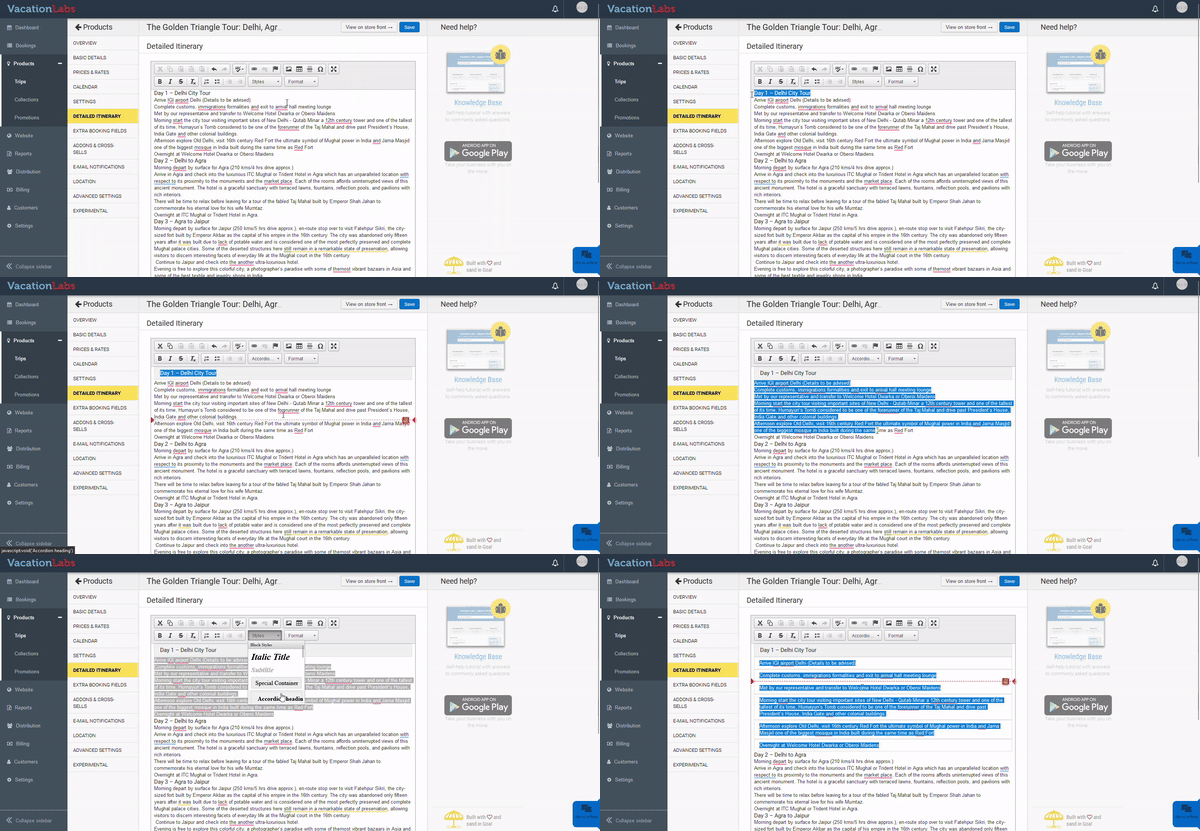
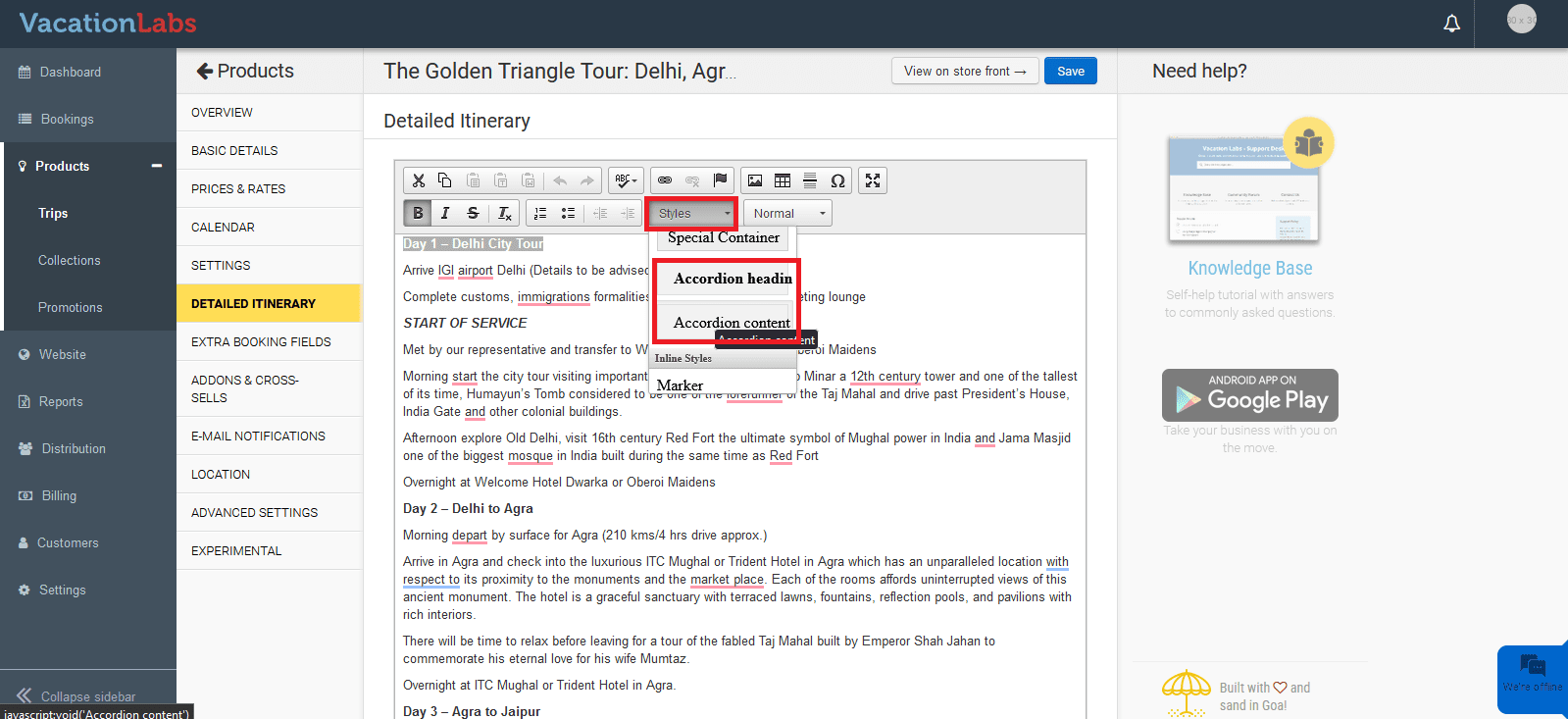
For example, if you want to set it up in the Itinerary section, navigate to Products > Trips > Edit trips > Detailed Itinerary. Here, add the content and select the text that will be displayed as a heading. Then, choose the styles option and select “Accordion heading”. For the content, select the content text and from the styles option, choose “Accordion content” and Save the changes.
Warning
Note: When pasting content into this section, please ensure that any existing formatting is removed. You can achieve this by pasting with CTRL+Shift+V or by using the “Remove Format” button in the rich text editor section. If you paste pre-styled content into the rich-text editor, then it will interfere with the styles of the rich-text editor and the accordion may not work as expected.
 Remove existing formatting
Similarly, the accordion feature can be configured in various locations where the Rich Text Editor section is available.
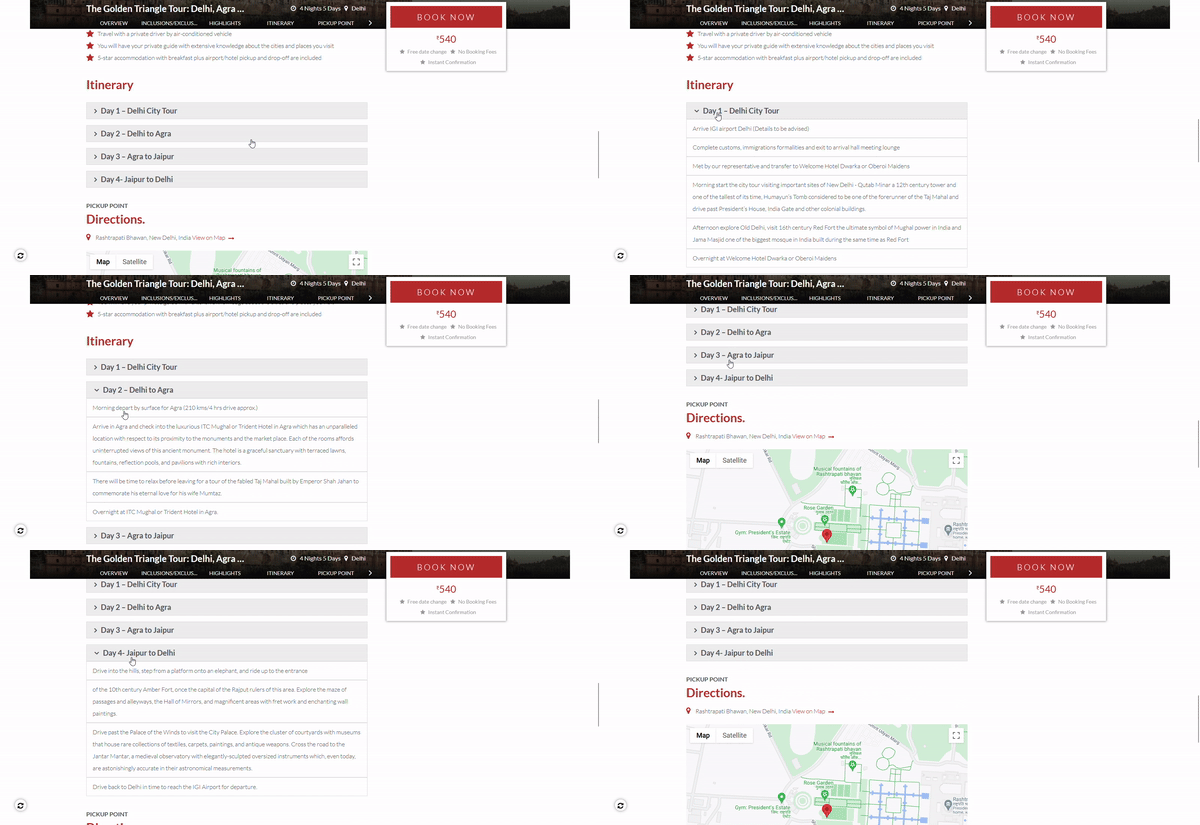
The accordion will be displayed as shown in the screenshot below.