Add a script/code to trigger on a specifc page
The Advanced Settings of the website allow you to add a script/code that can be triggered on a specific page. For example a tracking script that must be triggered on any one tour page because its being promoted or you are running ads for it. You can easily add any number of such scripts, any number of times and configure them to be triggered on any pages on the website.
Please follow the below steps to specifically target a specific page,
-
Login into your Vacation Labs account.
-
Click on **Website
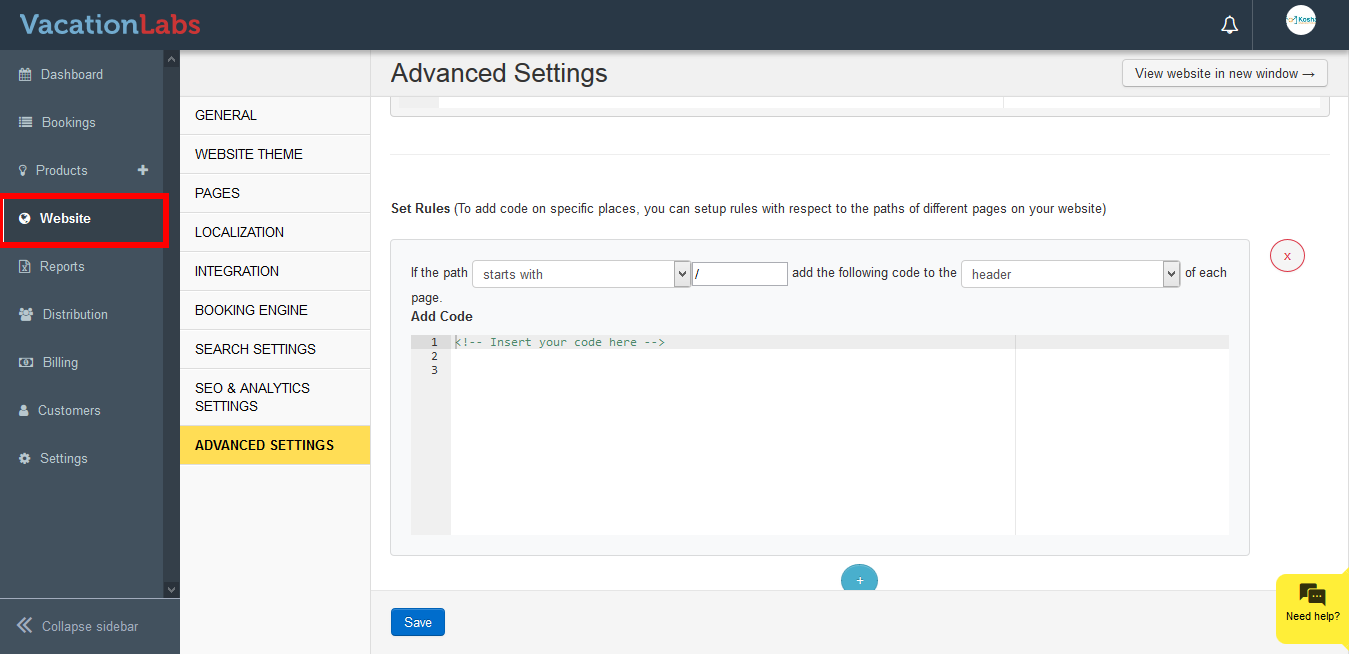 **
** -
Click on **Advanced Settings
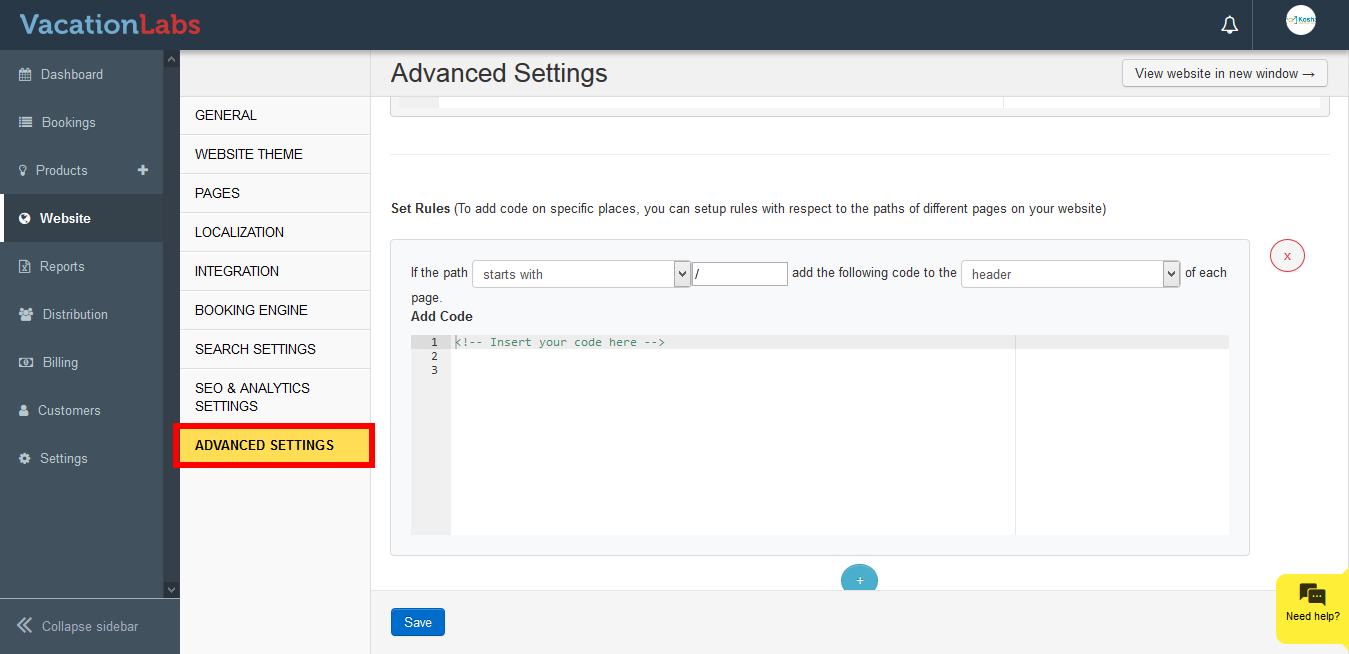 **
** -
Scroll down to Set Rules section.
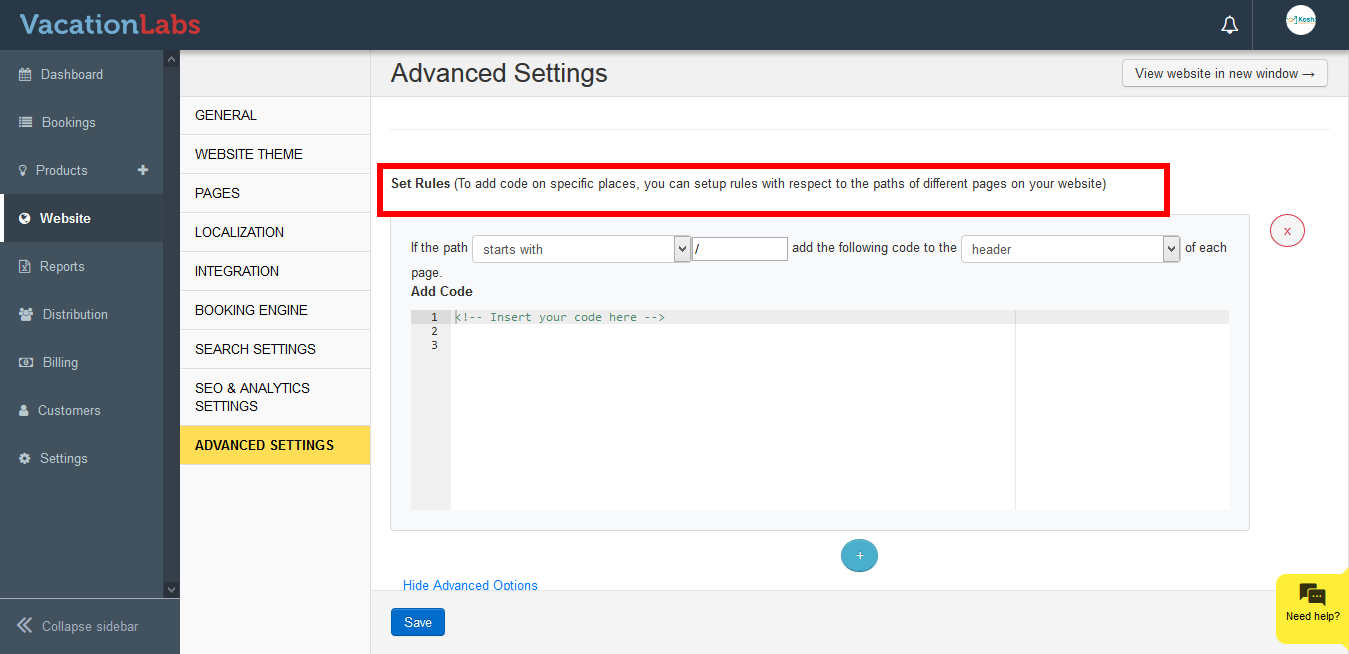
-
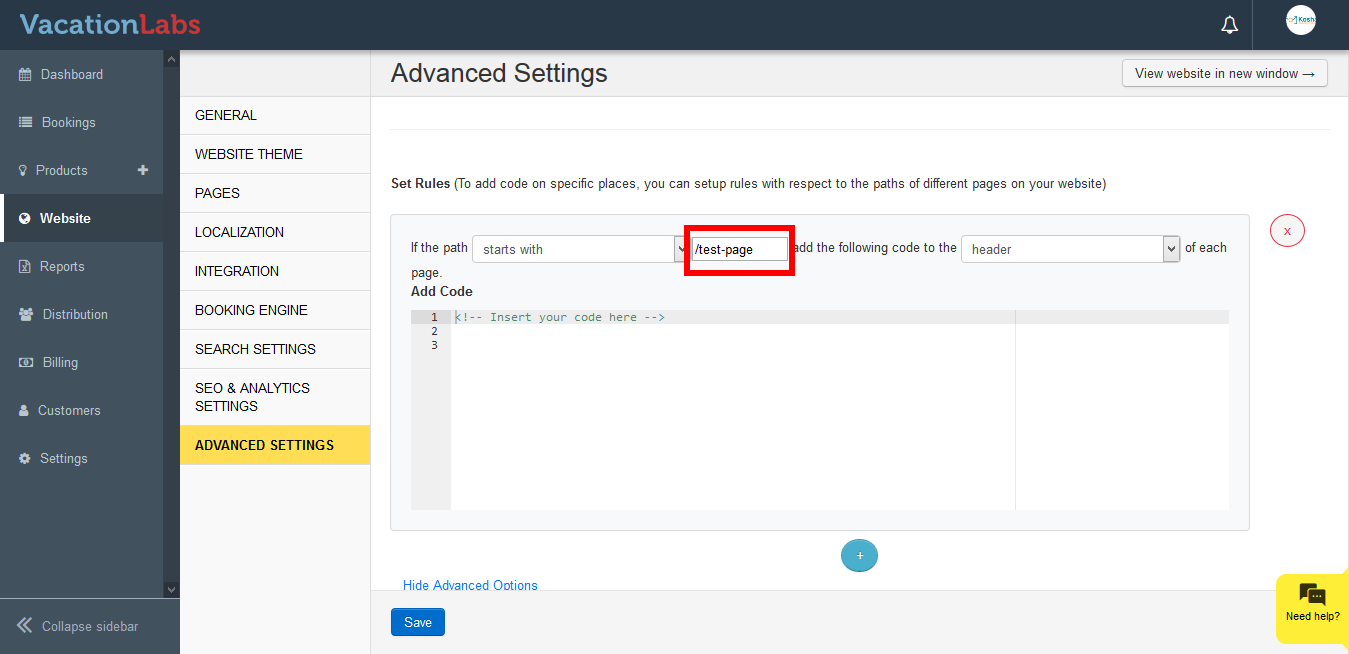
Select the path from the Drop-down. We would recommend you to use contains from the drop-down, this will help you easily target the url’s easily.
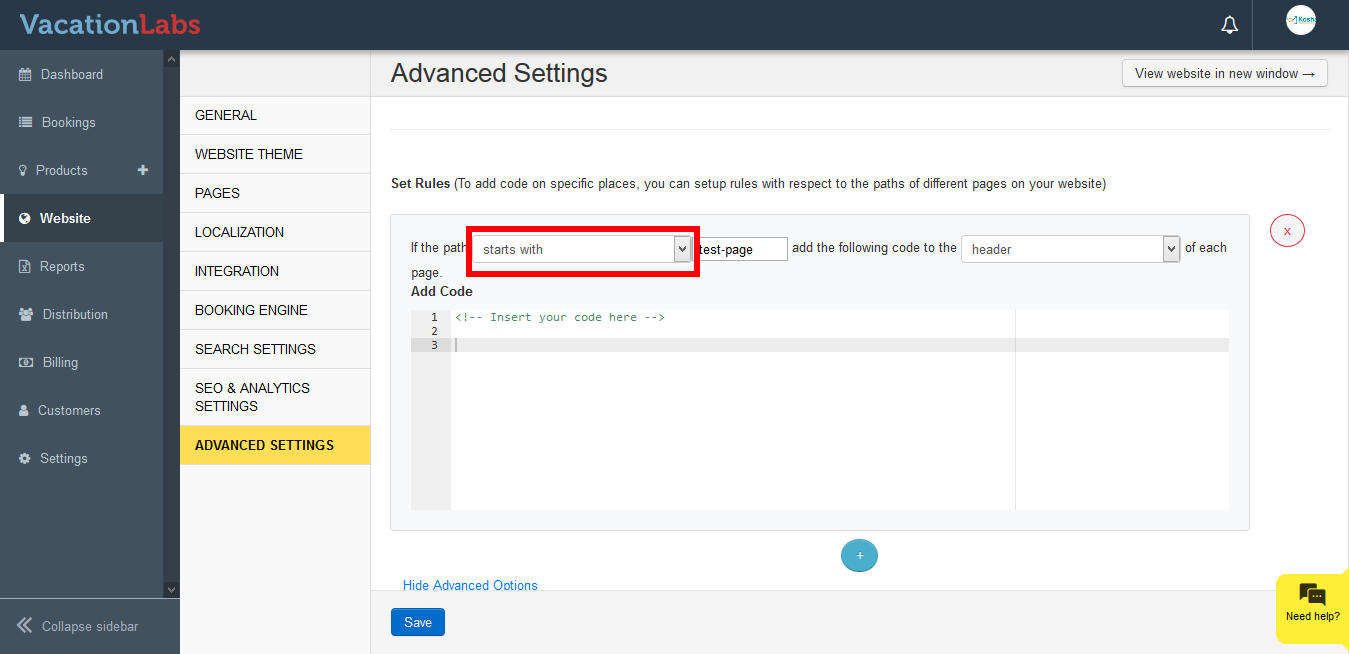
-
Enter the Page URL that needs to be targeted
-
Select whether you wish to add the code in Header/Footer from drop-down Header: If you select Header and Save the code then the code added will be saved in the Header (
<head>tags) of the page.Footer: If you select Footer and Save the code then the code added will be saved in the Footer ( before</body>tags) of the page.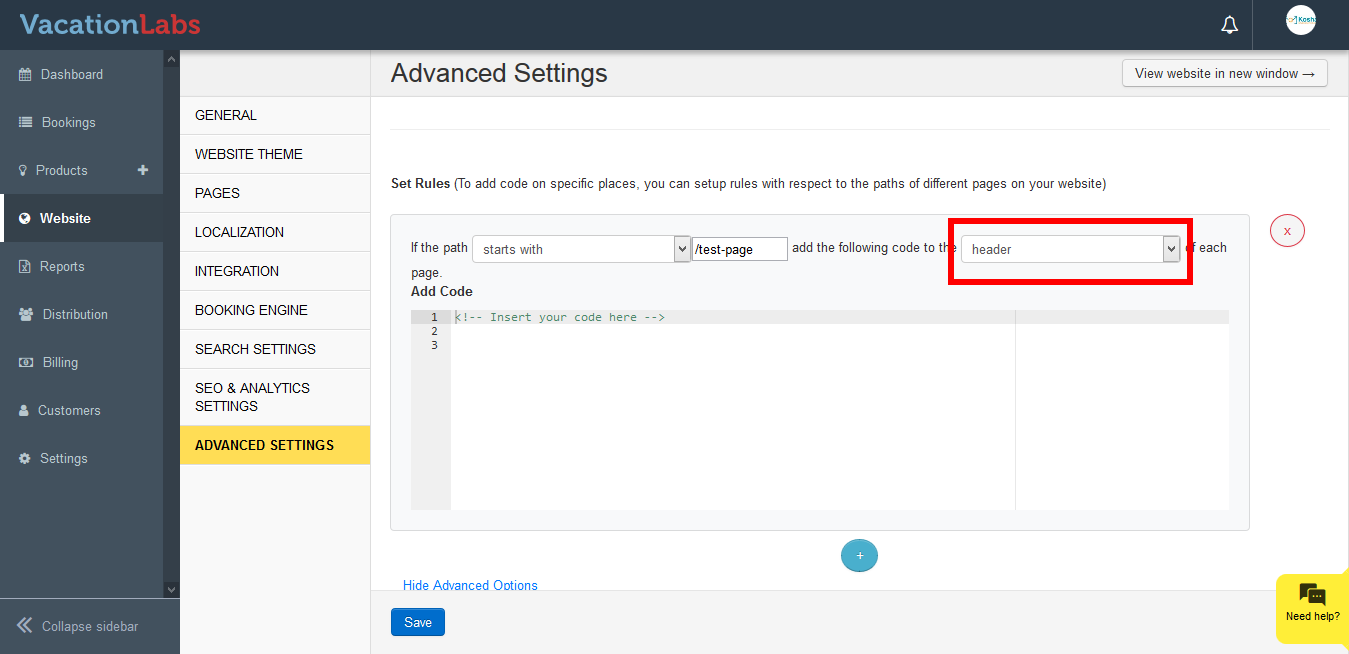
-
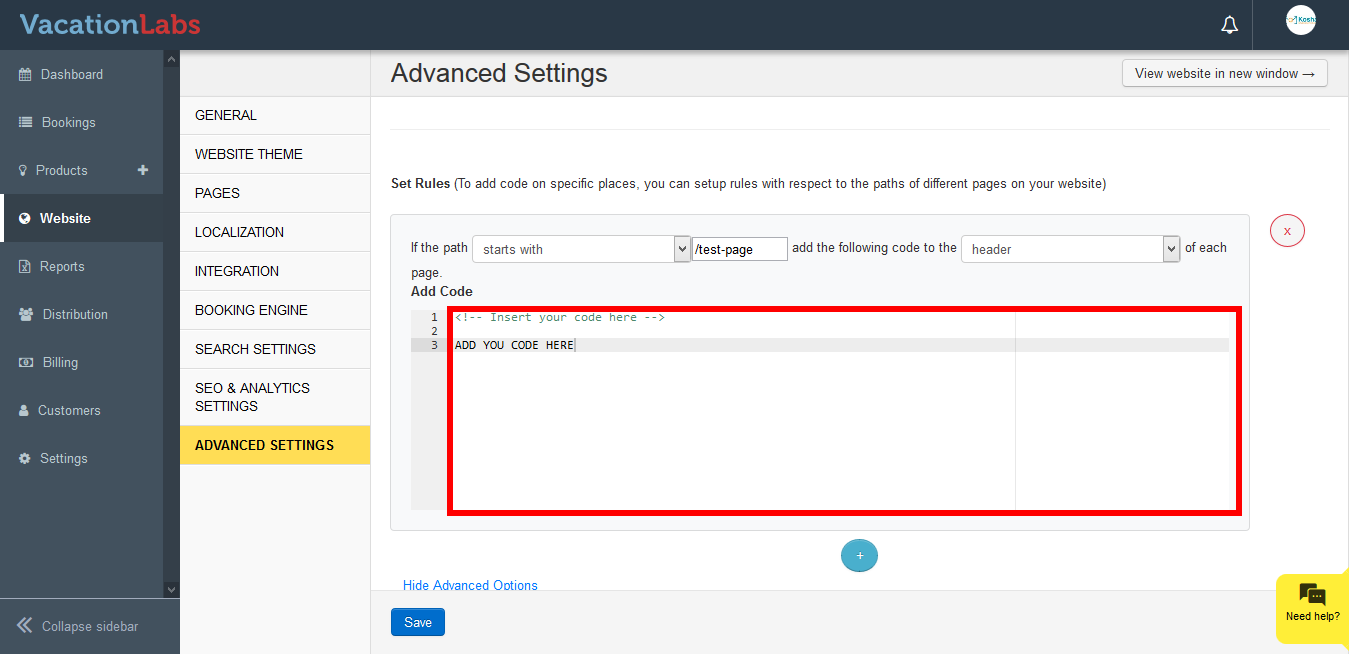
Enter the code in the **Text Box
 **
** -
Click on Save
Tip
Click on Add Rule to add multiple rules and target multiple pages simultaneously.
What’s Next?
Planning to add chat widget on your website? We would recommend you to read our support article on How to add a 3rd party chat widget on the website?