Adding sliders to the homepage banner
Overview
Vacation Labs lets you add multiple banner slides to your website (Homepage, Static Page, etc.) so you can showcase products in the first fold of the page. You can display different types of sliders, such as:
- Tour Slide – Shows tour details like Name, Image, Duration, and Price.
- Collection Slide – Shows collection details like Name, Image, Price, and Total Tours in the Collection.
- Promotion Slide – Shows coupon details like Name, Image, and Coupon Code.
- Custom Slide – Lets you add an image, button with a custom link, headline, and tagline.
Steps to Add Sliders to the Homepage:
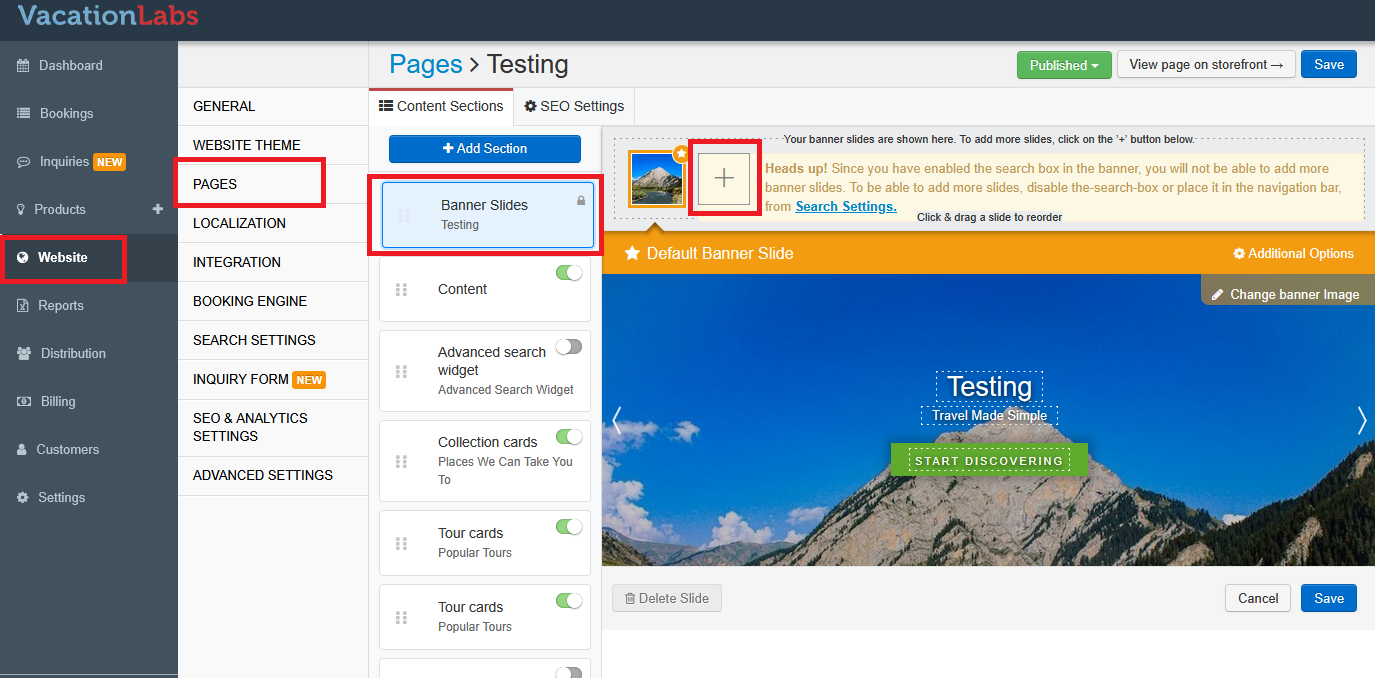
To add a banner slide to your homepage, log in to Vacation Labs and navigate to Website > Pages > Homepage > Banner Slides and Click on the + to add a slide
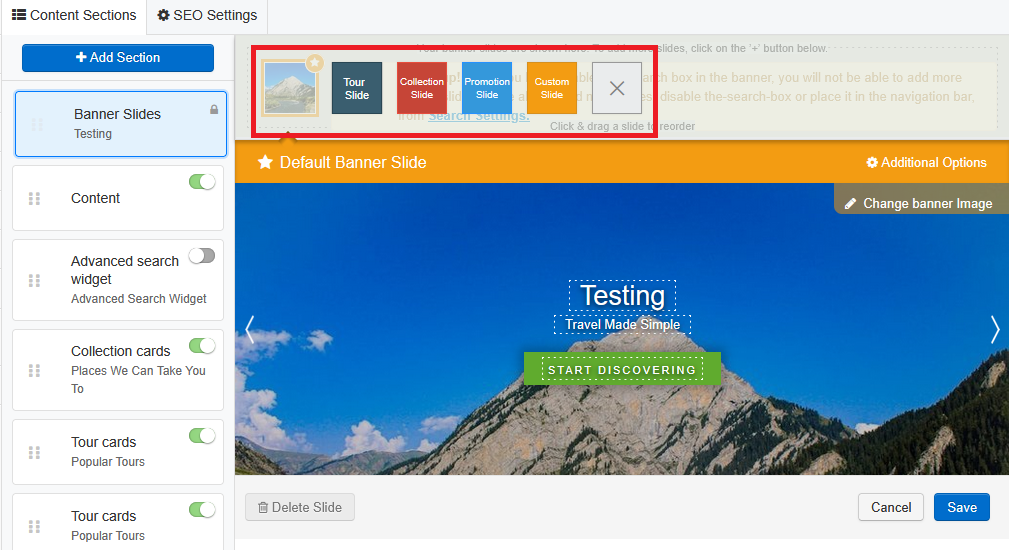
Choose the type of slider you want to display (Tour, Collection, Promotion, or Custom), edit the slide details as required, and then click Save to apply the changes
Tip
When adding a banner image to the homepage banner, you need to set the focus point on the image so that it can be viewed properly across all devices. To learn more about banner images and focus points, please click here.
What’s Next?
You can also display a video on Banner slide for your Homepage, read our article on Setting up Video on Auto Play on the homepage