Connecting your Vacation Labs account in Zapier
Overview
There are two ways in which you can connect your Vacation Labs account with Zapier. Both differ only in terms of the starting point / starting screen. The end-results will be similar:
- In the Apps section, independently of creating a workflow
- While creating a workflow
Via Apps > Create new connection
-
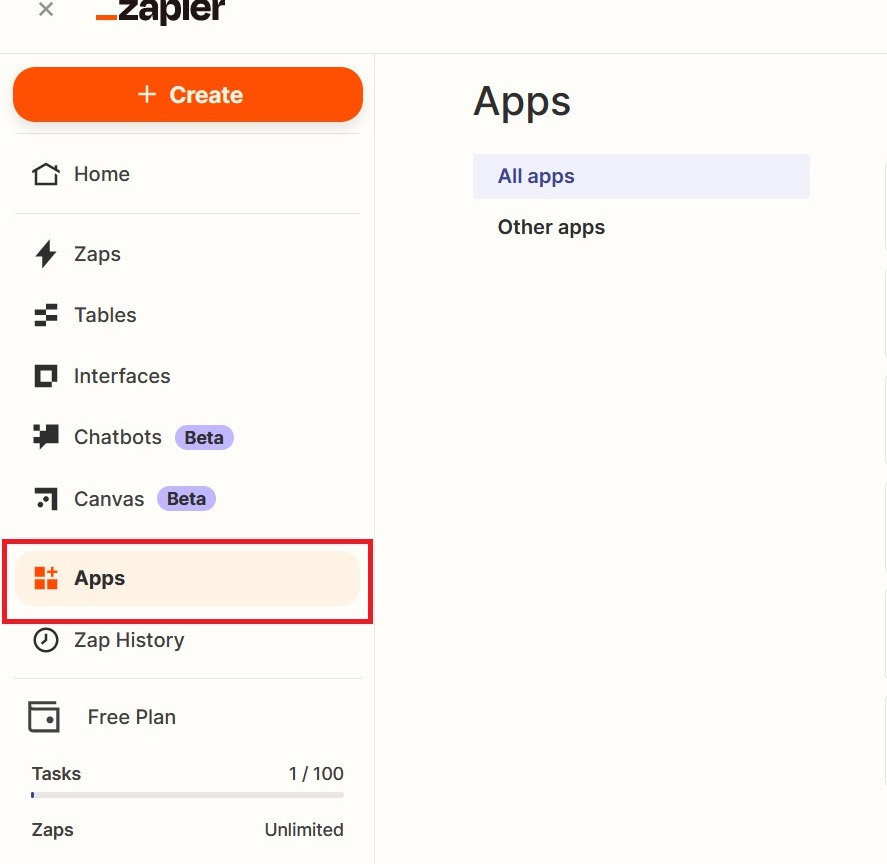
Login to Zapier and click on Apps (refer screenshot below)
-
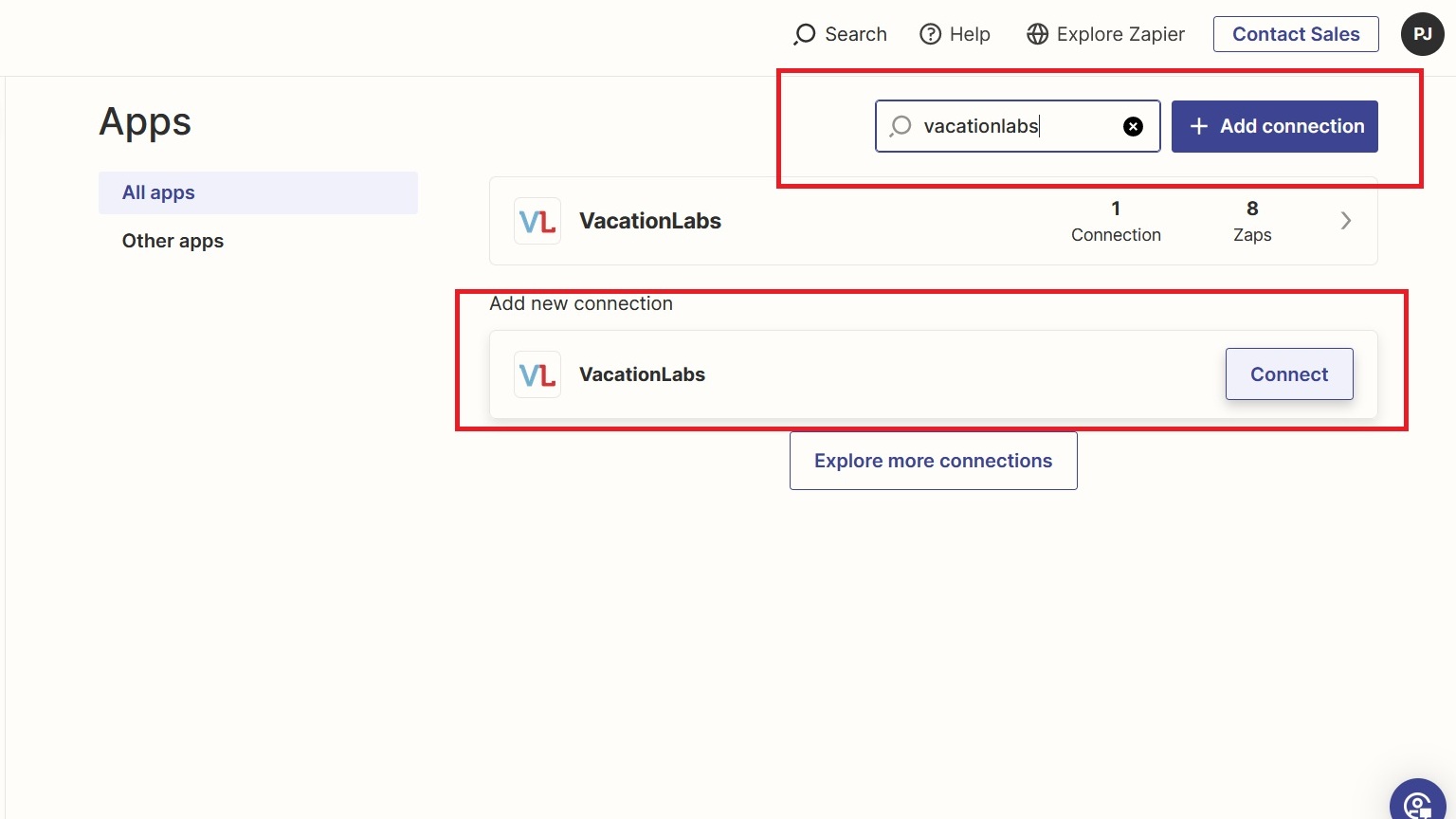
In the search box type VacationLabs and click on Connect (refer screenshot below)
-
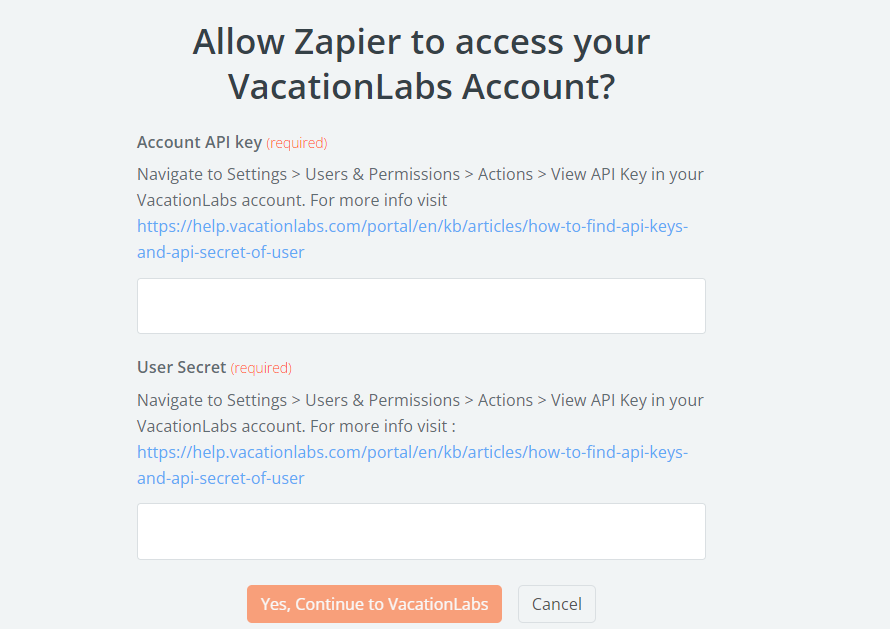
A pop will appear asking you to enter the Account API Key and User Secret along with the steps of where to get it, paste the same and click on Yes Continue to VacationLabs (refer screenshot below)
Info
Please CLICK HERE to get detailed instructions on how to get you Vacation Labs API Key and User Secret
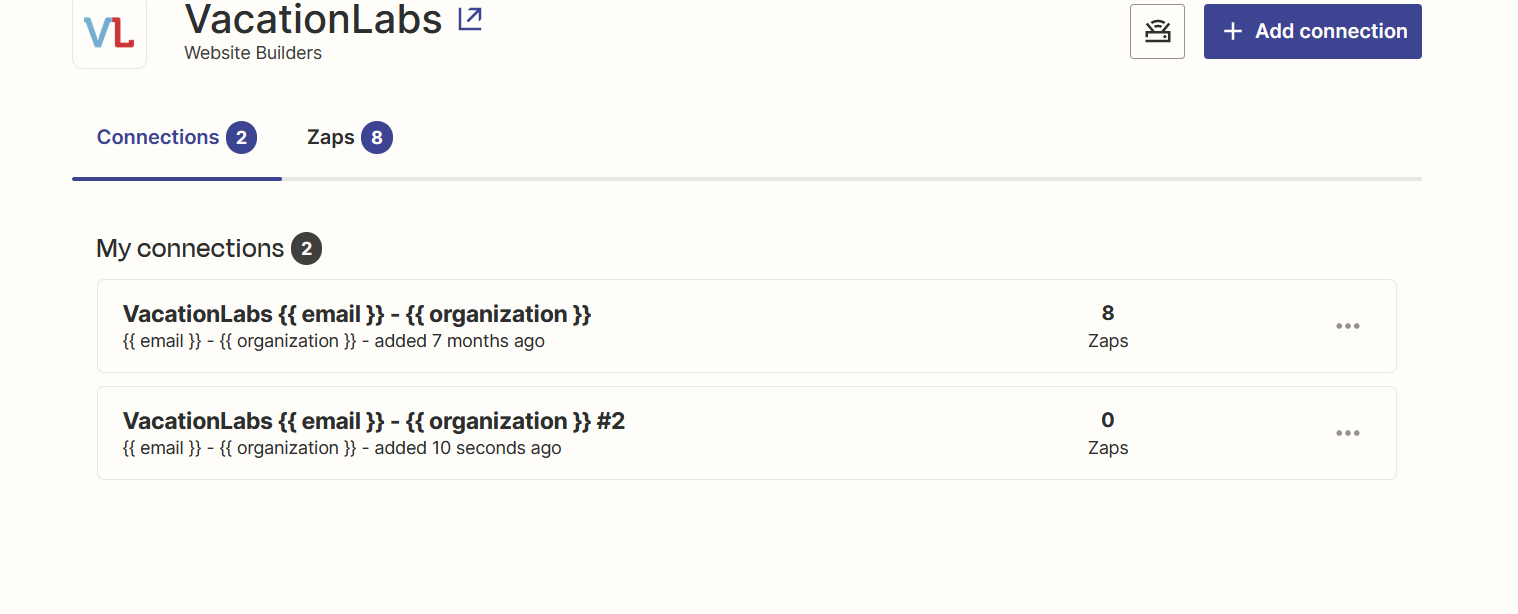
4. After which the account will get added successfully and appear something like this (refer screenshot below)
While creating a new workflow
-
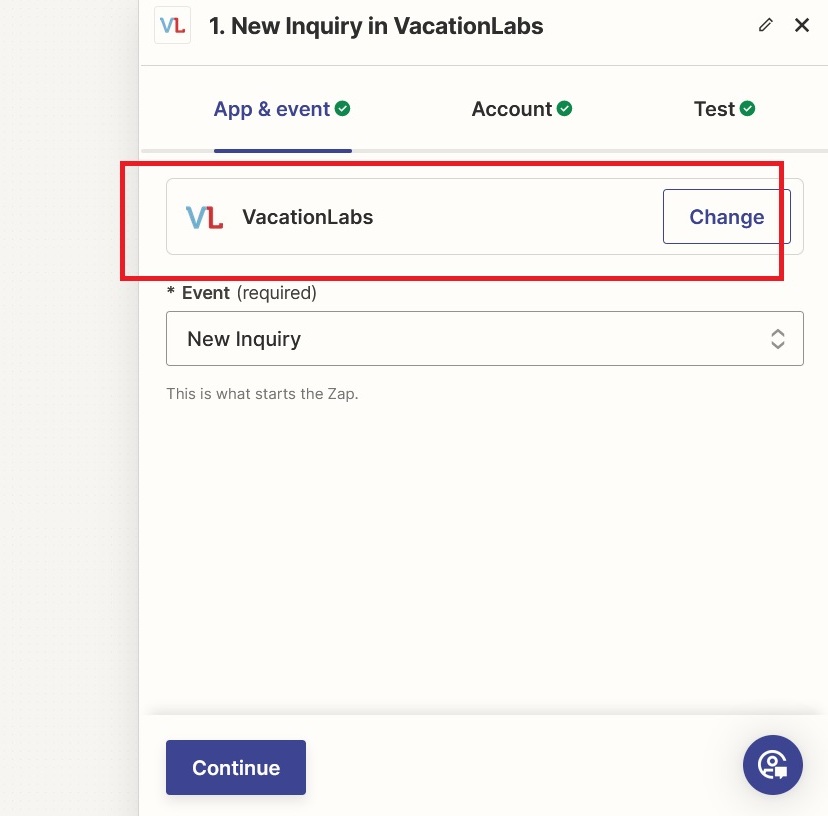
While creating a workflow, after you have selected the app as Vacation Labs:
-
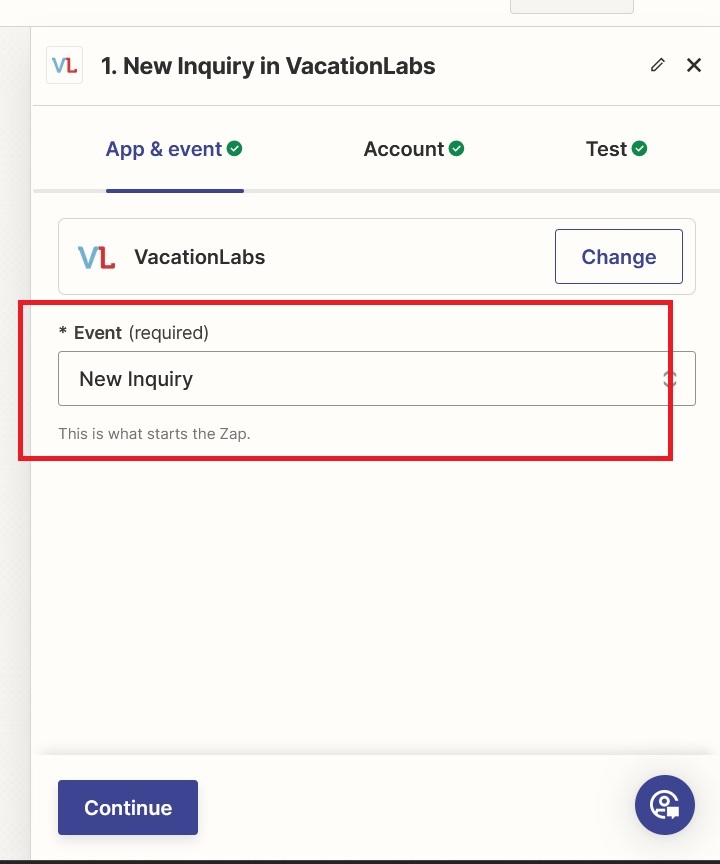
And selected and event to trigger the workflow, In this instance we have selected “New Inquiry” as the event (refer screenshot below)
-
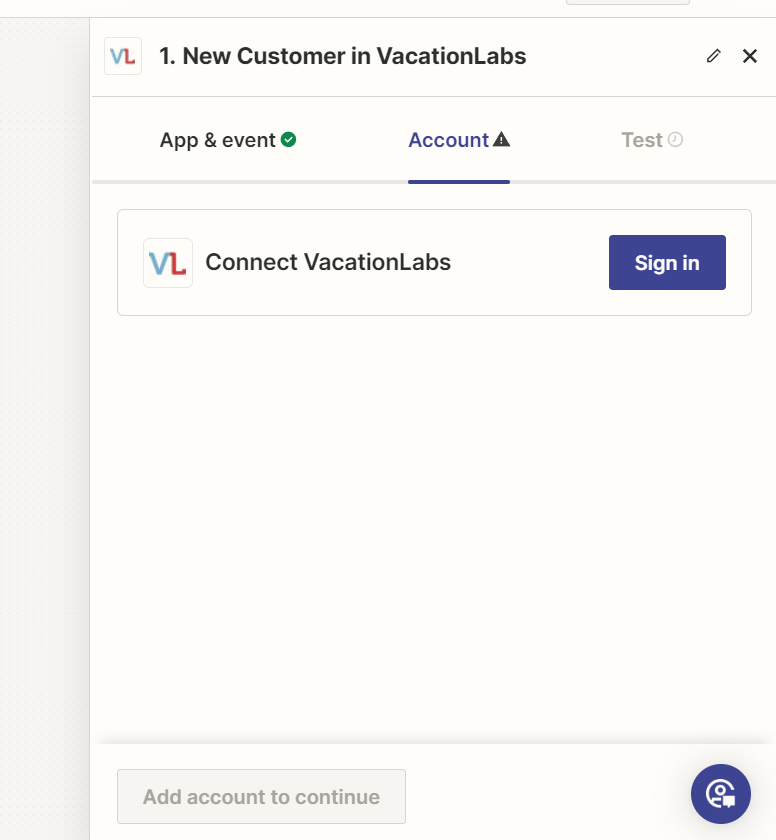
You will be directed to next step which is adding your Vacation Labs Account. Click on the Sign in button (refer screenshot below)
-
A pop will appear asking you to enter the Account API Key and User Secret along with the steps of where to get it, paste the same and click on Yes Continue to VacationLabs (refer screenshot below)
Info
Please CLICK HERE to get detailed instructions on how to get your Vacation Labs API Key and User secret
4. After which it will appear something like this (refer screenshot below) and click on Continue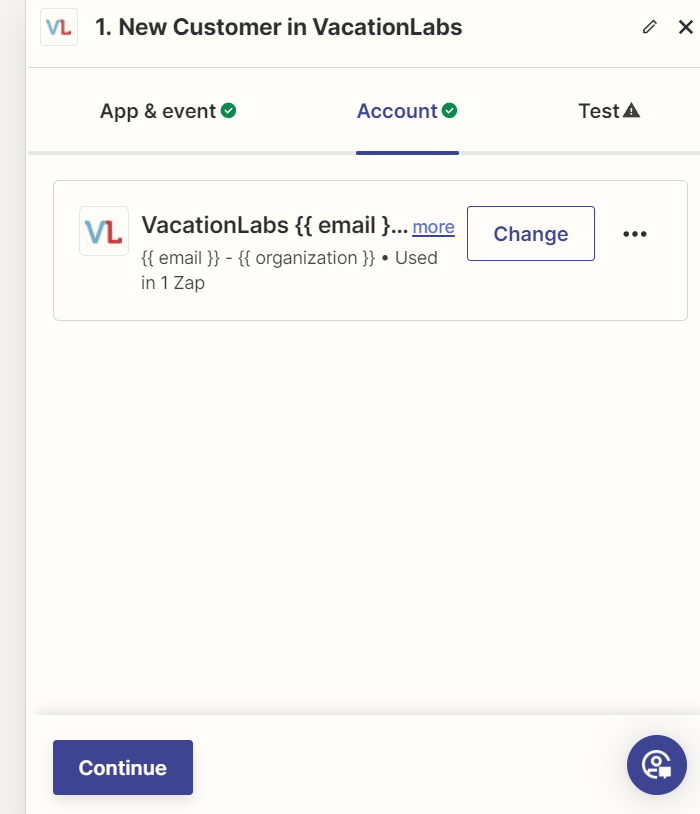
Now your Vacation Labs account has been connected with Zapier