How to send emails using a Custom SMTP server
An SMTP server is a mail server that you can use to send an email. It stores your messages and ensures that your messages are either delivered or returned to you with a failure message.
Overview
- Benefits of using custom SMTP for emails
- Steps to set up custom SMTP details in Vacation Labs
- Checking the SMTP details and mail deliverability
Advantages of using Custom SMTP
You can set up a custom SMTP inbox in Front, meaning you want to use your own server to send messages , this can be done for the following scenarios:
- Better Email Deliverability : The mails being sent out by your own will have a higher chance of landing up in the Inbox as compared to when the mails are sent out by our servers on your behalf.
In case the mails are sent by our servers on your behalf some email hosts might treat them as promotional emails or spam
-
Emails will show up on your Sent folder allowing you to have access and monitor them as desired.
-
Receiving Immediate notifications of bounced emails (when customer has entered a wrong email address).
Configuring a custom SMTP server in your Vacation Labs account
Info
You will need various settings for your Custom SMTP to proceed with the steps given below. If you don’t already have them, please read how to get SMTP settings for some common email providers (like BigRock, Gmail, GSuite, GoDaddy, Microsft 365, etc)
You can set up a custom SMTP server by following these steps:
-
Login into your Vacation Labs Account
-
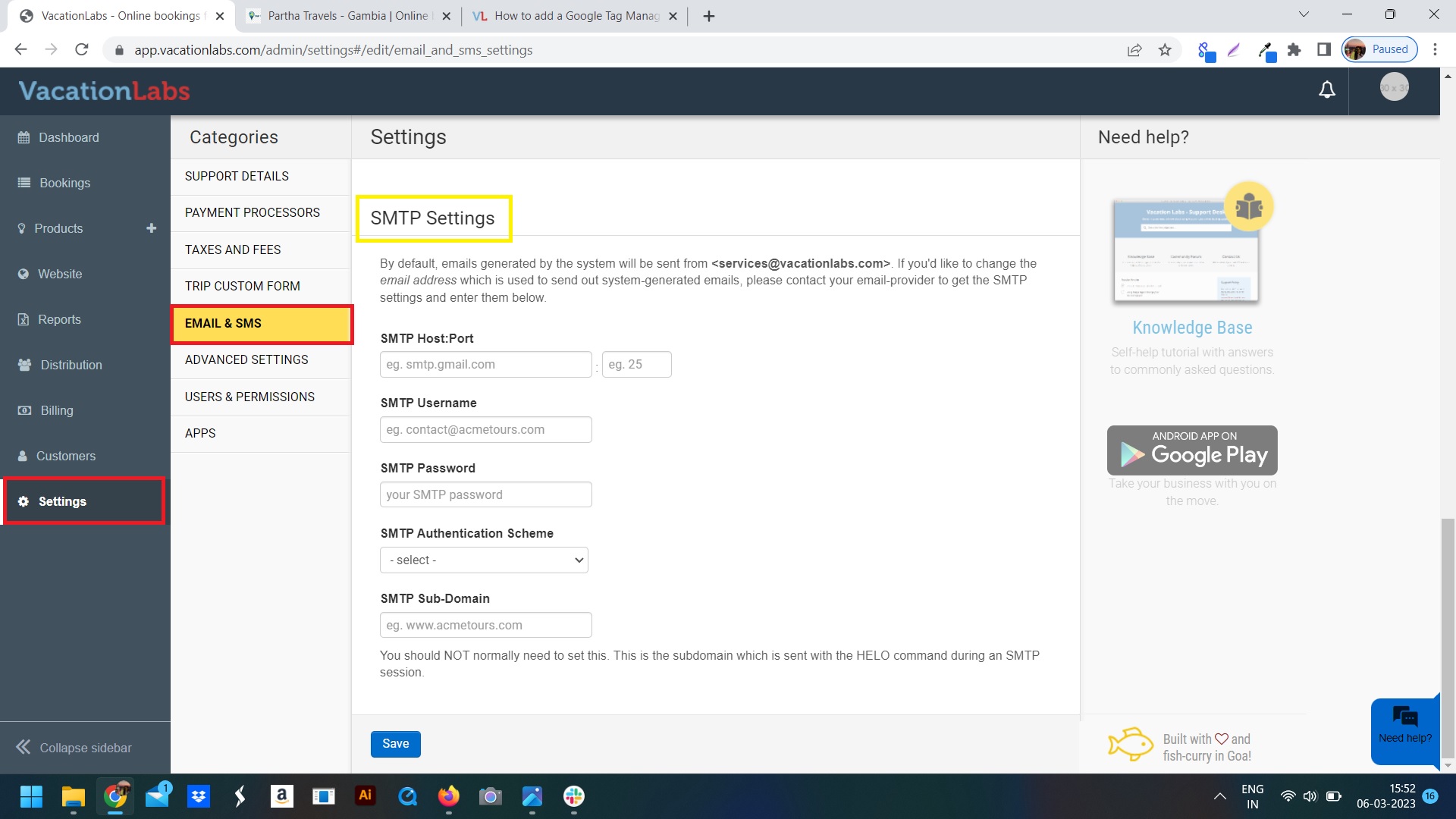
Go into the Settings > Email and SMS Section and scroll down till you find the SMTP Settings (refer the screenshot below)
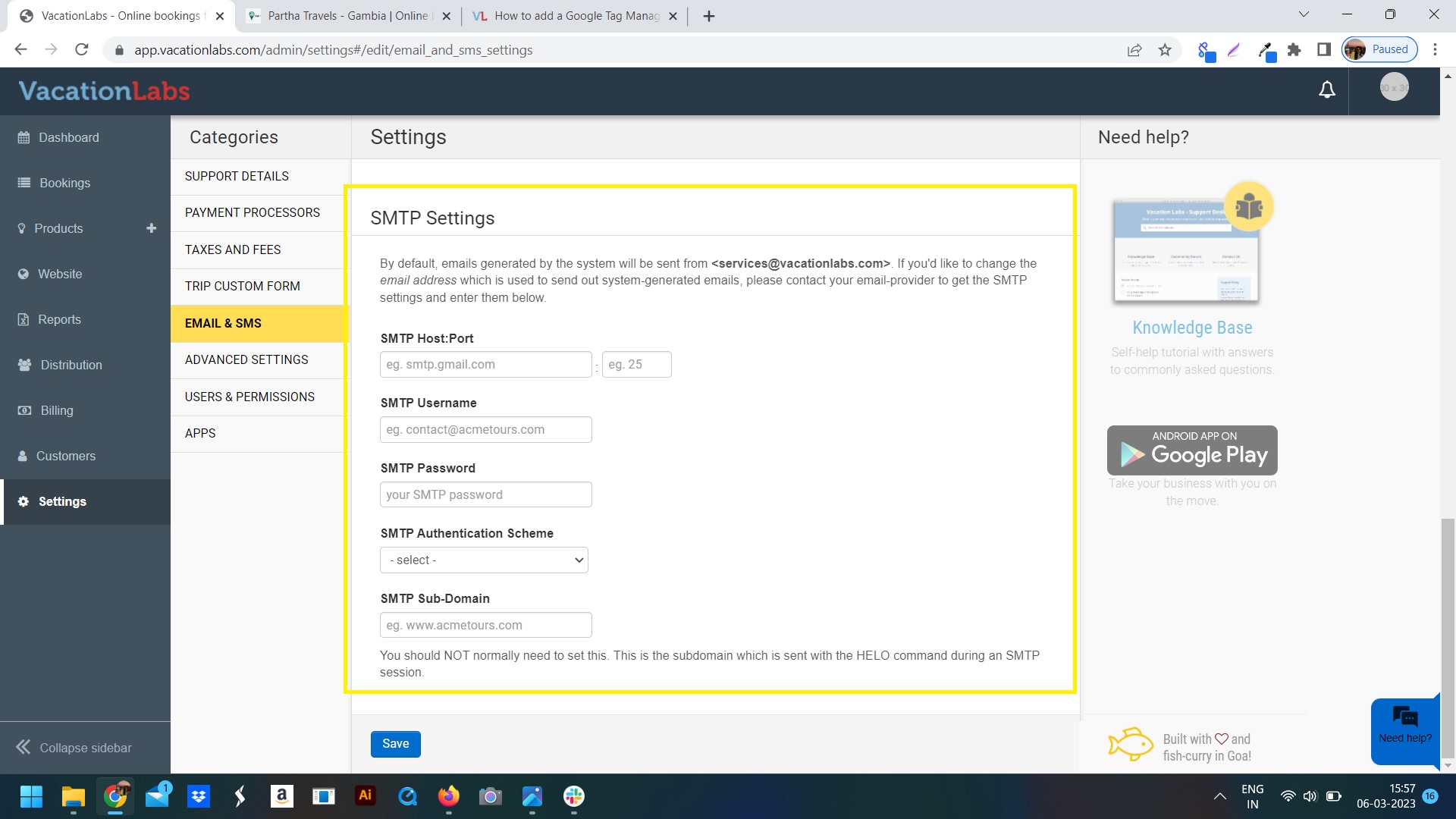
3. Add the custom SMTP server details such as Host, Port No., Username, Password and Authentication Scheme (refer screenshot below)
Warning
Please ensure that the SMTP user is actually authorized to send emails using the From address (this will be your company’s support email address configured at Settings > Support Details > Support email). Most mail servers have strict rules against impersonating other users.
4. Don’t forget to SAVE the changes you have made.
Checking the SMTP server
- In this section we will basically trigger an email from the system and ensure that is getting delivered successfully. You can trigger any email (booking confirmation, booking cancellation, payment request, etc) for this purpose. In this section we will walk through a tour-inquiry email
Info
Please CLICK HERE to get detailed instructions on how to enable the Inquiry form for trips
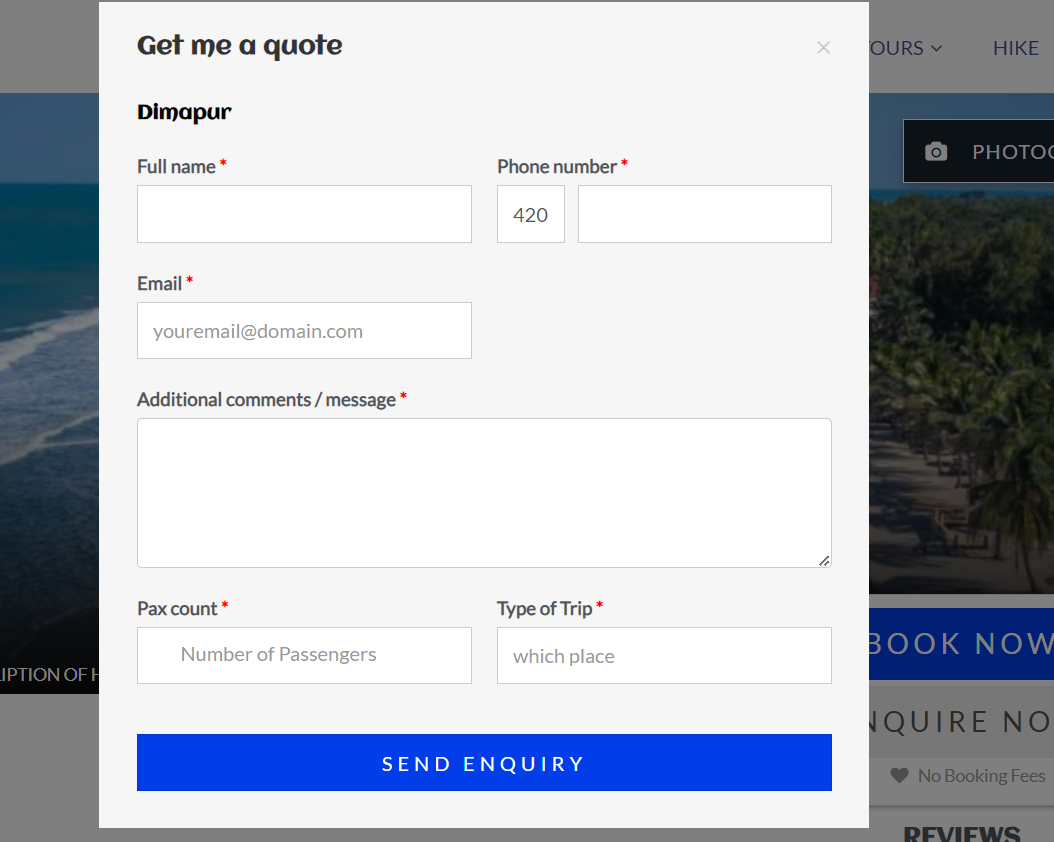
2. On that trip click on the Enquire Now button and fill all the details and click on Send Enquiry (refer screenshot below)
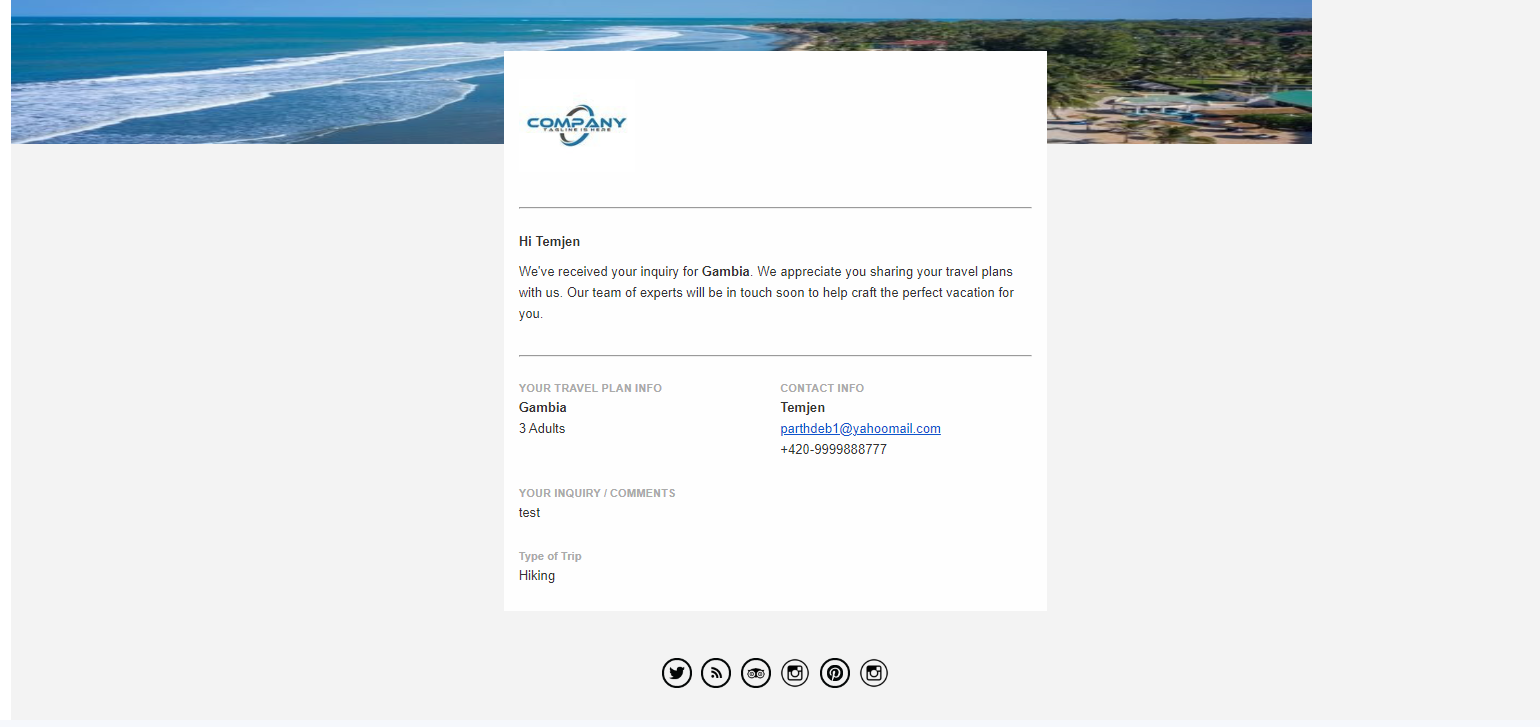
3. Wait a few seconds and check TWO inboxes to confirm that the inquiry notification has arrived at both the places: (a) the email that you entered on the inquiry form itself, and (b) the support email address that you provided for your company when configuring your Vacation Labs account. Here’s what the inquiry notification should look like: