Disconnecting or changing the Google Analytics account
SEO & Analytics
Updated
If a new domain/property has been created using the same gmail address which is already connected under SETTINGS
To connect the new Google Analytics property,
- Login into Vacation labs
- Click on Website
- Click on **SEO & Advanced Settings
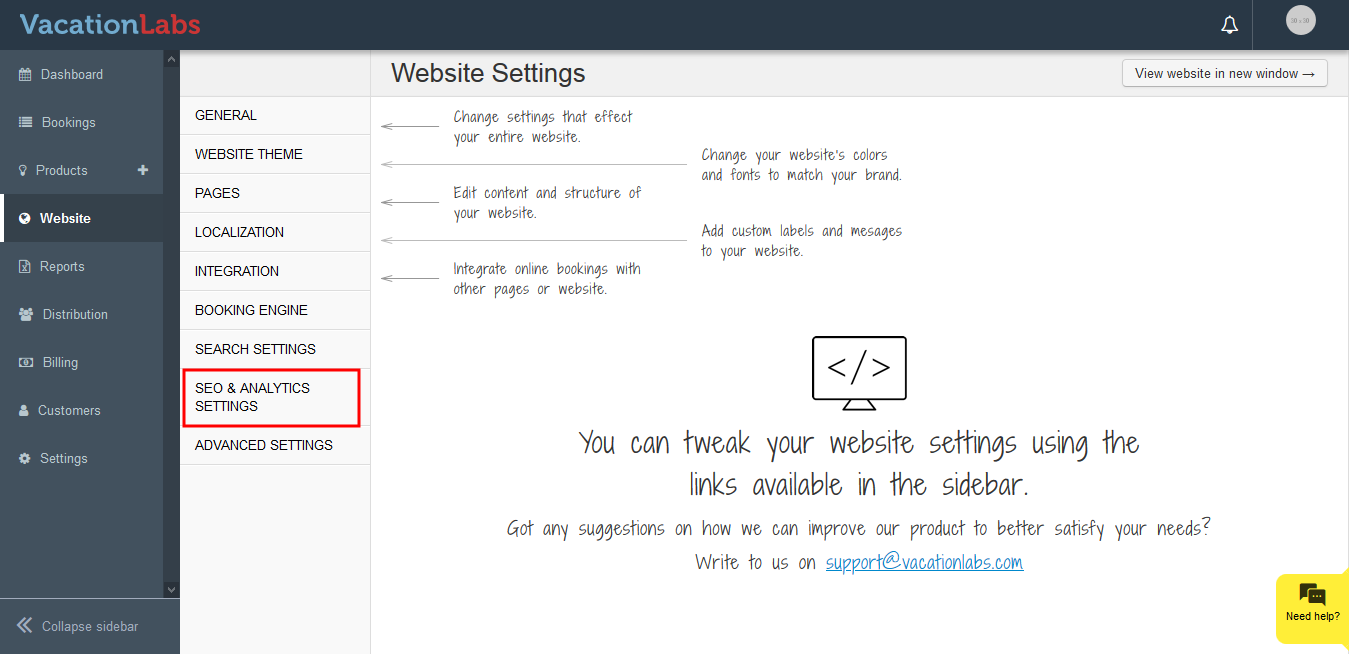 **
** - Now click on **Change/Remove Integration
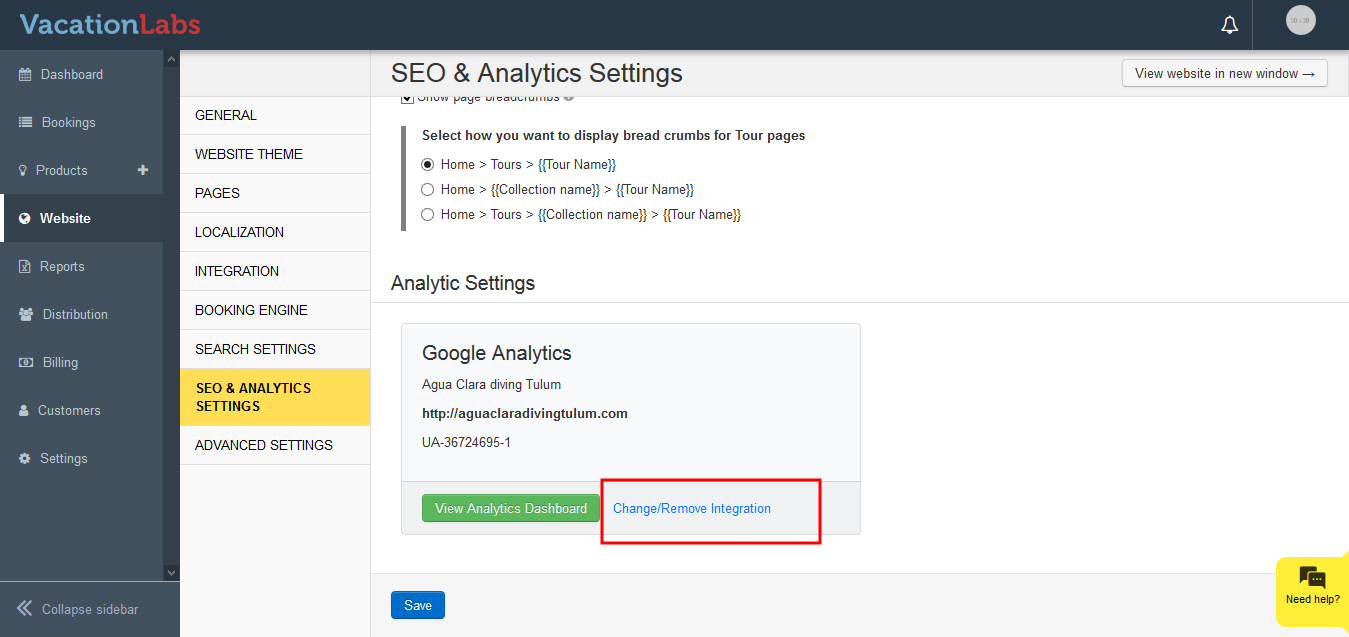 **
** - Under Analytic Settings click on **Select Analytic Property
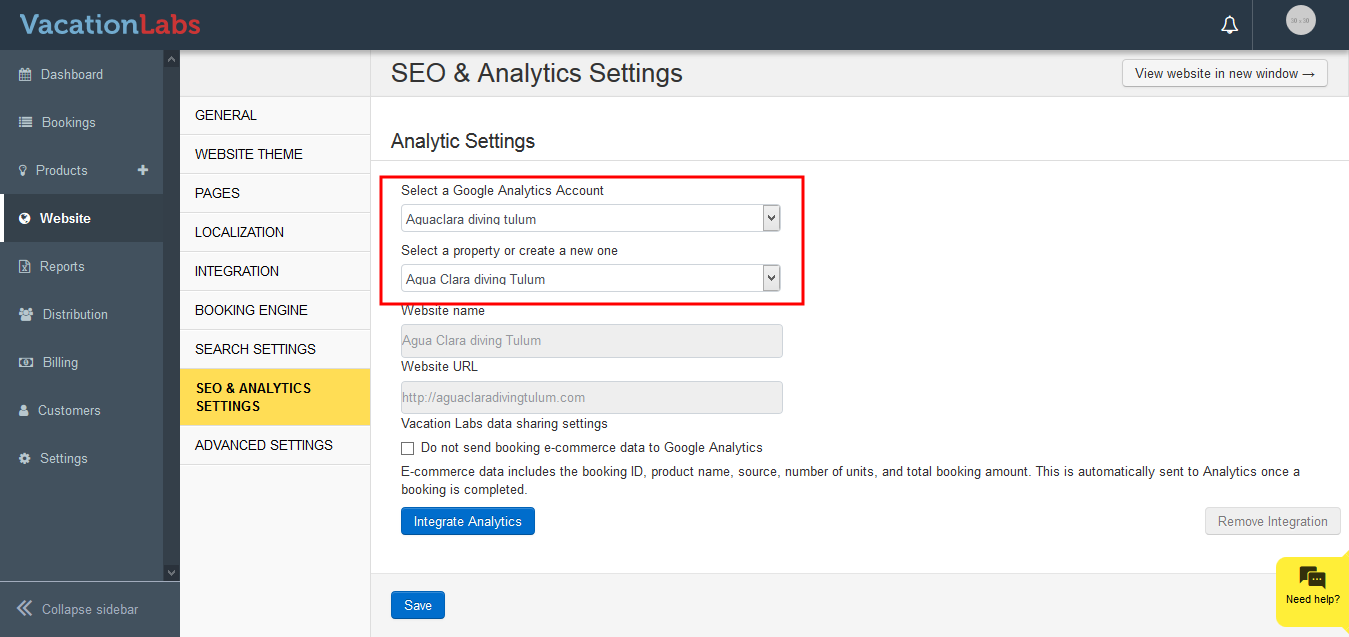 **
** - Select the new property that you wish to link
- Click on Integrate Analytics
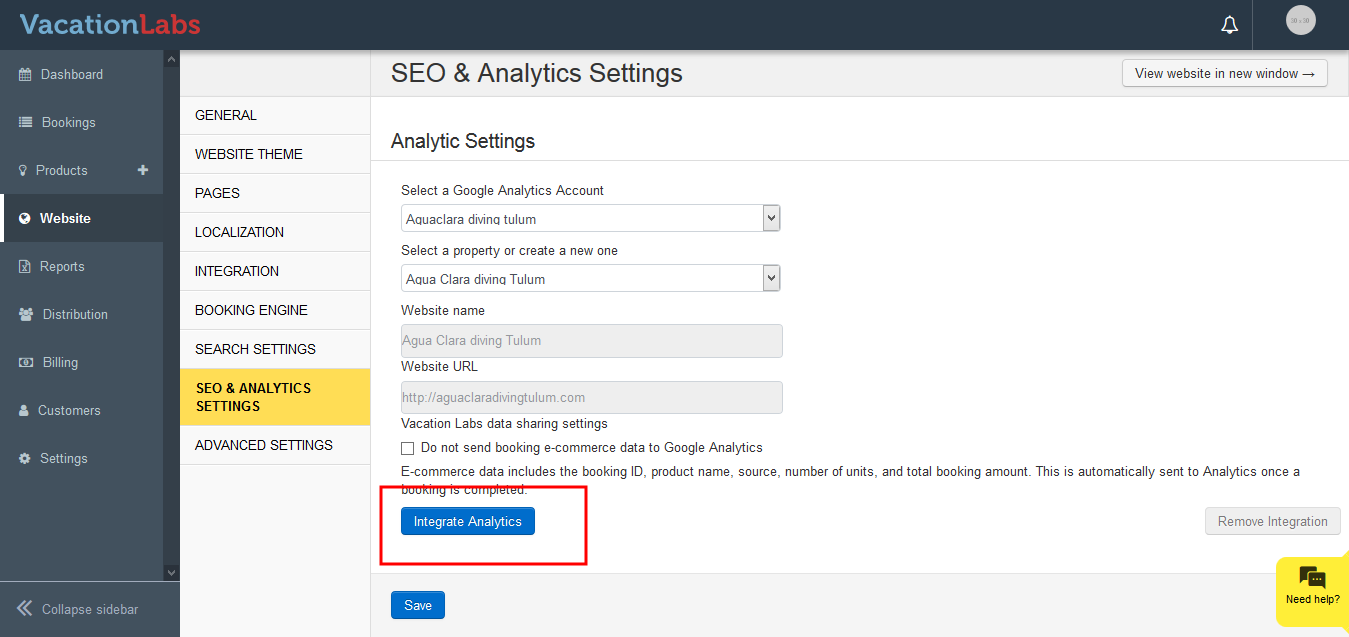
- Click on Save
If a new domain/property has been created using a new gmail address which is not connected under SETTINGS
To connect the new Domain which has been created using new gmail address
-
Login into Vacation labs
-
Click on Settings
-
Click on Apps
-
Click on Disconnect to disconnect the current email
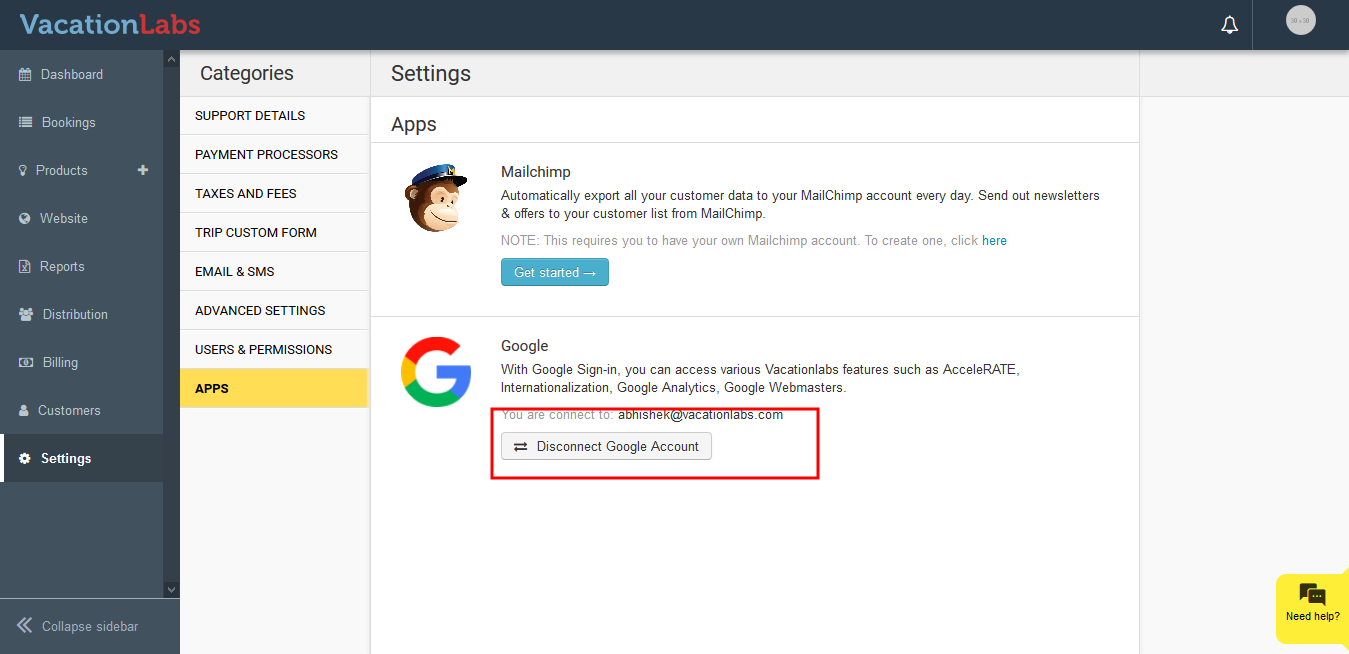
-
Click again on connect to connect the new email id
Now follow the steps mentioned on our support article Connecting Google Analytics to your Vacation Labs Website to connect the new domain/property.
Tip
Remember to always “Save Changes” and you will need to publish your website to push your changes live.
Alternatively, you can manually connect Google to your Vacation Labs website in Advance Settings using a unique code supplied to you by Google.
Related articles
Adding/Modifying Meta Title & Meta Description (Page SEO) for Static Pages Enabling Breadcrumbs Connecting Google Search Console to your Vacation Labs Website Adding/Modifying Meta Title & Meta Description (Page SEO) for Tour Pages Adding/Modifying Meta Title & Meta Description (Page SEO) for Collection Pages