How to enable Pre-Trip email for a tour?
Overview
- How to Set Up a Pre-Trip Email
- Adding Email Content
- Choosing When to Send the Email
How to Set Up a Pre-Trip Email
A Pre-Trip email can be used to share special instructions or reminders with your customers before their trip begins.
By default, Pre-Trip emails are inactive and need to be manually set up for each trip.
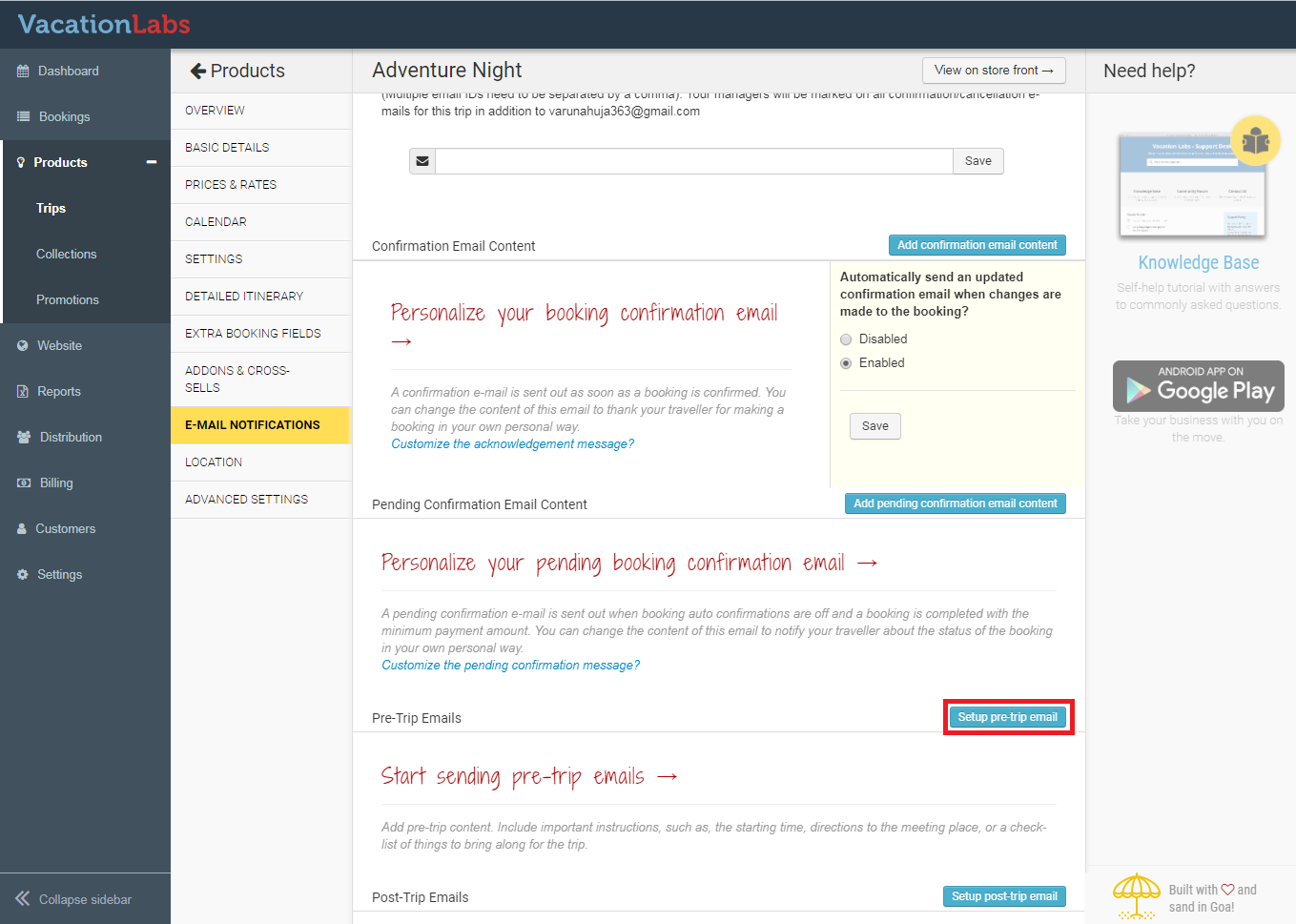
To set up a Pre-Trip email, log in to your Vacation Labs admin panel and navigate to Products > Trips. Edit the trip you want to update, then go to the Email Notifications section and select Setup Pre-Trip Email****s.
Adding Email Content
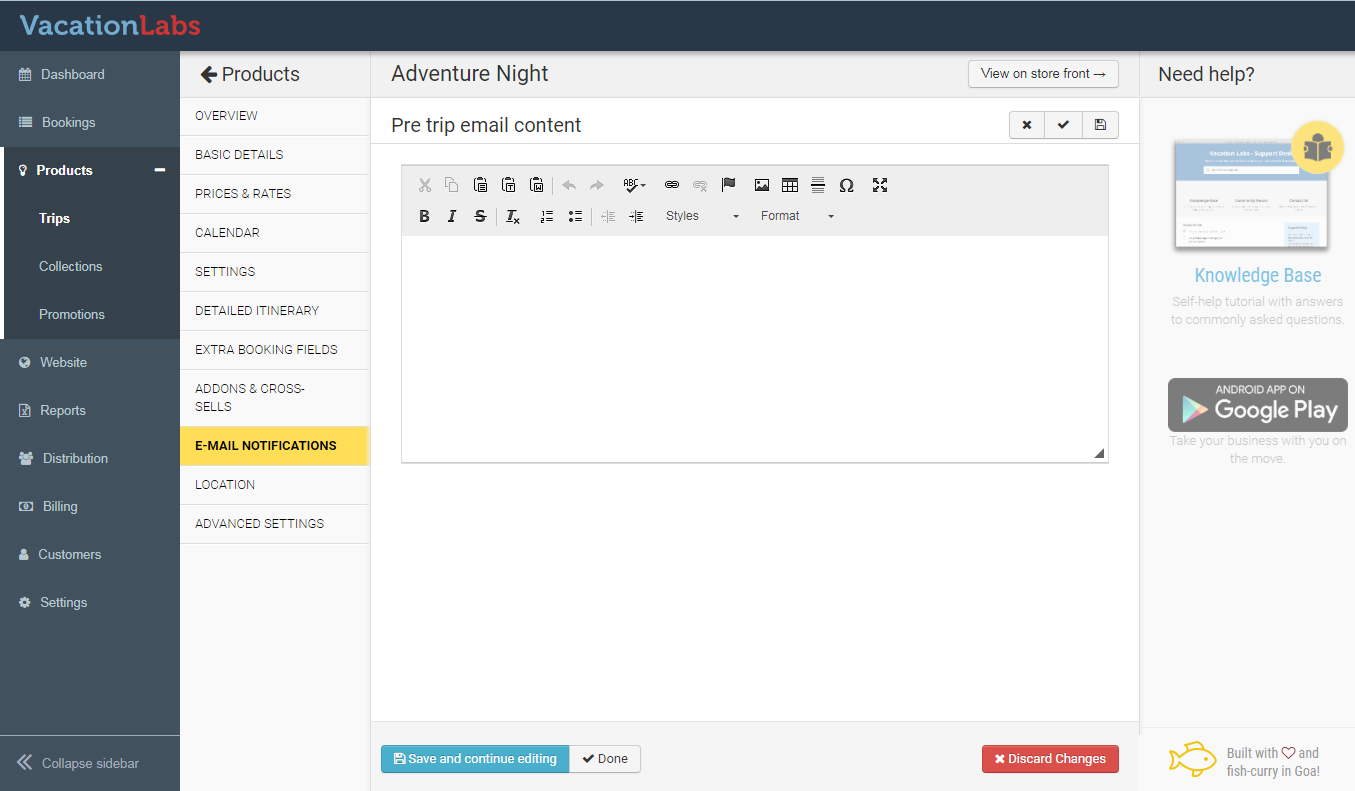
After clicking the Setup Post-Trip Email button, a blank content field will appear where you can write your own message.
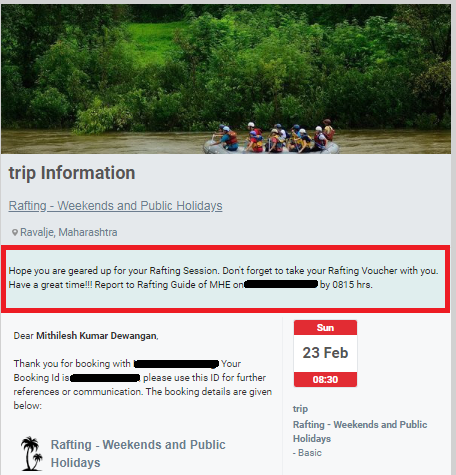
Please notice the highlighted instructions (in red) in the sample pre trip email below:
You can use merge tags like {{name}}, {{trip_name}}, and {{departure_date}} to automatically insert customer and trip details into the email when it is sent.
When your email content is ready, click Done to save it.
Choosing When to Send the Email
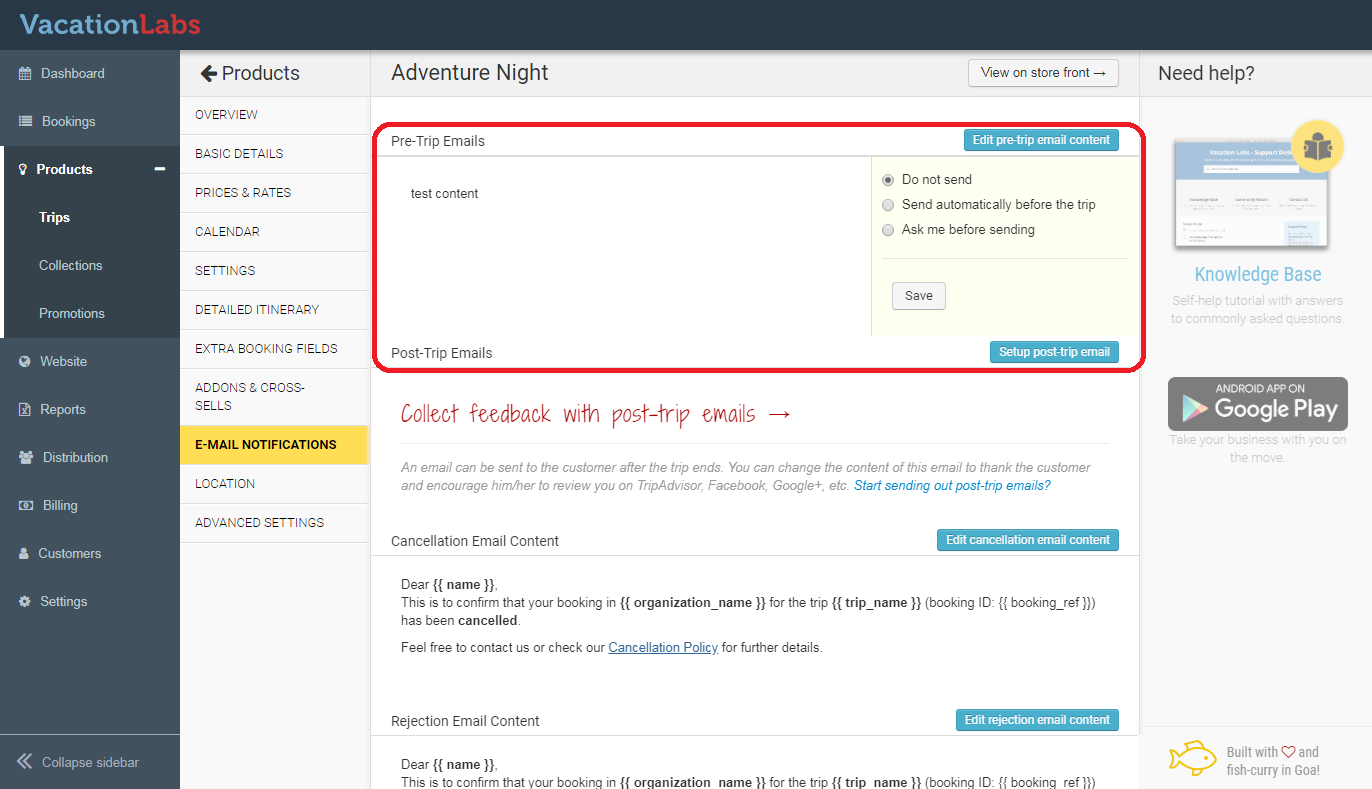
You will now see the saved email content along with options for how it should be sent:
- Do Not Send – The Pre-Trip email will not be triggered.
- Send Automatically Before the Trip – Lets you set how many hours before the trip starts the email should be sent automatically.
- A****sk Me Before Sending – The email will not be sent automatically. Instead, a notification will appear in your Vacation Labs admin panel (bell icon), allowing you to decide manually whether to send it.
Once saved, all new bookings for that trip will follow the Pre-Trip email settings you configured.
Warning
Please note: Pre-Trip email settings apply only to bookings made after the setup is saved. Existing bookings will not be affected