How to add Alt tags to Images?
Alt tags (also known as alt text, alt descriptions, or photo captions) are important for both your visitors and your website’s visibility in search engines like Google.
-
For Users: If an image fails to load, the alt text is displayed in its place. It is also read aloud by screen readers for visually impaired users, making your website more accessible.
-
For SEO: Alt text helps search engines understand the content of your images, which can help your website rank better in search results.
This guide will walk you through adding or editing alt tags for images in your Vacation Labs account.
Steps to Add or Edit an Image Alt Tag
Step 1: Locate and Select the Image
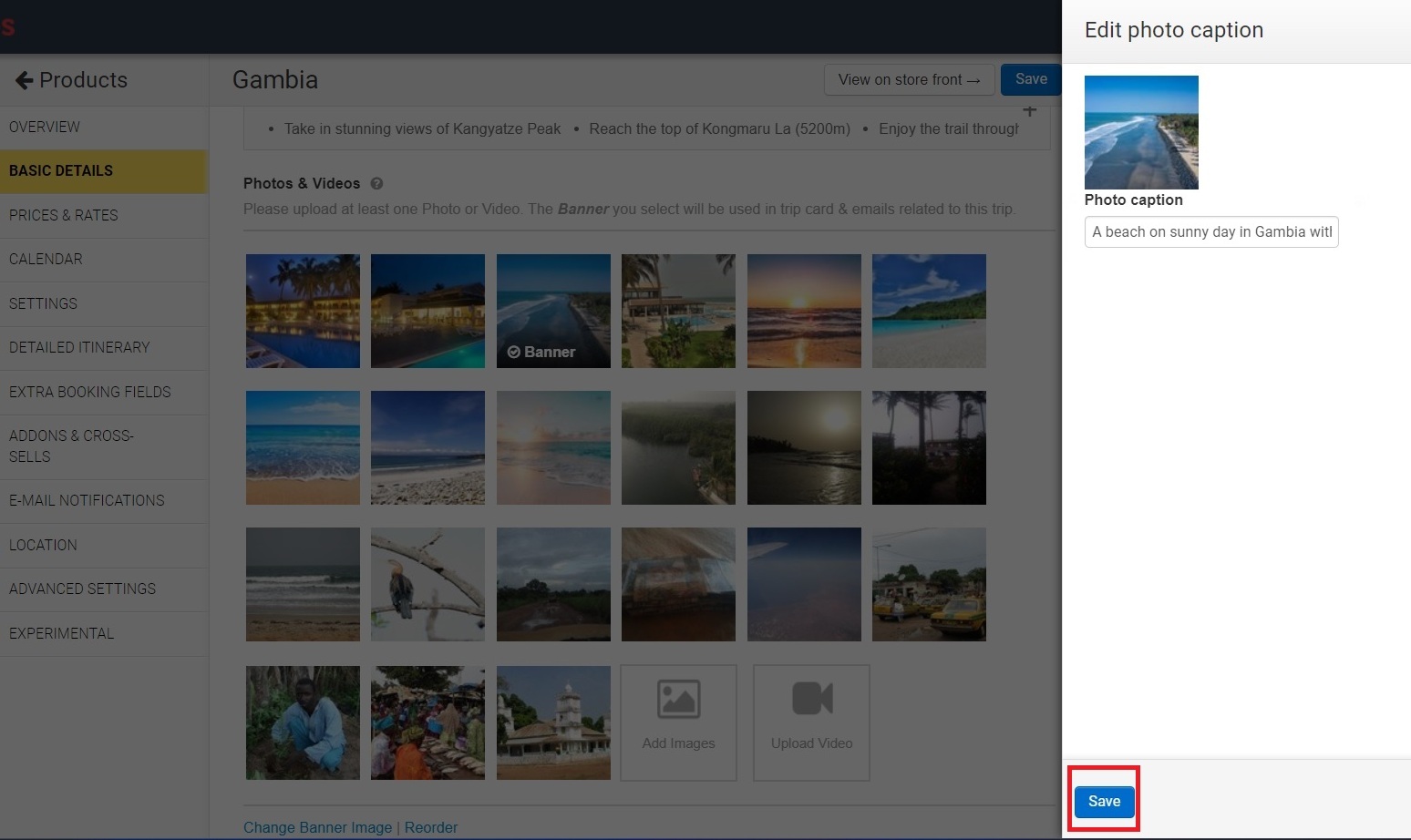
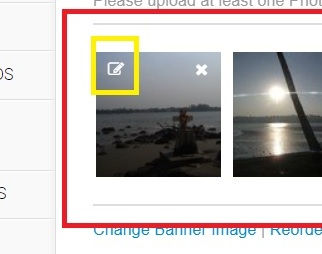
Navigate to the page in your BackOffice/Admin where the image is located (ex: trip, collections etc) . Once you find the image you want to edit, click on the Edit Description icon (a pencil icon) that appears when you hover over the image.
Step 2: Enter Your Descriptive Alt Text
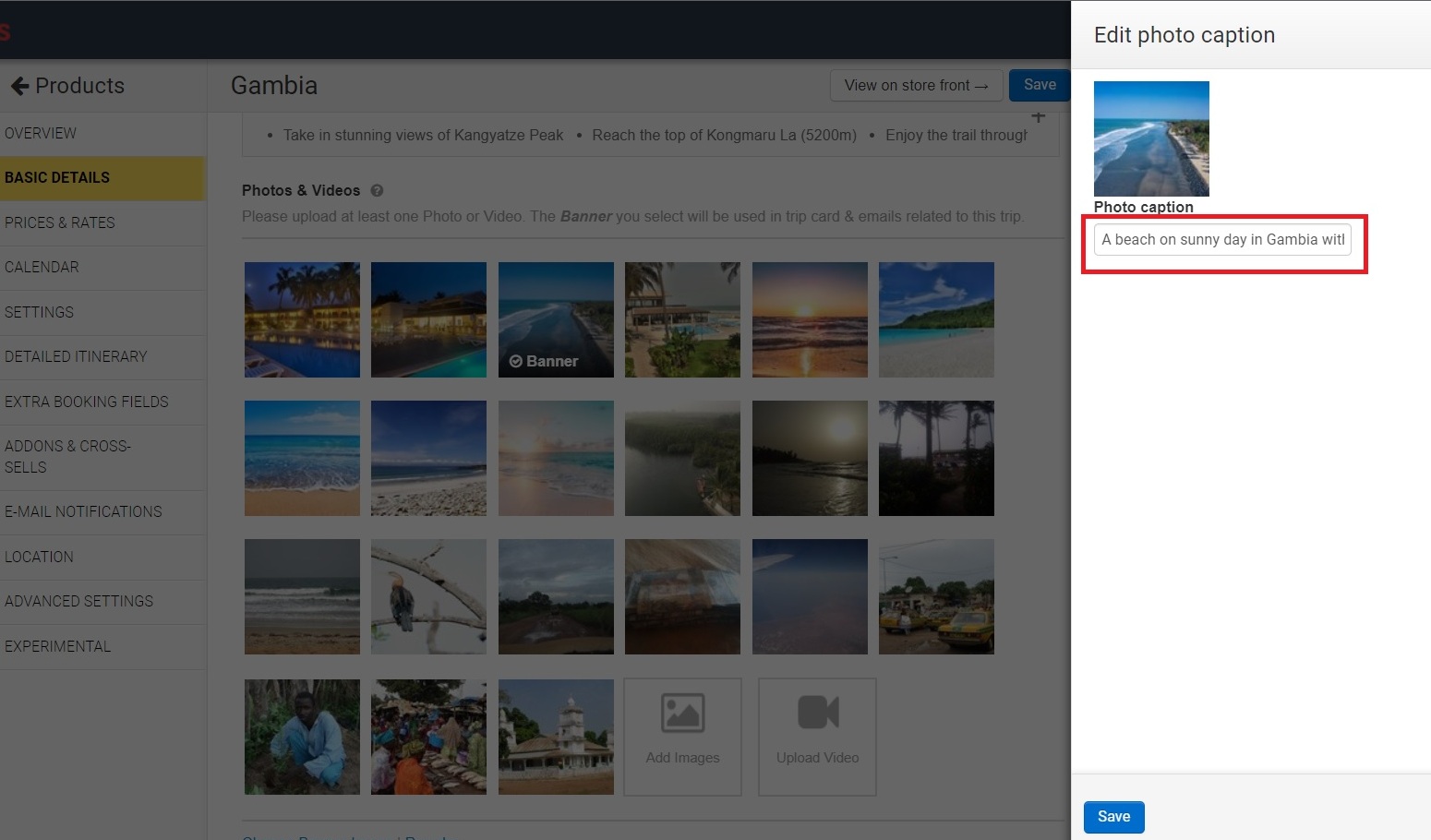
Clicking the edit icon will open a new text field labeled “Photo Caption”. In this box, type a clear, concise description of the image.
-
Good Example:
A family kayaking on a serene blue lake during sunset -
Bad Example:
IMG_12345.jpgorkayak photo
Step 3: Save Your Changes
After you have written your descriptive alt text, click the Save button to apply the changes to the image. The alt tag is now active.