How to deactivate/delete/unlist a trip
This guide explains how to change the status of a trip in your Vacation Labs account. You may need to do this to temporarily stop bookings, update trip details, or permanently remove a discontinued trip.
Key Differences: Deactivate vs. Unlist vs. Delete
It is important to understand the effect of each action before proceeding
<table class="noBorderWithRowOddColor" cellspacing="0" cellpadding="0">``<tbody>``<tr>``<td>``<div class=" align-center">``<b>Action</b>``</div>``</td>``<td>``<div class=" align-center">``<b>Effect on Public Visibility</b>``</div>``</td>``<td>``<div class=" align-center">``<b>Effect on Bookings</b>``</div>``</td>``<td>``<div class=" align-center">``<b>Effect on Search Engines (Google)</b>``</div>``</td>``<td>``<div class=" align-center">``<b>Data Recovery</b>``</div>``</td>``</tr>``<tr>``<td>``<div class=" align-center">``<b>Deactivate</b>``</div>``</td>``<td>``<div class=" align-center">The trip is completely hidden. Anyone trying to access its direct URL will see a “Page Not Found (404)” error.</div>``</td>``<td>``<div class=" align-center">Bookings cannot be made.</div>``</td>``<td>``<div class=" align-center">The trip is removed from the sitemap and will not be indexed.</div>``</td>``<td>``<div class=" align-center">The trip and all its data remain in your account and can be reactivated at any time.</div>``</td>``</tr>``<tr>``<td>``<div class=" align-center">``<b>Unlist</b>``</div>``</td>``<td>``<div class=" align-center">The trip is hidden from your public activity list and search. However, anyone with the direct URL can still view the trip page.</div>``</td>``<td>``<div class=" align-center">Bookings can still be made via the direct link.</div>``</td>``<td>``<div class=" align-center">The trip is removed from the sitemap and will not be indexed.</div>``</td>``<td>``<div class=" align-center">The trip and all its data remain in your account and can be relisted at any time.</div>``</td>``</tr>``<tr>``<td>``<div class=" align-center">``<b>Delete</b>``</div>``</td>``<td>``<div class=" align-center">The trip is permanently removed from your account and the website.</div>``</td>``<td>``<div class=" align-center">Bookings cannot be made.</div>``</td>``<td>``<div class=" align-center">The trip URL will no longer function.</div>``</td>``<td>``<div class=" align-center">This action is permanent. Once deleted, a trip cannot be recovered.<br>``</div>``</td>``</tr>``</tbody>``</table>
Note
Important: A trip with any existing bookings cannot be deleted.
Common Scenarios for Each Action
-
Use Deactivate or Unlist to:
-
Prevent bookings while you update rates, itinerary, or other important details.
-
Stop bookings during the off-season.
-
Temporarily hide a trip you plan to offer again later.
-
-
Use Delete to:
-
Permanently remove a trip you have decided to discontinue.
-
Clean up old or unused trip drafts from your account.
-
Step-by-Step Instructions to Change a Trip’s Status
Follow these steps to deactivate, unlist, or delete a trip.
-
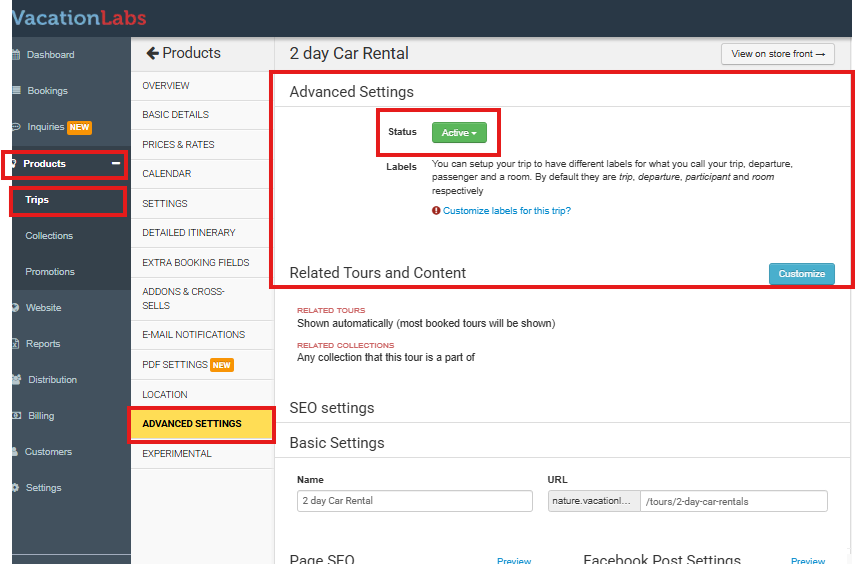
Navigate to the Trips Section Log in to your Vacation Labs account. From the main dashboard, locate and select PRODUCTS in the left sidebar menu. Then, click on TRIPS. This will display a list of all your trips.
-
Edit the Desired Trip Find the trip you wish to modify from the list. Click the EDIT button.
-
Access Advanced Settings Inside the trip editor, locate and click on the tab or section labeled ADVANCED SETTINGS.
-
Change the Trip Status In the Advanced Settings section, look for a dropdown menu labeled Status. Click this dropdown to reveal your options:
-
Active (Trip is live and bookable)
-
Unlisted (Trip is hidden but accessible via direct link)
-
Inactive/Deactivated (Trip is hidden and returns a 404 error)
-
Delete (Permanently remove the trip)
-
-
Save Changes After selecting your desired status (Unlisted, Inactive, or Delete), confirm your action by clicking the Save or Update button. The system will apply the changes immediately. Note that a deleted trip will be permanently removed from your account within 60 minutes.