How to disable a user?
This article explains how to disable a user account in your Vacation Labs CMS. Disabling a user prevents them from logging into the CMS web portal and any associated mobile apps, while preserving their data and activity history in the system.
Warning
Important: User accounts cannot be permanently deleted, but disabling them effectively revokes all access permissions.
Steps to Disable a User
Follow these steps to disable a user account:
-
Navigate to the Users & Permissions Settings.
-
From the main dashboard in your Vacation Labs CMS, locate and select the SETTINGS menu.
-
From the available options, click on USERS & PERMISSIONS. This will open a list of all current users.
-
-
Select the user you want to disable.
-
Initiate the disable action.
- Click the ACTIONS button.
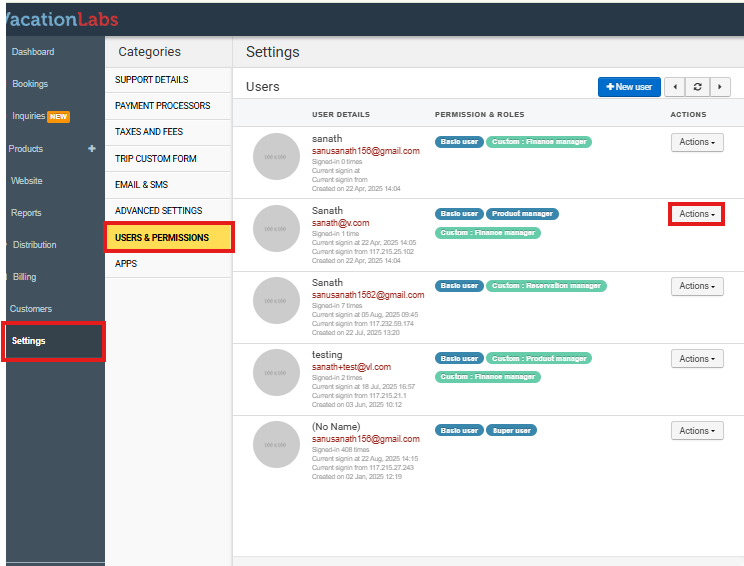
- Click the ACTIONS button.
-
Confirm the action
-
From the dropdown menu that appears, select the option labeled Disable user.
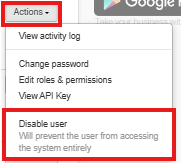
The selected user is now disabled. They will be immediately logged out of the Vacation Labs CMS on the web and any mobile apps, and will be unable to log in again until their account is re-enabled.
Next Steps & Related Information:
-
To learn how to add a new user to your account, please see our article: How to add users or team members to your account?
-
If you need to restore access for a disabled user, you can follow these same steps and select Activate user from the ACTIONS menu.