How to delete payment processor?
This guide explains the steps to permanently remove a payment processor integration (such as Stripe or PayPal) from your Vacation Labs account. Once deleted, it can no longer be used to accept customer payments.
Before you begin: Deleting a payment processor will affect any upcoming bookings set to use it. We recommend only removing processors that are no longer in use and ensuring you have at least one active payment method configured.
Steps to Delete a Payment Processor:
-
Access Your Account Settings:
-
Log in to your Vacation Labs dashboard.
-
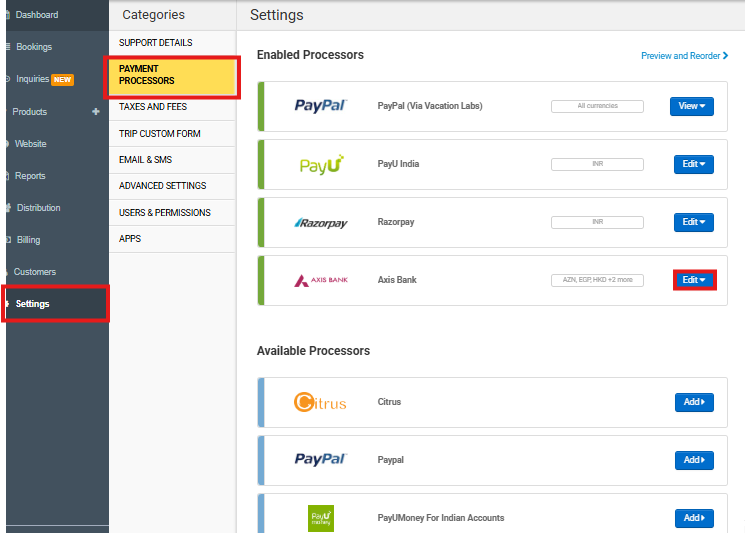
From the navigation menu on the left, click on Settings.
-
-
Navigate to the Payment Section:
- Within the Settings panel, locate and select the ‘Payment Processors’ section. This will display a list of your currently connected payment gateways.
- Within the Settings panel, locate and select the ‘Payment Processors’ section. This will display a list of your currently connected payment gateways.
-
Locate and Select the Processor to Delete:
-
Review the list of integrated payment processors and identify the one you wish to remove.
-
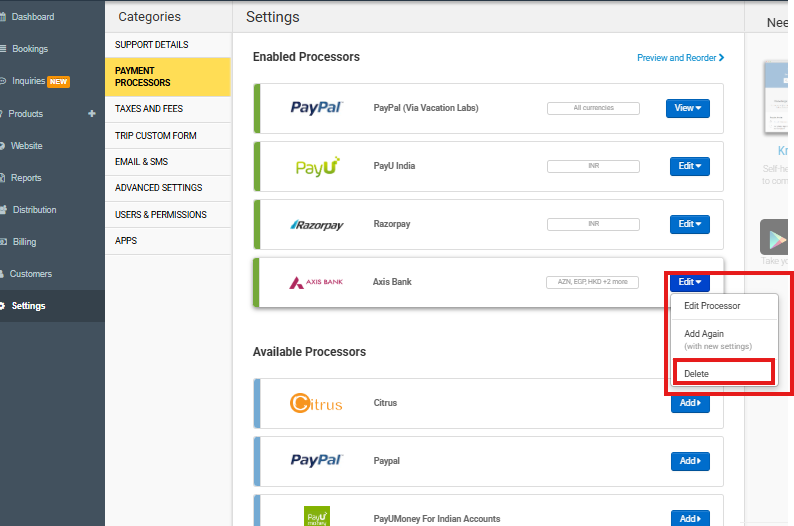
Click the ‘Edit’ button associated with that processor. This will open its settings menu.
-
-
Initiate the Deletion:
- Within the processor’s settings menu, find and click the ‘Delete’ button.
- Within the processor’s settings menu, find and click the ‘Delete’ button.
The selected payment processor will be disconnected and removed from your account.