How to Install a Third-Party SSL Certificate on Vacation Labs?
Please follow the following steps to install SSL certificate files for your website on your Vacation Labs admin panel:
SSL Certificate Files
You can purchase SSL certificates from any 3rd party platform like GoDaddy, Name.com, Comodo, etc.
Important Requirements
Once you have purchased the SSL certificate, you will need 2 very important things:
-
CSR (Certificate Signing Request)
-
**Unique Key **
Note
Note: If you have renewed your previous SSL certificate and installing the new files then use the same KEY file that was used the last time. If you have purchased a completely new SSL certificate then keep the KEY files saved because they will be used the next time when the installation has to be done again.
To generate a CSR and Unique Key file check out our support article: How to generate CSR and Unique Key.
Once you have purchased the SSL certificate you will have to go through a standard Domain Verification process required by the above mentioned SSL providers. (Check their support documents to know more about Domain verification.)
Once you get the SSL certificate (.zip file), unzip and place the contents in a folder.
Steps to Upload SSL Certificate
-
Login to app.vacationlabs.com
-
Go to Website Settings → General, scroll down till you find Domain Settings.
-
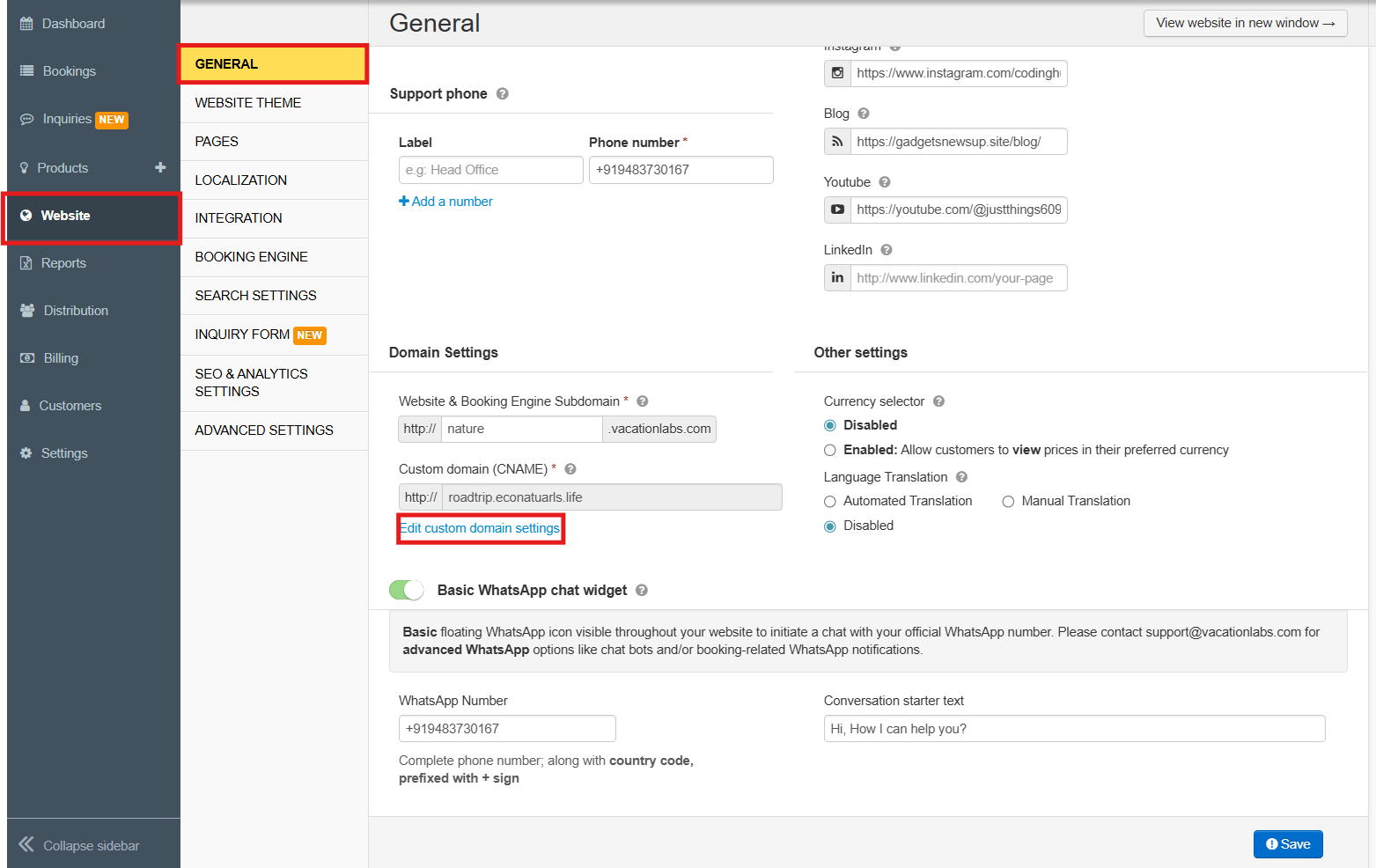
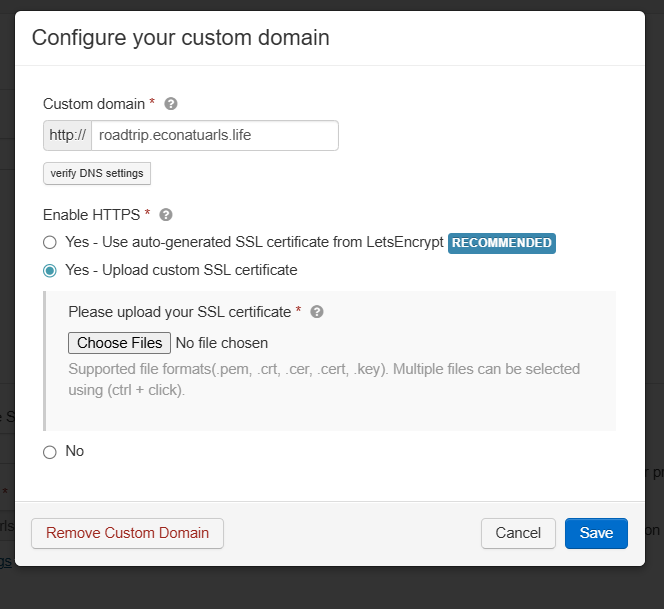
A pop will now open, under Enable HTTPS, click **Yes -**Upload custom SSL certificate.
-
Click Choose Files to upload the SSL certificate files and the Key File together.
Warning
Warning: All the contents of SSL certificate along with the KEY file should be uploaded at once, if you try uploading 1 file at a time then you will get an error.
-
Click Save after uploading.
Note
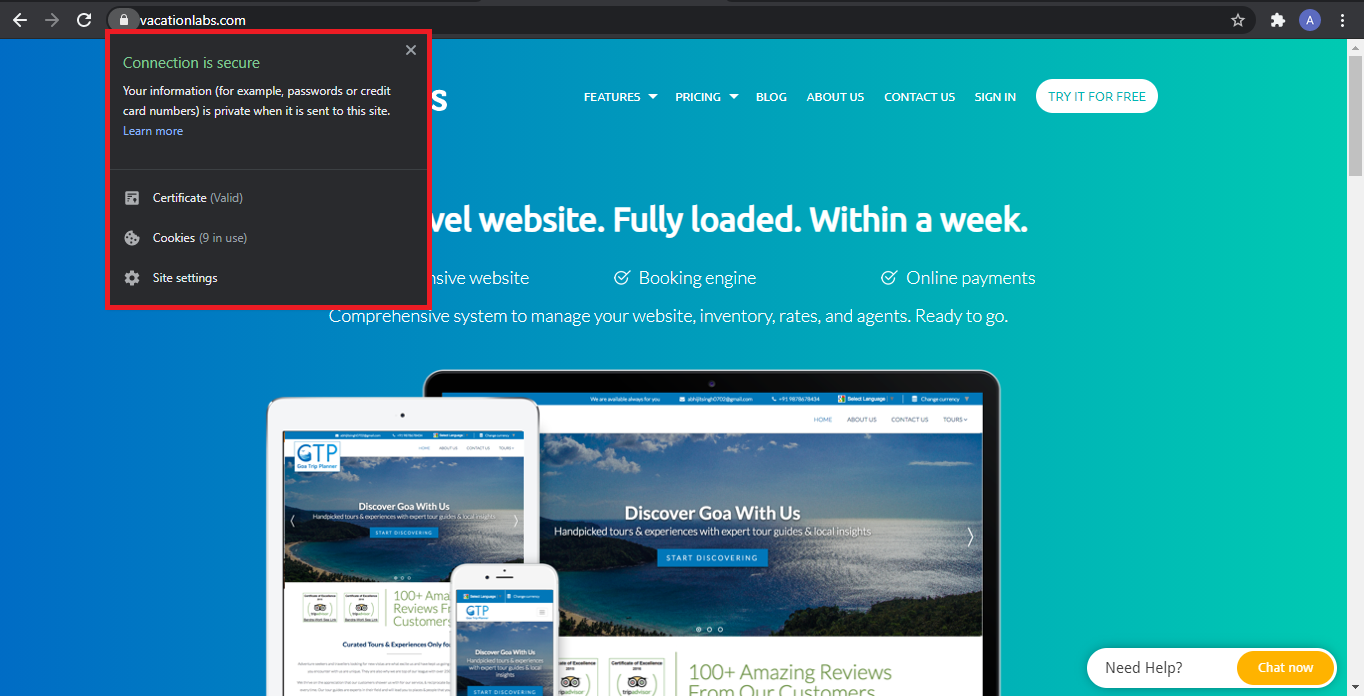
Note: If you face any error while accessing the storefront such as “This site is insecure”, it’s because the SSL certificate hasn’t been updated on our servers. It will take around 35-40 minutes to get updated.
How to Verify SSL Certificate Installation
To check whether you SSL certificate is Valid after waiting for the above said time, please do follow the steps.
- Go to your website e.g. www.vacationlabs.com and check on the Address bar.
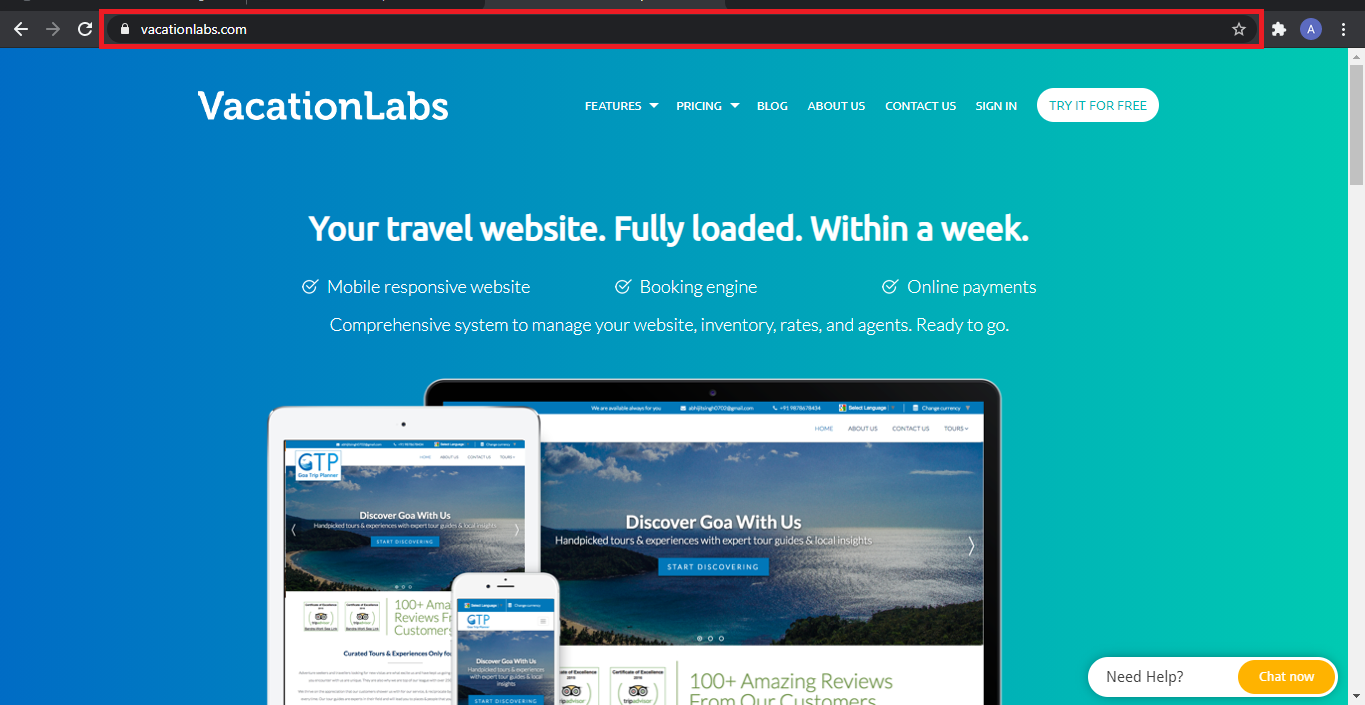
- When the site is secured it will show a Lock Symbol if you click on it will show the secured connection.