Related Tour Content
Overview
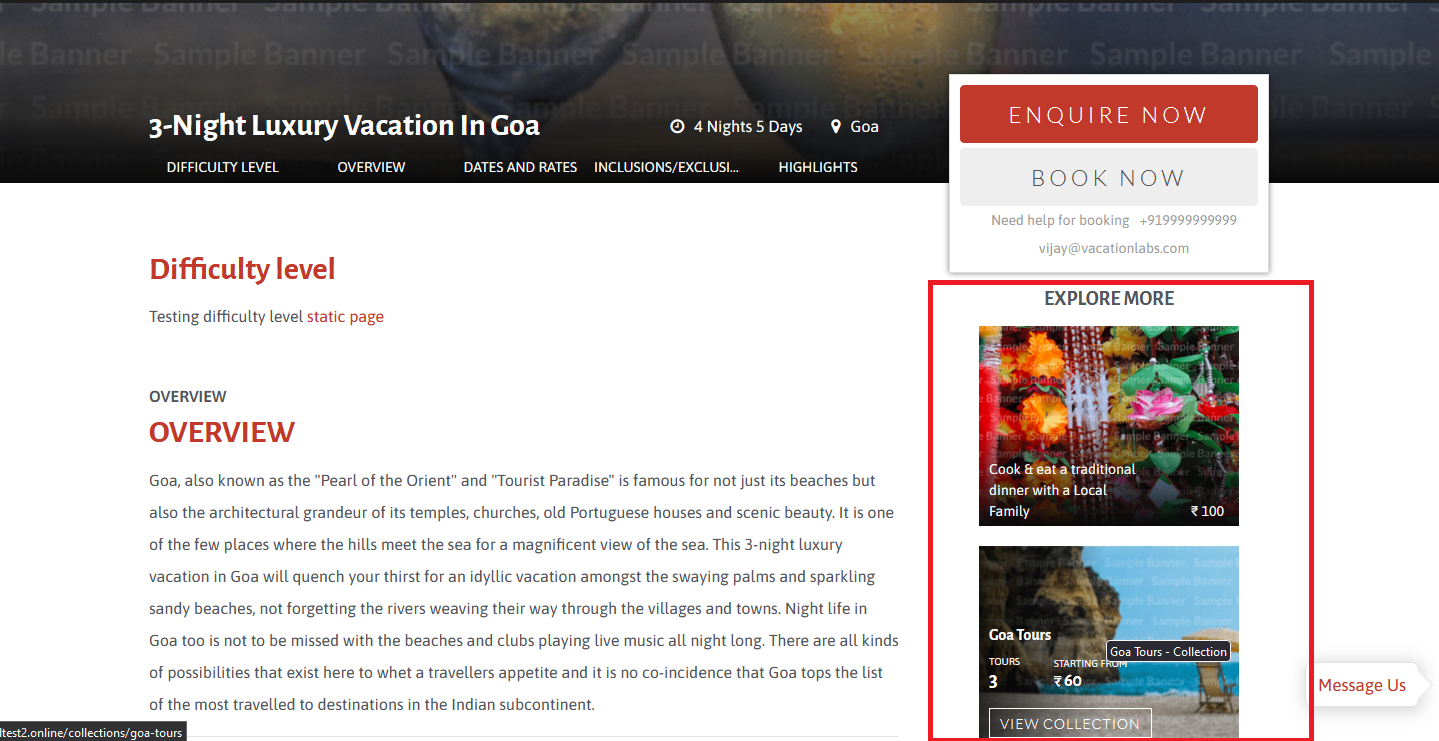
On the tour details page, Vacation Labs provides the flexibility to manage the “related content”. This allows you to customize which “related” tour cards/collection cards/static pages are displayed for each specific tour.
You can use this to promote / cross-sell, on each tour page, your most popular tours, or newly introduced tours, or tours operating in the same destination, etc.
Setup
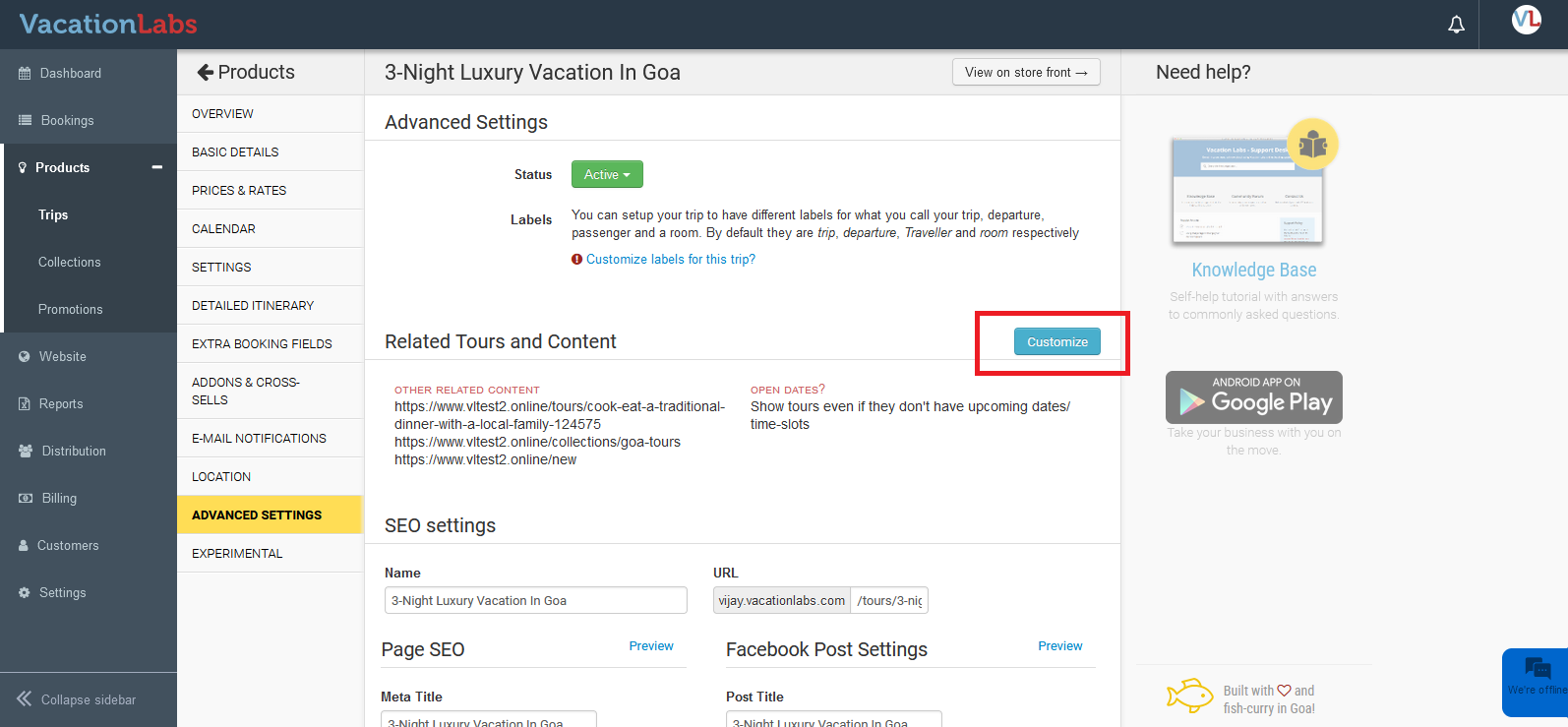
Navigate to Products > Trips > Edit the trip > Advanced Settings. Here, click on the Customize button next to Related tours and content.
You have two options to choose from
- Automatically: When you create a tour, this option is already chosen for you. It means that the system picks out and shows the most popular tours and collections on the tour page. The system looks at the data to see which tours and collections people book the most. Then, it puts them on the tour details page without you needing to do anything. This saves time because the system keeps updating the page based on what people are booking.
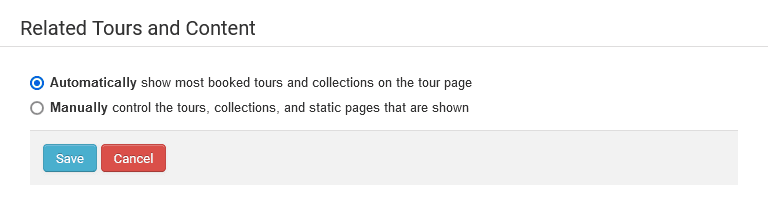
- Manually: You can also choose to configure the related-content on the tour-page sidebar “Manually”. With this, you get to decide exactly which tour, collection, or static page shows up as related-content cards in that particular tour-details page. If you want to control the tours, collections, and static pages that are shown, click on the Manually option.
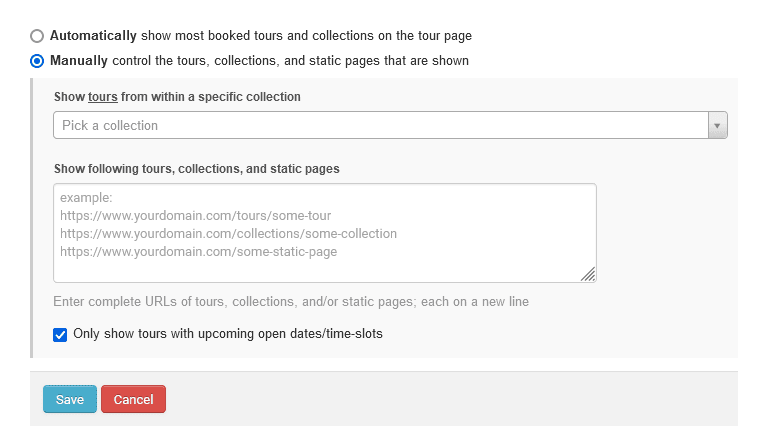
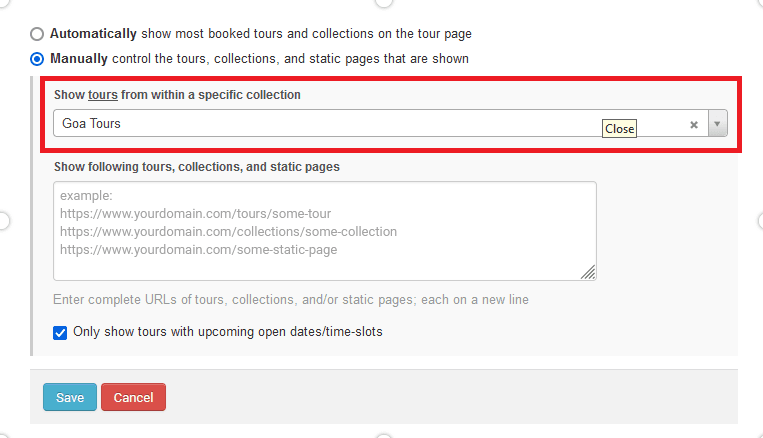
If you want to show tours from within a specific collection, select the collection and save the changes. The tours from within he selected collection will then appear in the sidebar for that particular tour.
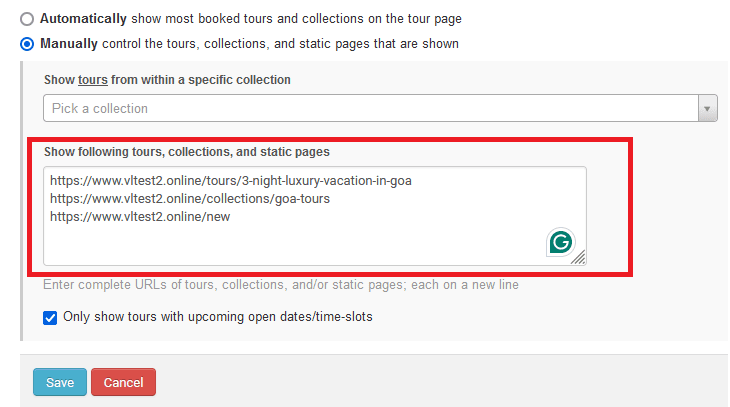
If you want to display different tour cards, collection cards, or static pages, copy the storefront URL (not the backoffice URL) and paste it in the designated section. The tour cards, collection cards, and static pages will then appear on that particular tour.
Note: Make sure to enter complete URLs of tours, collections, and/or static pages; each on a new line.
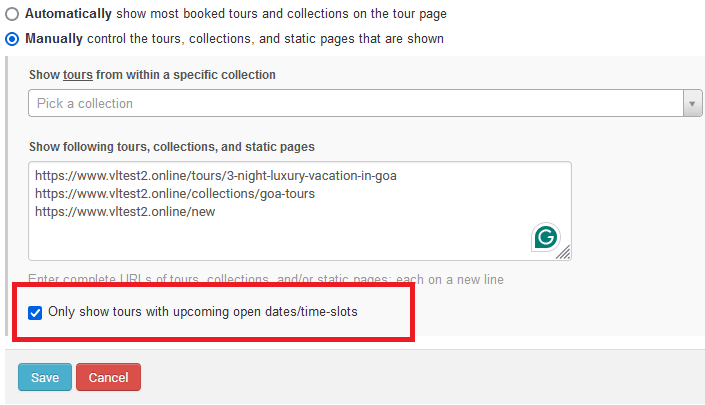
If you want to only show tours with upcoming open dates/time-slots, then enable this option. If not, you can disable this option and save the changes.
Info
Finally, please remember that the system will show a maximum of 5 cards in the related content section irrespective of the number of tours in the selection collection and/or number of URLs provided.
Changing the heading of the related-content section
By default the heading of the related-content section would be “Explore more”. It can b changed by changing the “store_front.tour_details_page.sidebar.related_content_heading” localization string. The default heading can be changed by navigating to Website > Localization > Storefront and Booking flows. Here, press CTRL+F and search for the mentioned string, then you can change it as per your requirement. For step-by-step guidance, please click on the link provided here.
