Until now, sending a personal email to a customer meant leaving the backoffice, opening Gmail (or another email tool), and copying booking details across. There was no way to attach the customer’s trip PDF, drop in their first name automatically, or keep a record of what you sent — without extra tools and manual effort.
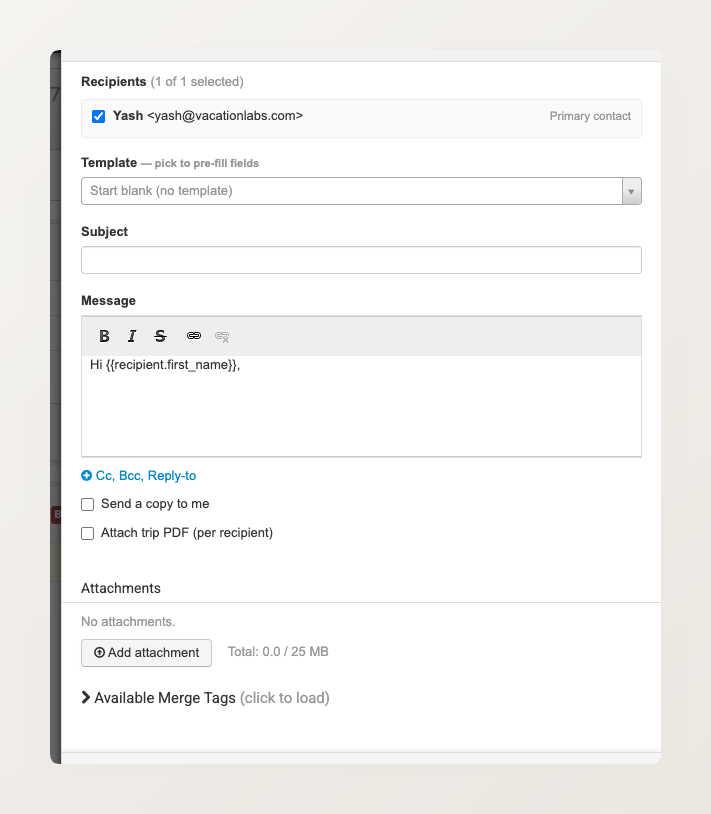
You can now compose and send an email straight from a booking or inquiry, without leaving the backoffice. Click Send Email and a composer panel opens on the right. From there:
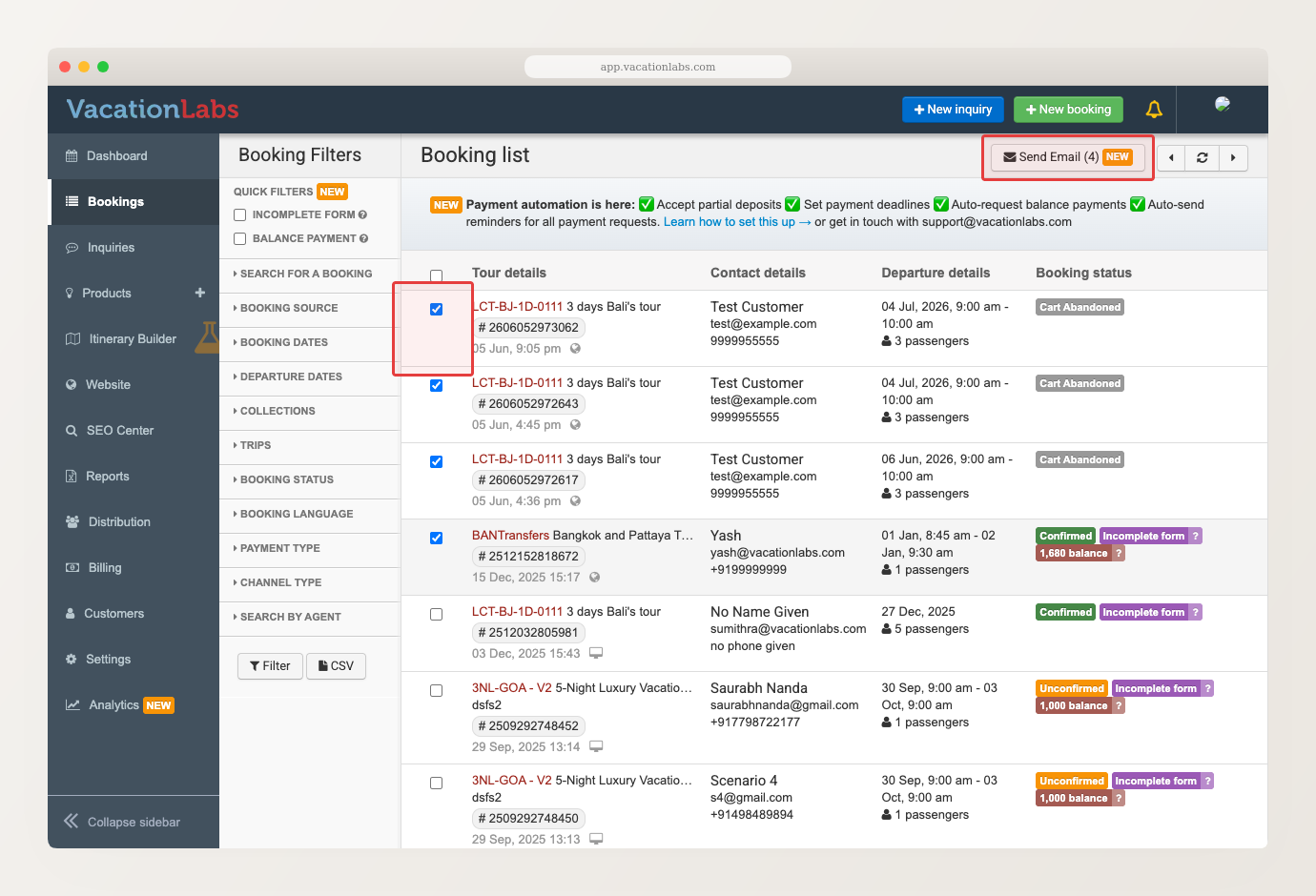
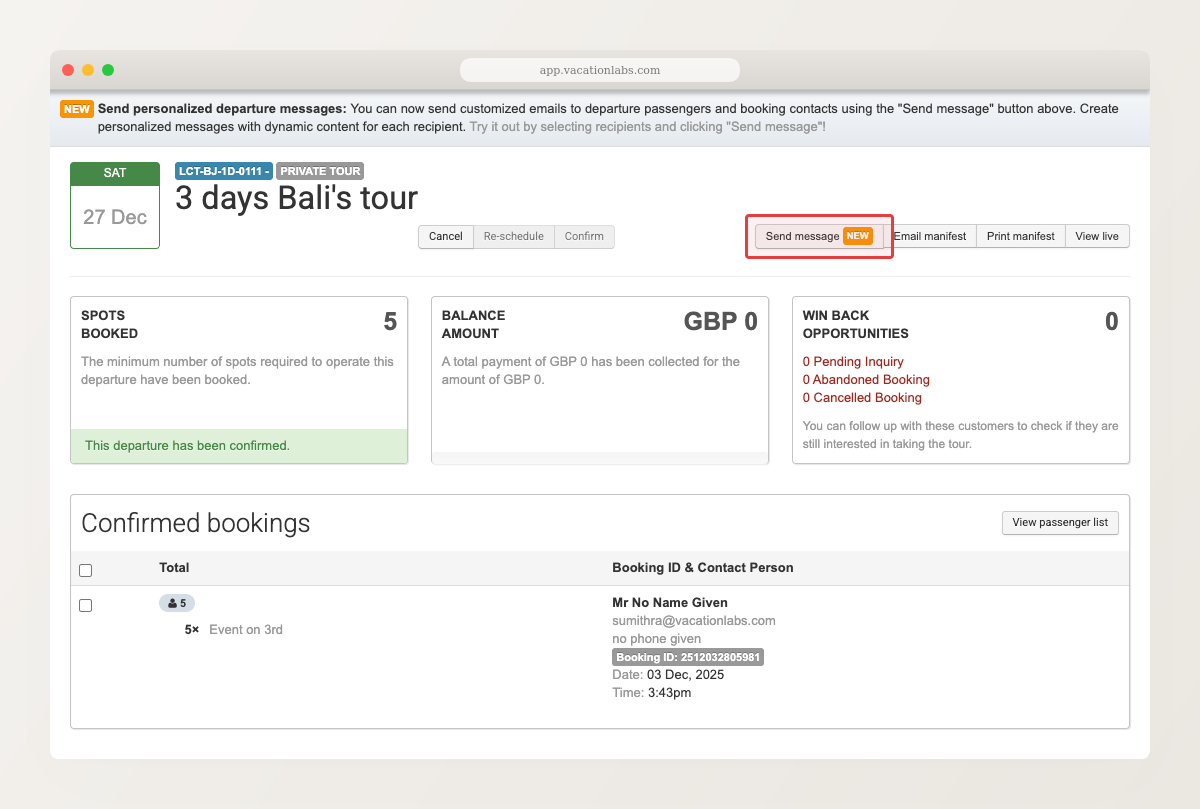
You can also send in bulk — tick several bookings or inquiries in the list and click Send Email to message them all at once, each personalised per record. And from a departure, the same composer reaches everyone on that trip — filtered by booking status (confirmed or pending payment) and sent to contacts or every passenger.
When something changes for a specific departure — a meeting-point update, last-minute joining instructions, or a link to the group’s WhatsApp chat — you can now message all the customers on that trip over WhatsApp, not just email. Open the departure’s Send Message sidebar, pick the WhatsApp tab, and send a pre-approved template to everyone at once.
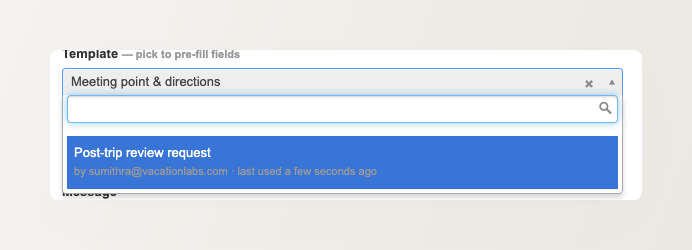
If you send the same kind of email over and over — meeting-point directions, a pre-trip checklist, a document request — save it as a template. A template stores the subject, message, and attachments, so next time you pick it from a dropdown instead of retyping everything.
Templates stay separate for bookings and inquiries (so your booking-side templates don’t clutter the inquiry composer), and the list sorts by most-recently-used, keeping your go-to templates near the top.
Before this update, you could set up a single pre-trip email per tour — but a second reminder at a different interval, or a post-trip follow-up, meant wiring up an external tool (like Pipedream) and asking our support team to configure a webhook.
The new Notification Rules engine replaces all of that. Each rule follows a simple pattern: when [something happens] → send [an email or WhatsApp message]. Triggers include:
The scheduled trigger is especially useful for pre-trip and post-trip sequences. Because the timing is an offset you choose, you can set up several rules for the same trip — for example reminders at 7 days, 3 days, and 1 day before departure — each as its own rule. You can also limit a rule to bookings in a particular state, so a reminder only goes to confirmed bookings.
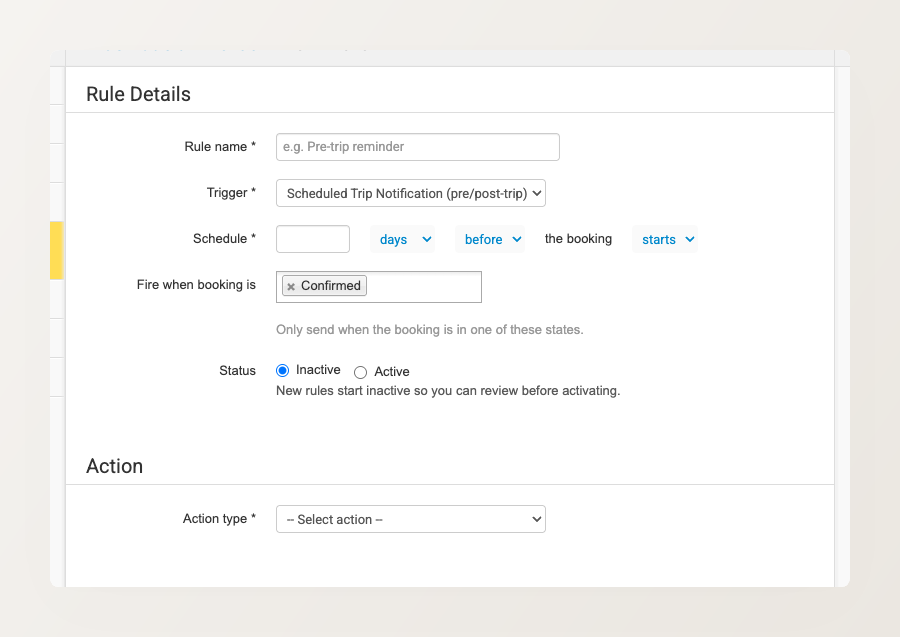
For the action, choose Send Email (pick a saved template and a recipient type) or Send WhatsApp Message (pick a pre-approved template). WhatsApp settings and templates now live in the same Settings → Emails, WhatsApp & SMS area as the rules, so everything to do with automated messaging is in one place.
What’s coming next: We’re working on bringing ad-hoc WhatsApp messaging to individual bookings and inquiries — the same one-tap compose experience available for departures today, but scoped to a single booking or inquiry. We’re also planning to move the standard booking lifecycle messages (booking confirmation, payment receipts, payment link emails, and similar) into the same account-level rules UI, so you configure them once and manage everything in one place, with per-tour overrides only where you actually need them.