Boost conversions with the new photo gallery on tour pages
Photo gallery / slider on tour pages
You can now add a Photo Gallery / Slider section directly to your tour pages using our travel website builder. Unlike the existing “Photo Gallery” button (which opens a popover/lightbox), this new section displays your tour photos right in the main content area — helping customers visualize the experience more clearly and increasing the chances they’ll book. Photos automatically adjust to maintain their aspect ratio across all devices, ensuring your images always look their best. Simply enable the section in your tour page settings (steps given below). 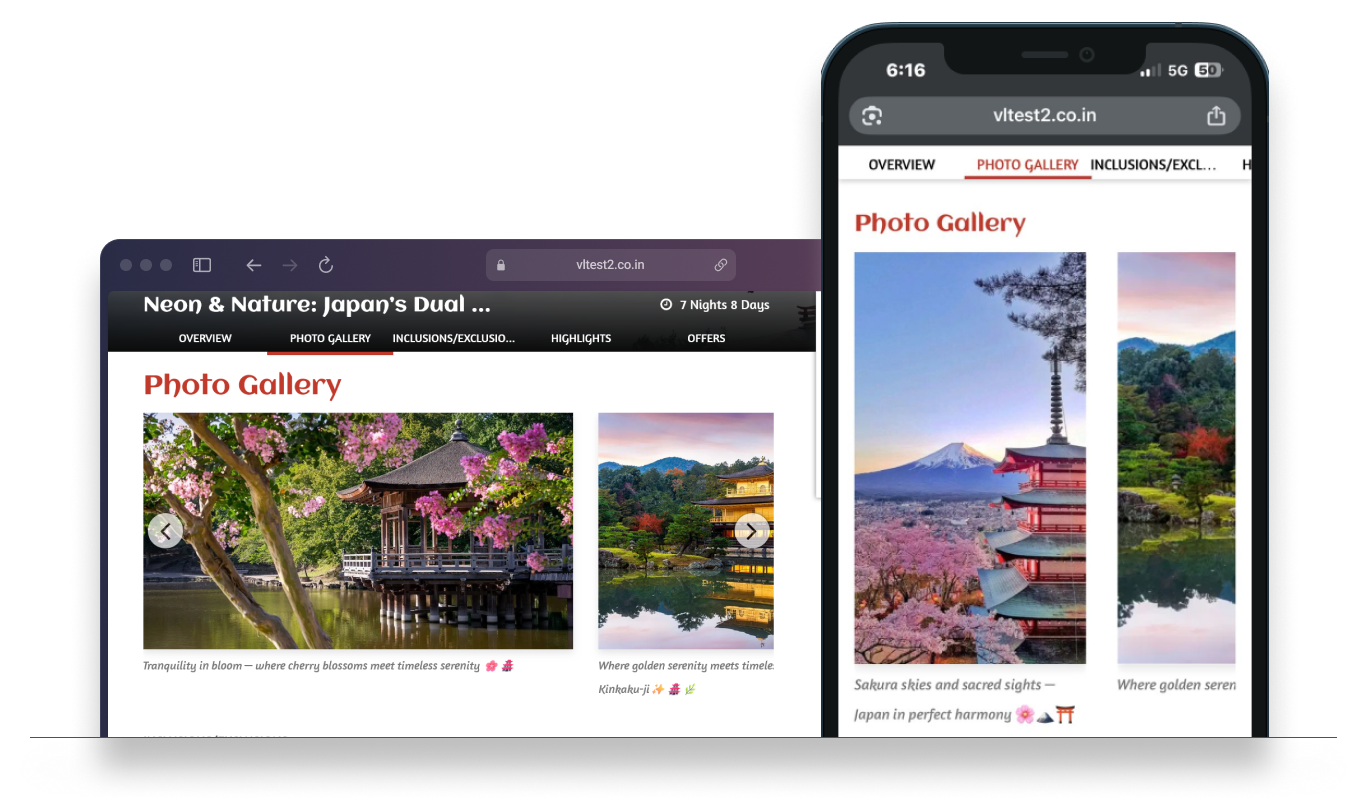
How to enable the photo gallery section on your tour pages
Note: Once enabled, this section will automatically appear on tours that have multiple photos. If a tour has only one photo, it’ll continue to show in the banner as usual.
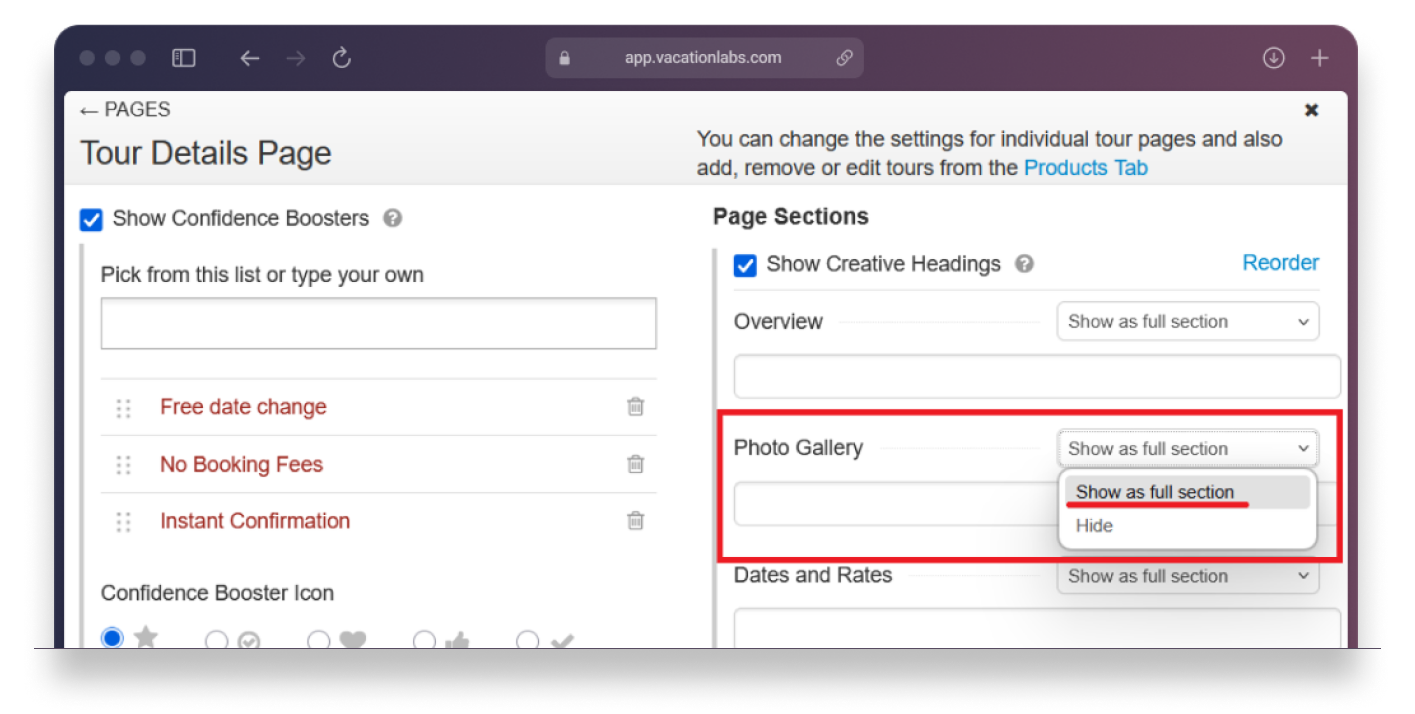
Go to Vacation Labs Backoffice > Website > Pages > Tour Details Page
Locate the “Photo Gallery” section in the list
Change it from “Hide” to “Show as full section”
Hit “Save”
(Optional) Use the “Reorder” link to place it where you want on the page