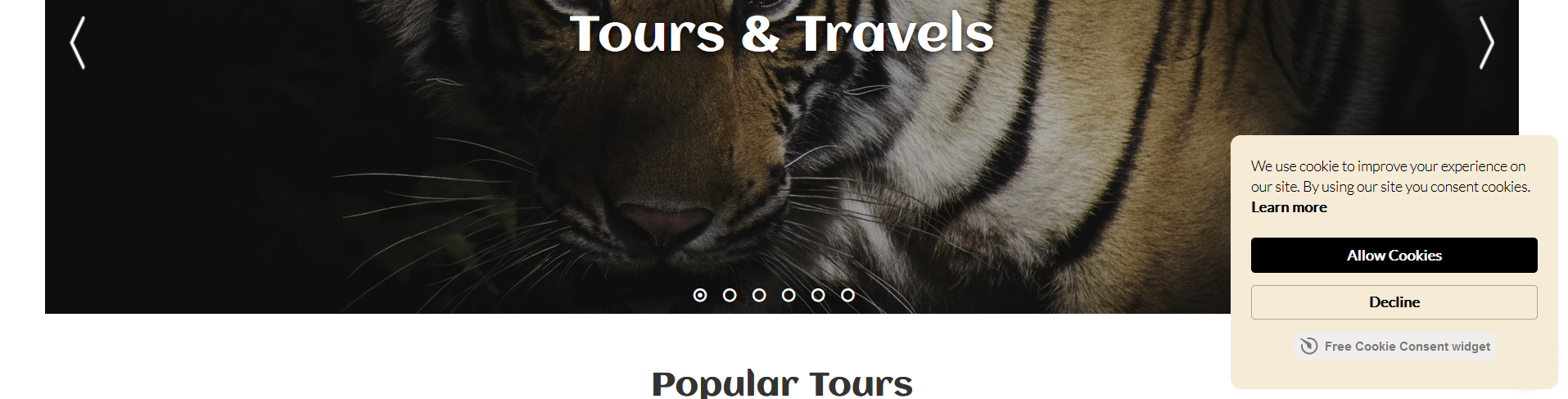
Adding a GDPR Cookie widget snippet
In order to adhere to the EU guidelines for customer data and privacy you will need to install a GDPR Widget
Vacation Labs allows you to do in few quick steps:
Quick Overview
-
Get GDPR widget snippet easily from third party sites
-
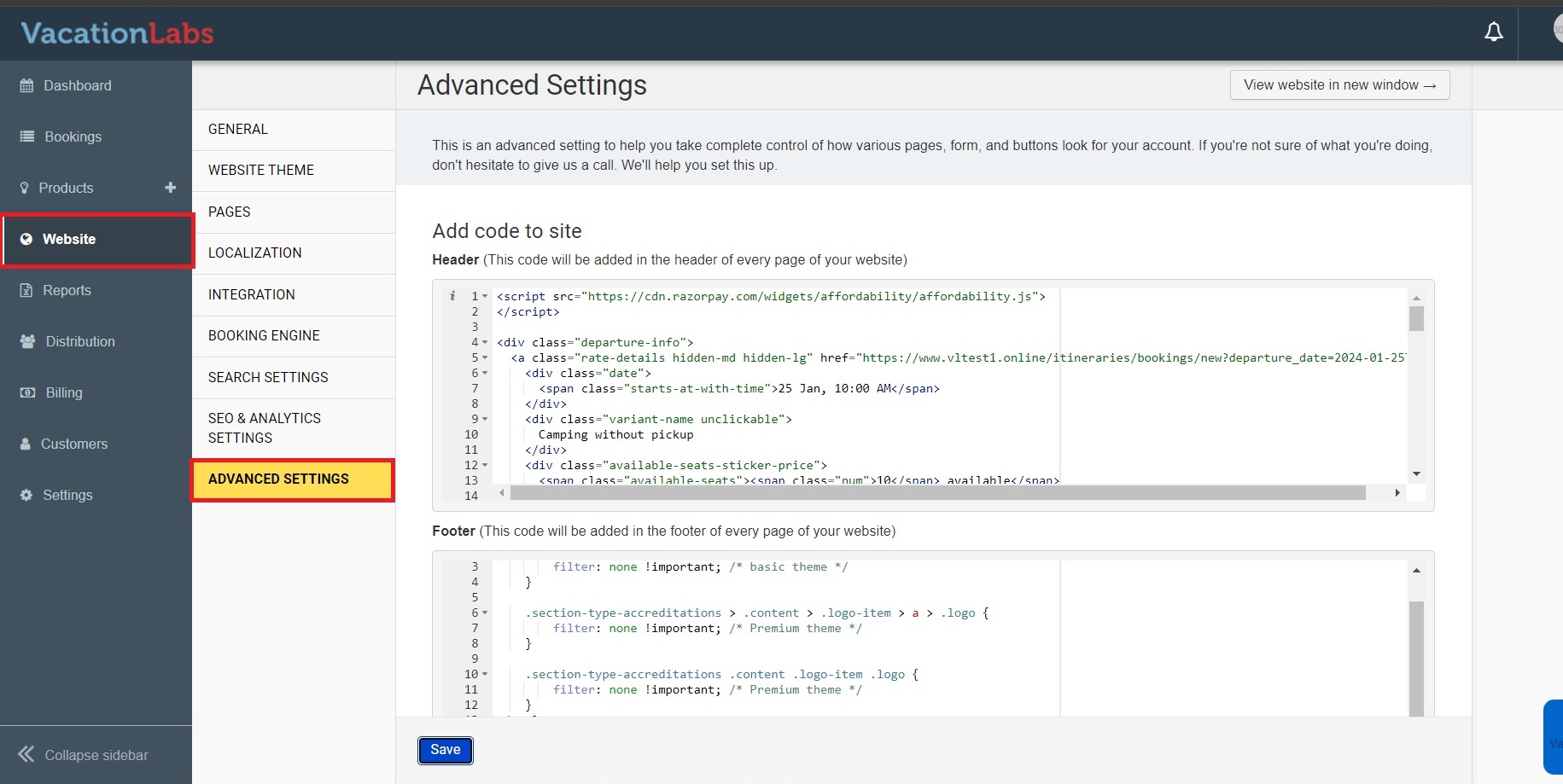
Navigate to the Vacation Labs login and go to Website > Advanced Settings. Paste the copied code into the Footer section.
-
Open a webpage (in incognito mode if needed) and confirm that the GDPR Widget is showing up and you are able to click on an option in it.
Get the GDPR Widget snippet
Info
You will have to get the GDPR Widget snippet/code from sites such as FreePrivacyPolicyor ElfSight
For this tutorial we will be using Elfsight to create the widget: the steps are below
-
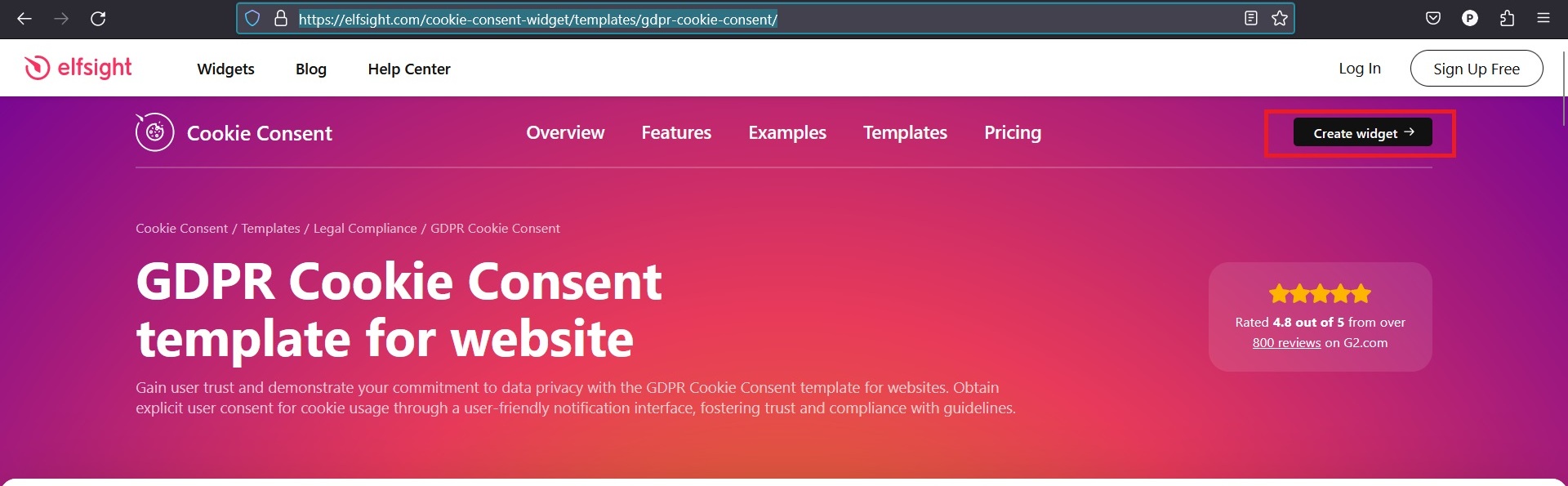
Go into the ElfSight and click on the Create Widget Button
-
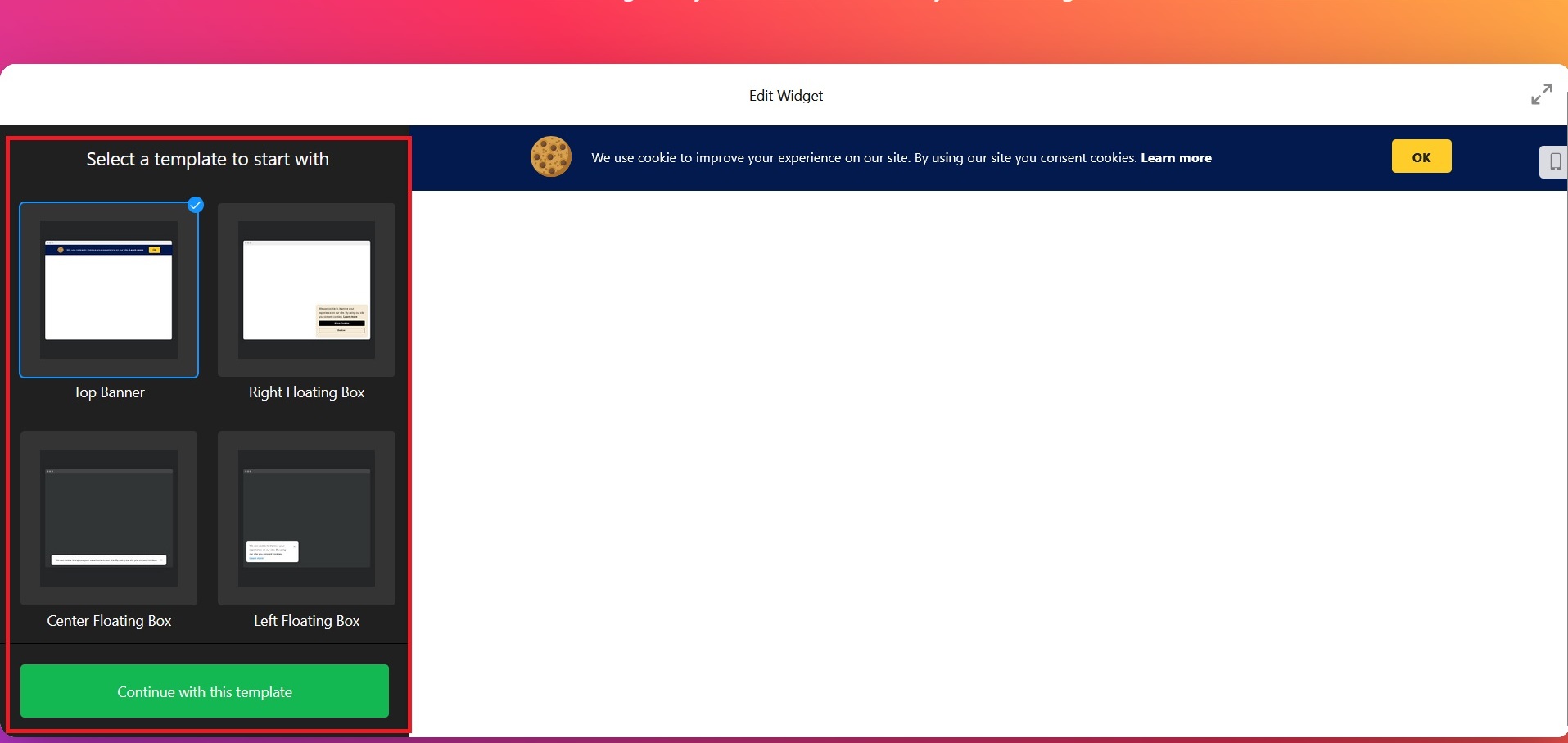
On the left hand side click on the template you want and click on “Continue with this template”
-
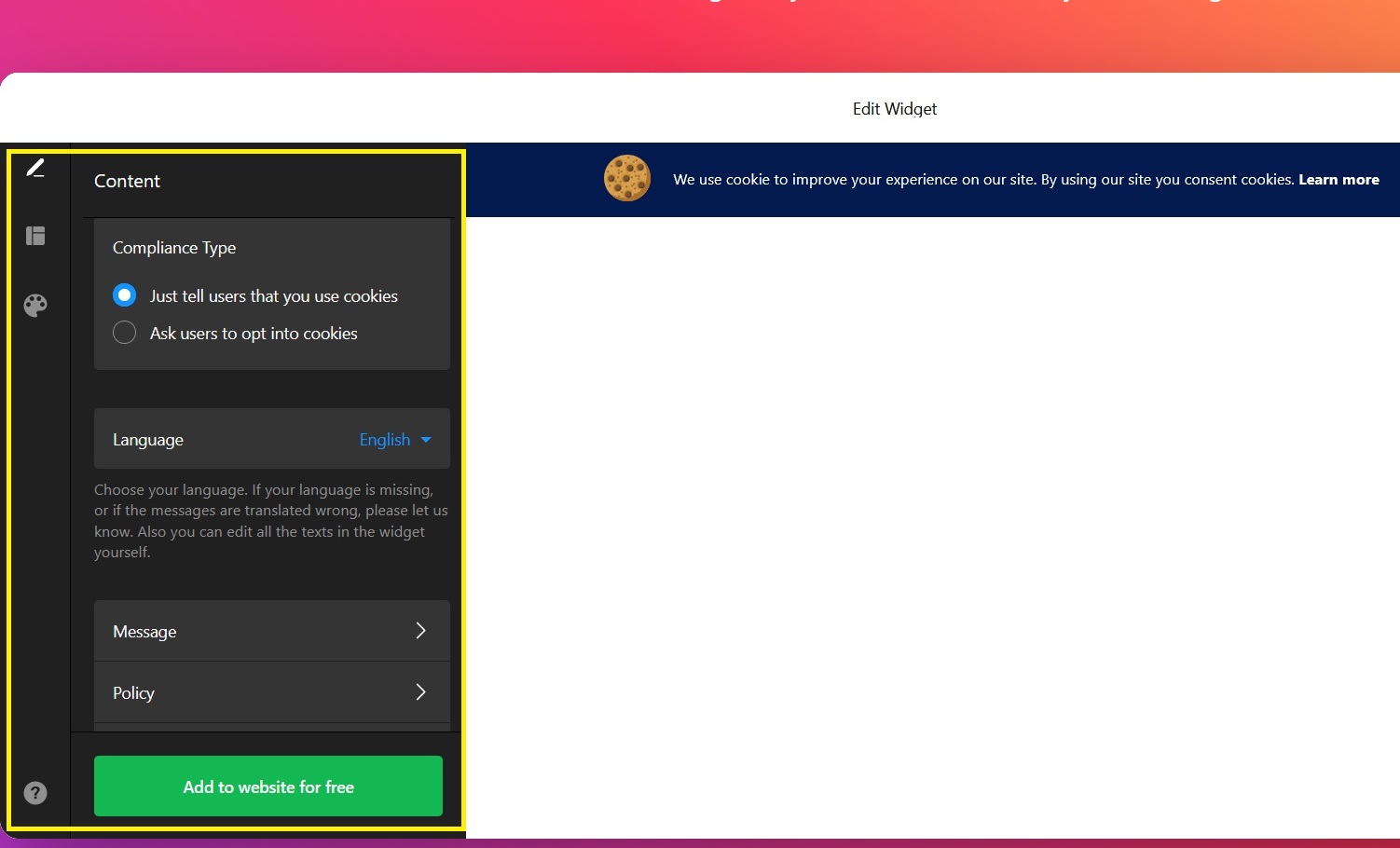
Now on the left hand side you will be able select the Compliance type and edit things such as message, policy, cookie icon etc, once done click on “Add to Website for free”
-
Then click on Publish

-
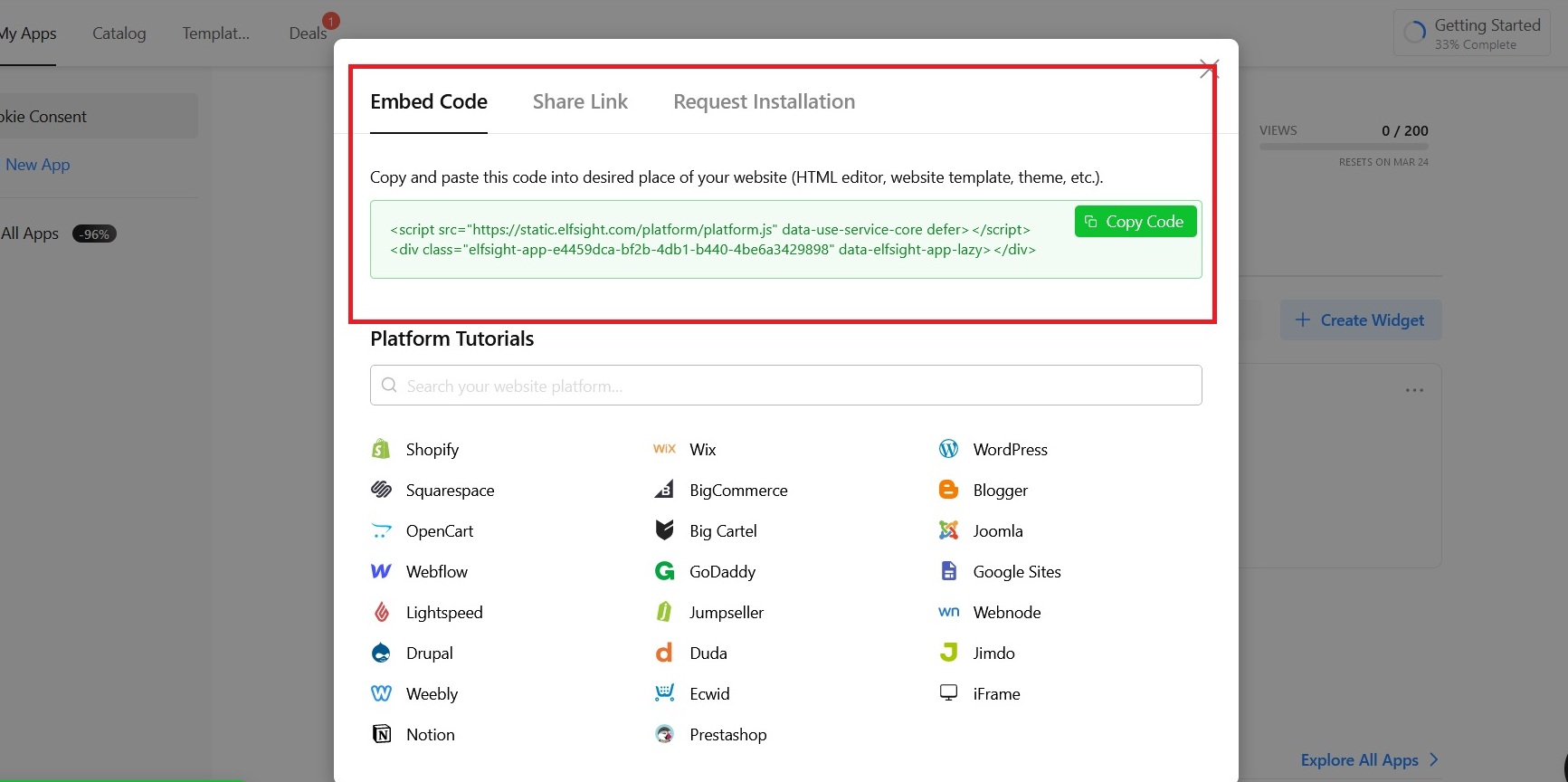
On this page copy the code provided in the Embed Code section (refer screenshot below)
Installing the GDPR widget snippet in Vacation Labs
1. Go into Website > Advanced Settings section
2. Paste the Copied code/snipped in the Footer Box (refer screenshot below)
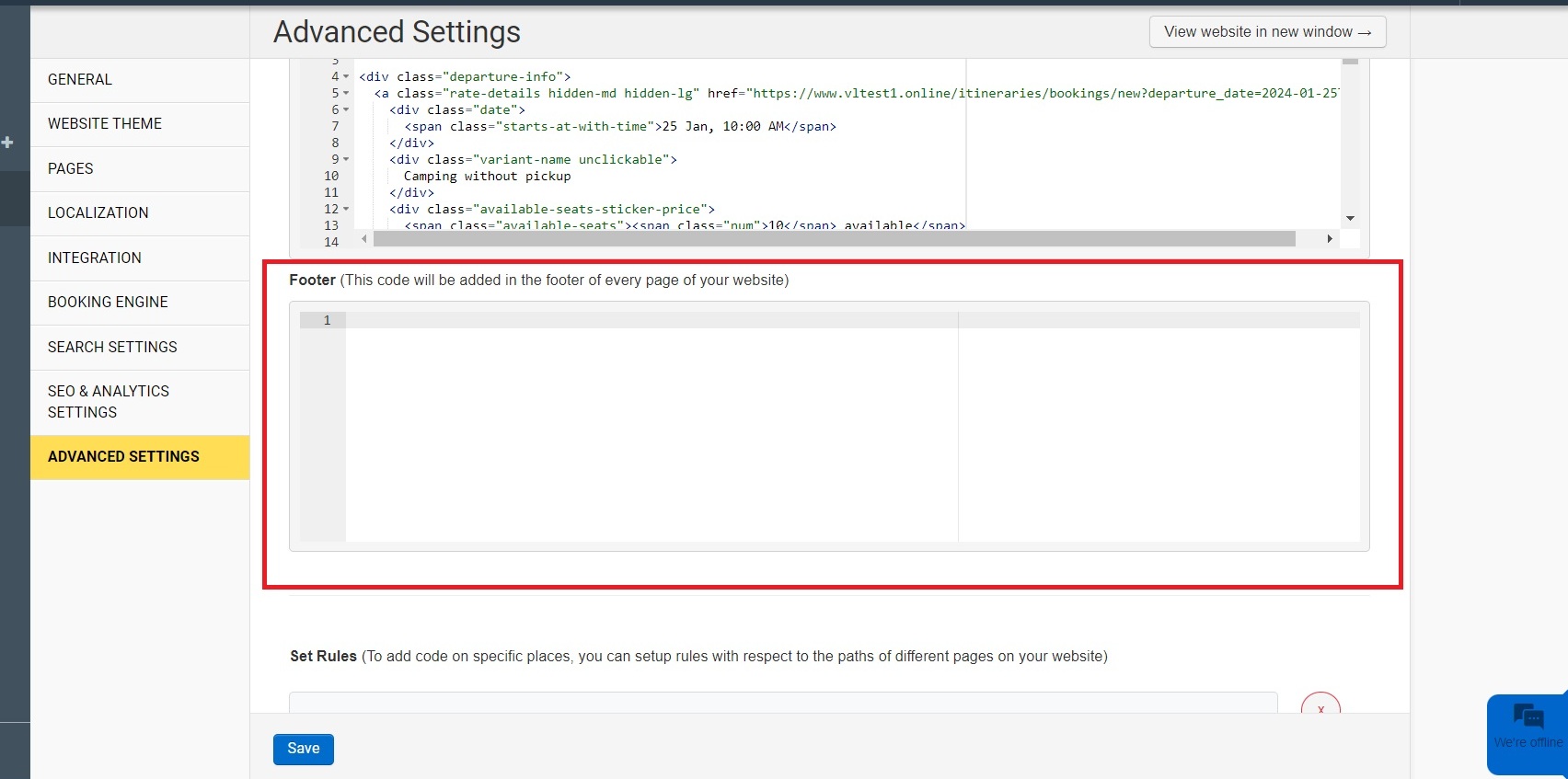
3, Click on SAVE to save the changes you have made.
4. Confirm that the widget is working by opening any webpage (in incognito mode if needed), the widget should appear something like this (refer screenshot below)