
How to manage themes on website?
Themes help you manage the overall look, feel and style of your website. This includes the Color scheme, Tour and Collection Cards, Website fonts, Header and Footer styles and many more. The theme basically represents your brand.
This article will help you manage and create some awesome layouts for your website.
Accessing Website Themes
- Login to app.vacationlabs.com/signin
- Click on Website
- Click on Website Theme
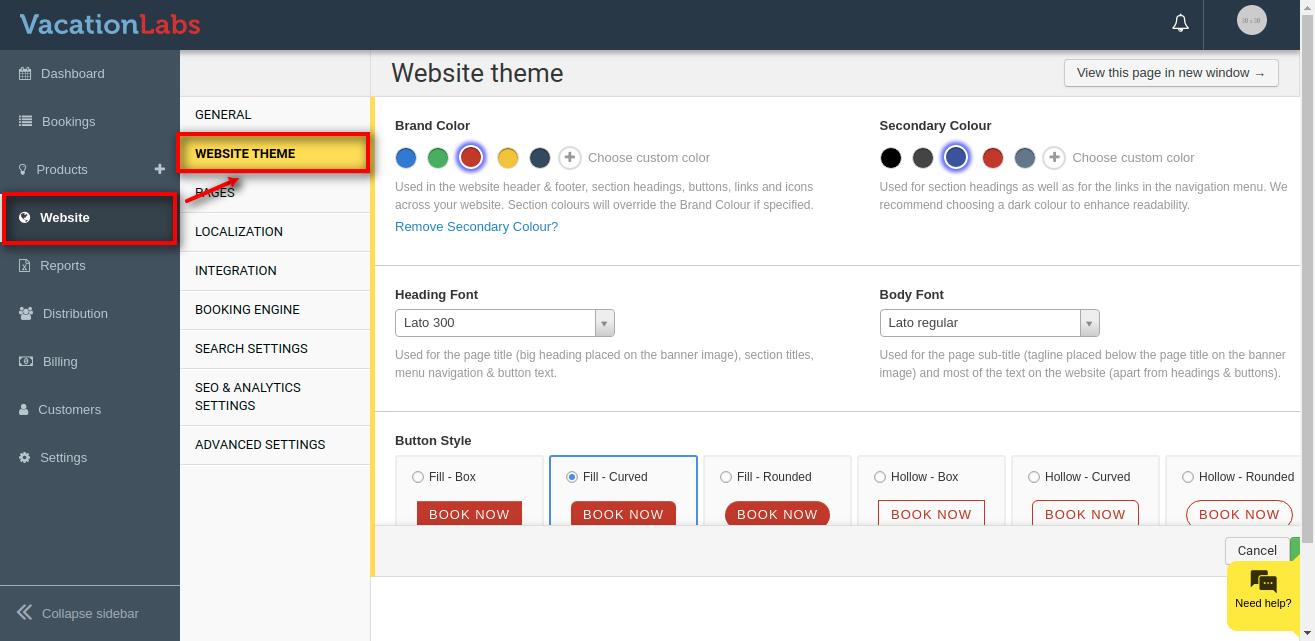
Different theme options
Managing Colors on your website
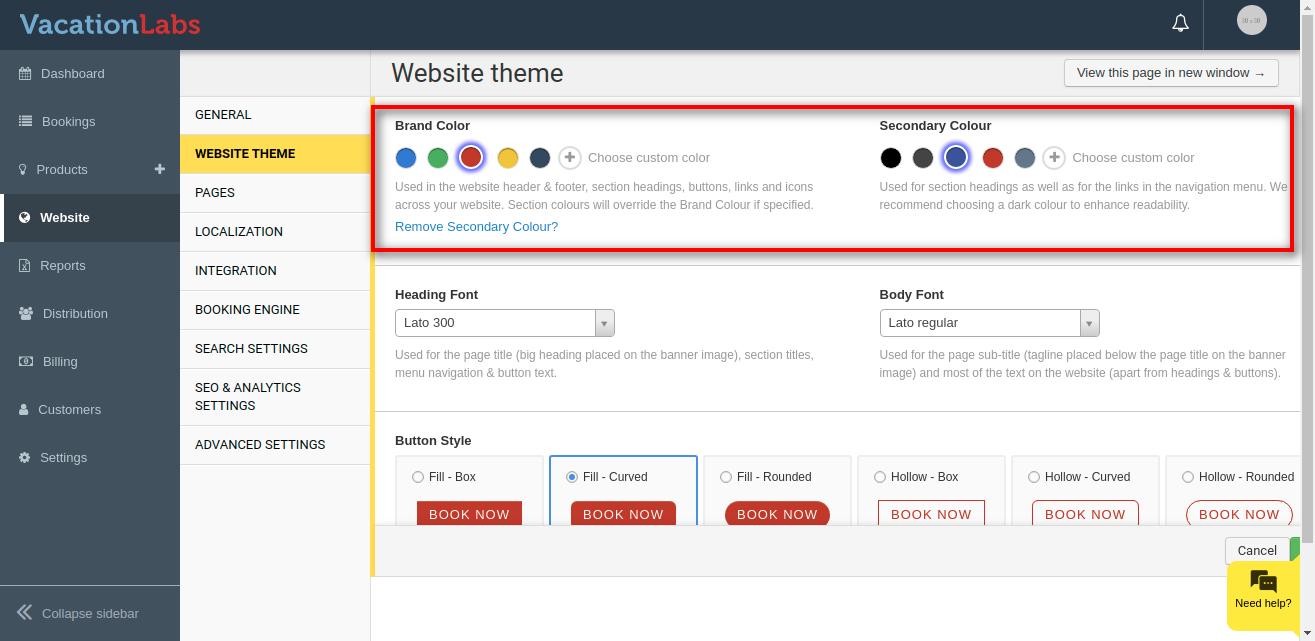
Colours play an important role in your website theme and its brand recognition and highlight important website elements and influences how people feel about a website. Vacation Labs website builder allows you to have 2 sets of colour i.e Brand Colour and Secondary Colour.
- Brand Colour: Used in the website header & footer, section headings, buttons, links and icons across your website. Section colours will override the Brand Colour if specified.
- Secondary Colour: Used for section headings as well as for the links in the navigation menu. We recommend choosing a dark colour to enhance readability.
Please follow the below steps to manage the website colour,
- Click on Website
- Click on Website Theme
- Under Brand Colour and Secondary Colour select the colour you prefer.
- Click on Save
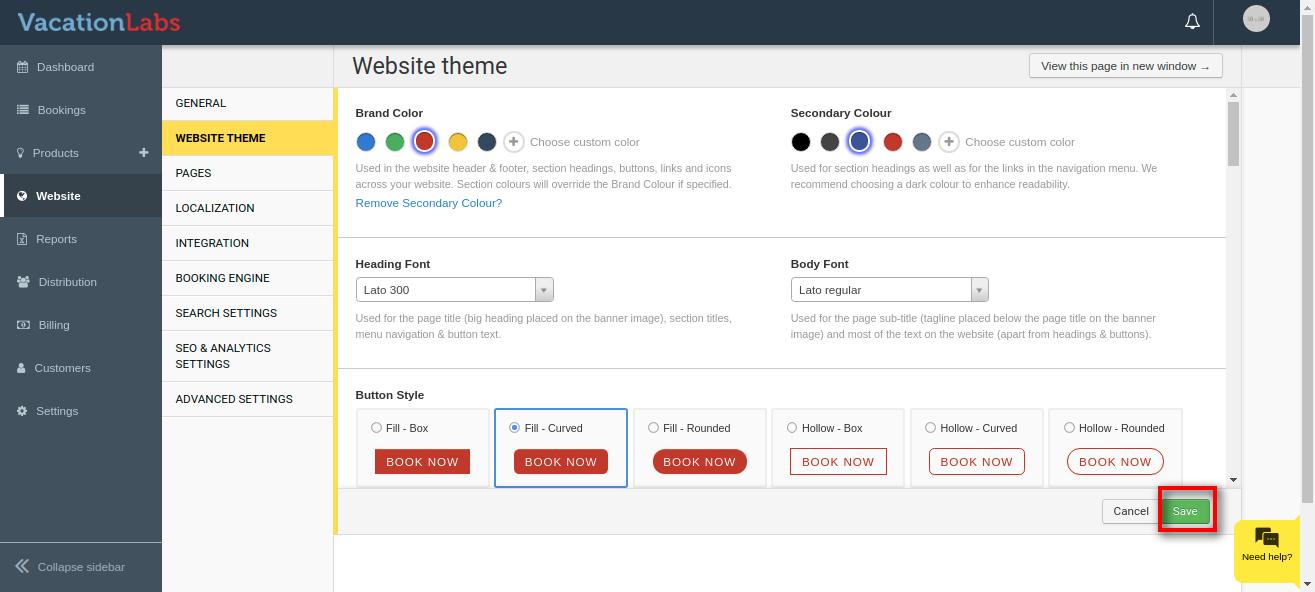
Tip: We will recommend you to have the brand color which goes with your logo color. You can also remove the Secondary colour if not required.
Managing Fonts for the website
Your website uses two fonts: a Heading Font and a Body Font. For each, you can choose any font from the Google Fonts catalogue, along with a specific weight and style (for example, ExtraBold, Light, or italic).
- The Heading Font is used for the page title, section titles, menu navigation, and button text.
- The Body Font is used for the tagline and most of the body text on your website.
To set your fonts:
- Click on Website
- Click on Website Theme
- Under Heading Font (and Body Font), type to search for a font family, then select it from the dropdown.
- Next to each font, choose a weight and style from the weight picker. Each option is previewed in its own weight and style, so you can see how it will look.
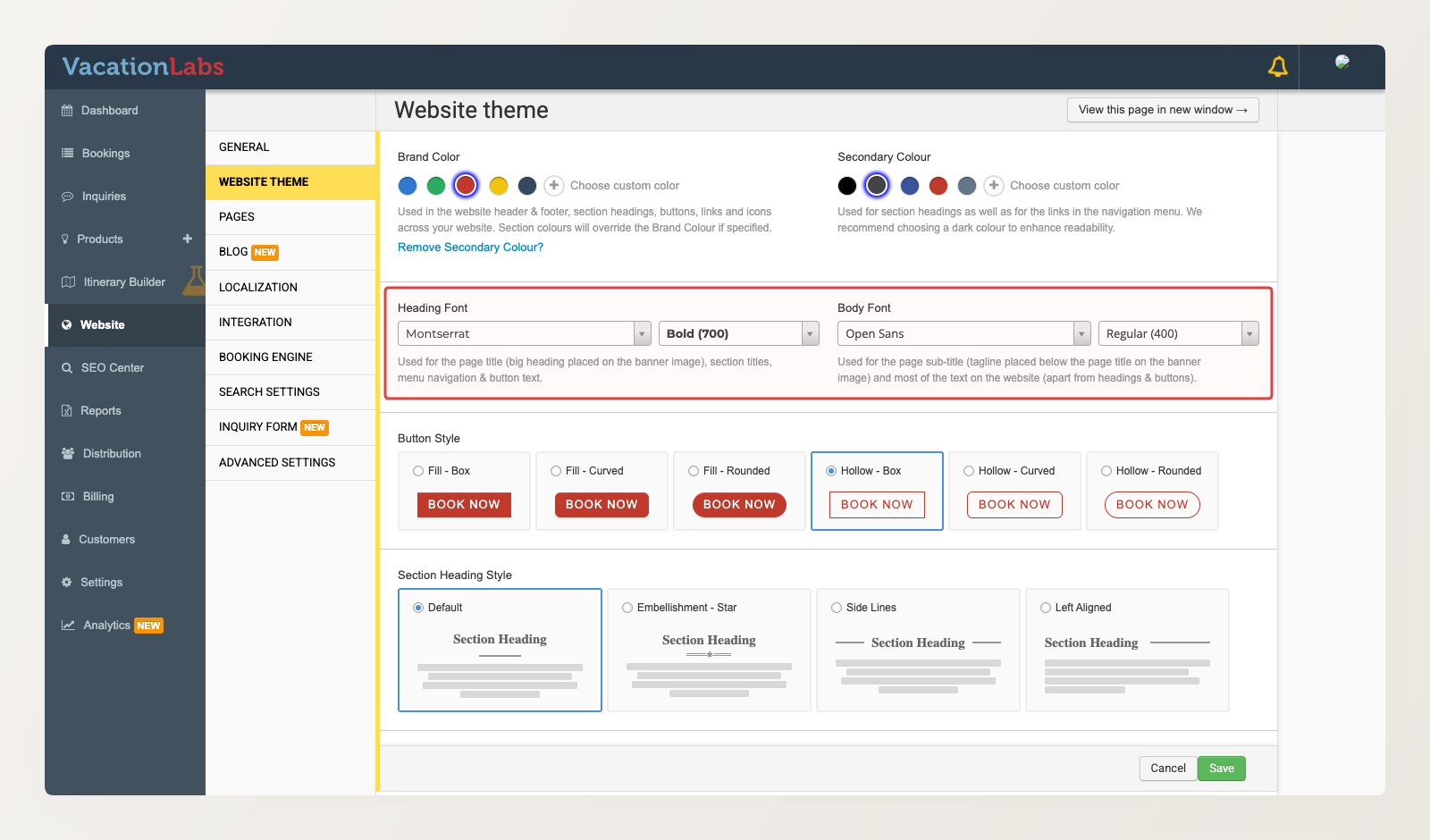
- Click on Save.
Your website first renders in a standard fallback font and then swaps to your chosen fonts once they have loaded. Picking a lot of heavy font weights can slow this down, so choose only the weights you actually use. To reduce this further, the experimental Don’t load additional font weights setting loads only the weights you have picked. It does not yet reduce a page to a single font weight in every case, because some built-in elements still load their own default weight.
Managing Button style for the website
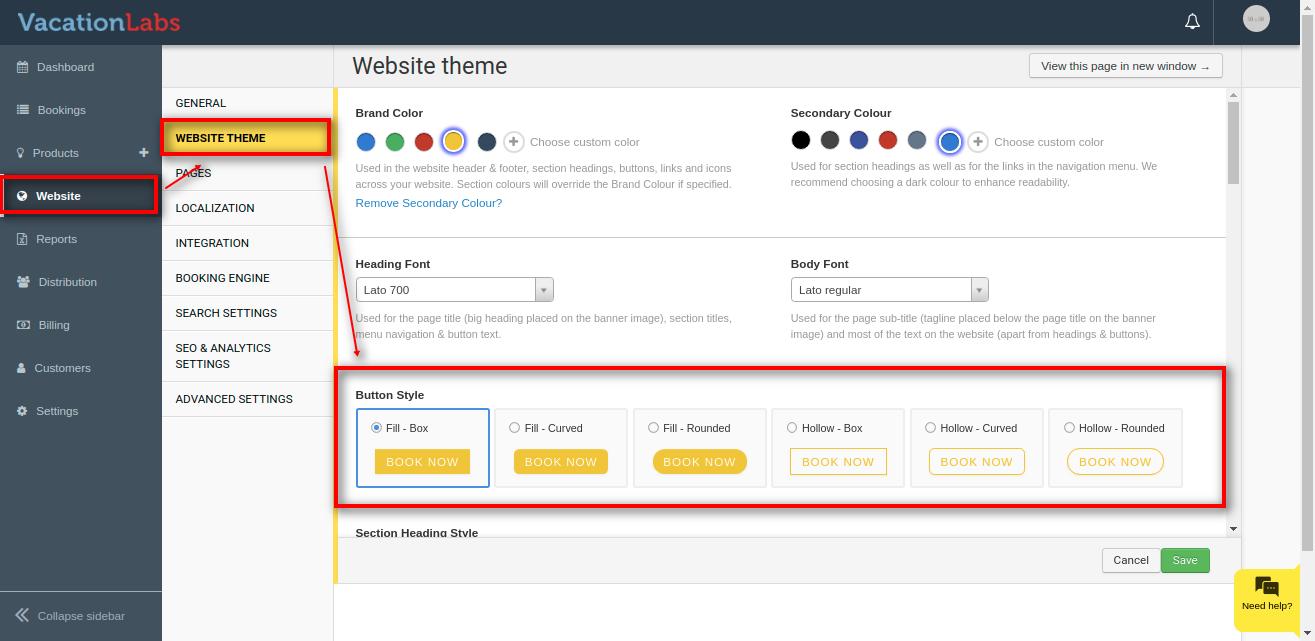
Vacation Labs website builder allows you to total 6 types of button styles i.e Fill Box, Curved, Rounded and Hollow Box, Curved, Rounded.
Please follow the below steps to manage the website colour,
-
Click on Website
-
Click on Website theme
-
Select your preferred button style from the Button Styles
-
Click on Save
Managing Section Heading style for the website
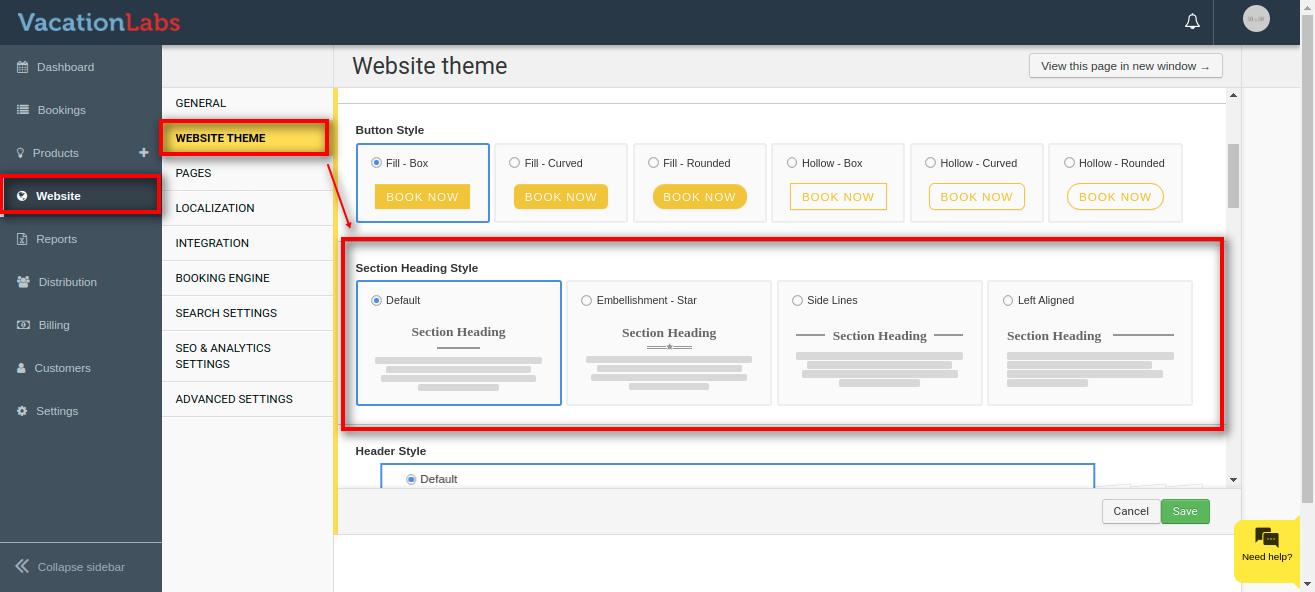
Vacation Labs website builder allows you to total 4 types of button styles i.e Default, Embellishment Star, Side Lines, Left Aligned.
Please follow the below steps to manage the website colour,
-
Click on Website
-
Click on Website theme
-
Select your preferred style from the Section Heading Styles**
 **
** -
Click on Save
Preview:
- Default

- Embellishment Star

- Side Lines

- Left Aligned

Managing the Tour card style for the website
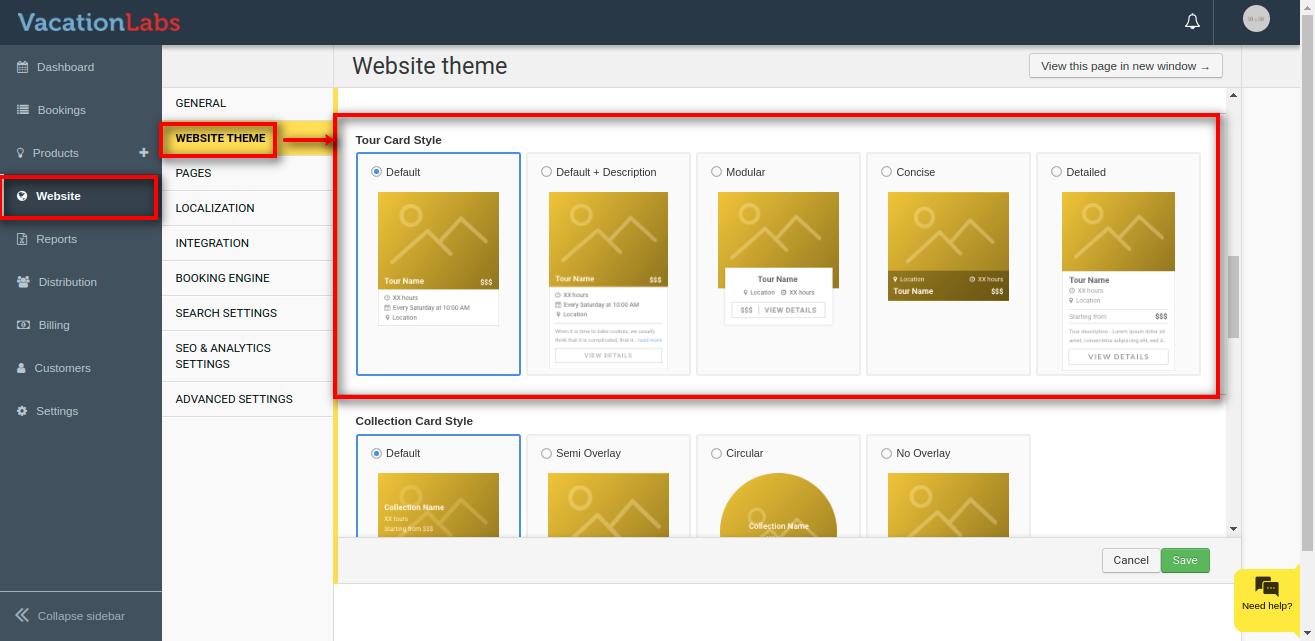
Tour card are used to display a summary of your Tour details on any page of your website in form on Cards. The tour card primarily includes Tour Name, Photo, Overview, Duration, Price, Availability, etc depending on the layout you select. You can make them look interesting from unique 5 styles available.
Vacation Labs website builder allows you total 5 types of Tour Card styles i.e Default, Default + Description, Modular, Concise, Detailed.
Please follow the below steps to manage the website colour,
-
Click on Website
-
Click on Website theme
-
Select your preferred button style from the Tour card Styles
-
Click on Save
Managing Collection card style for the website
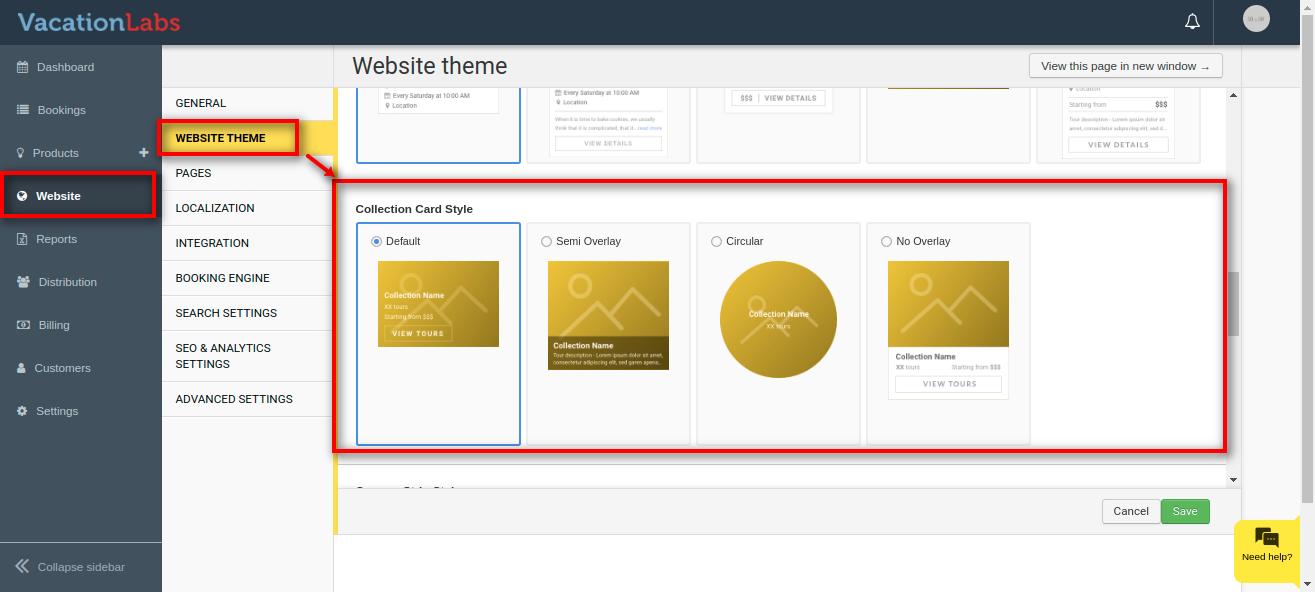
Vacation Labs website builder allows you to total 4 types of Collection Card styles i.e Default, Circular, Semi Overlay, No-overlay.
Please follow the below steps to manage the website colour,
-
Click on Website
-
Click on Website theme
-
Select your preferred style from the Collection card Styles
-
Click on Save
Managing Header style for the website
Vacation Labs website builder allows you to total 4 types of Header styles i.e Default, Center Aligned, Reversed, Transparent.
Please follow the below steps to manage the website colour,
-
Click on Website
-
Click on Website theme
-
Select your preferred Header style.
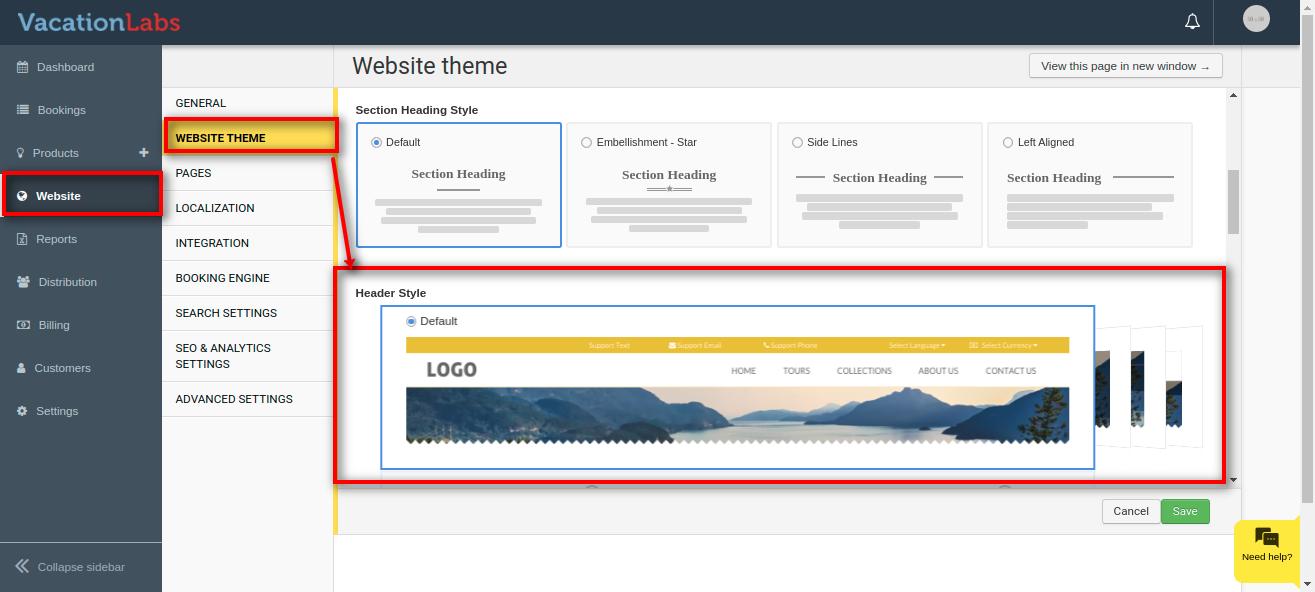
-
Click on Save
Preview:
-
Default

-
Transparent

-
Center Aligned

-
Reversed Default

Managing Coupon Strip style for the website
Vacation Labs website builder allows you 2 types of Coupon Strip styles i.e With Image and Without Image
Please follow the below steps to manage the website colour,
-
Click on Website
-
Click on Website theme
-
Select your preferred Coupon Strip style.**
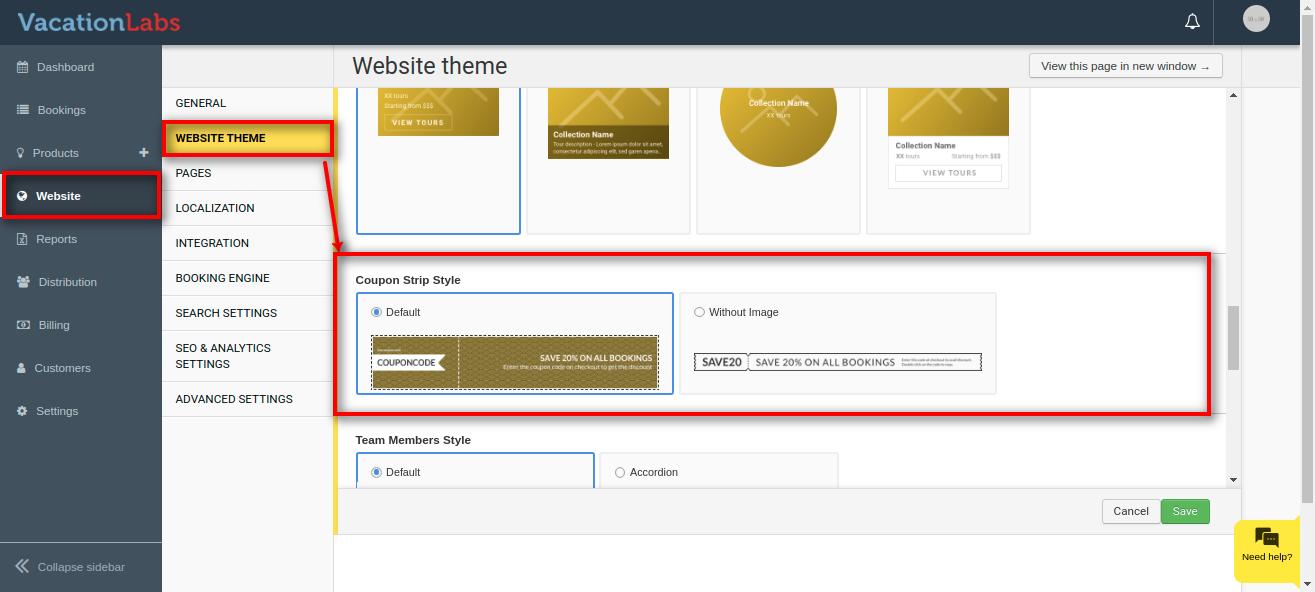 **
** -
Click on Save
Managing Team Members style for the website
Vacation Labs website builder allows you 2 types of Team Member styles i.e Default and Accordion.
Please follow the below steps to manage the website colour,
-
Click on Website
-
Click on Website theme
-
Select your preferred style.
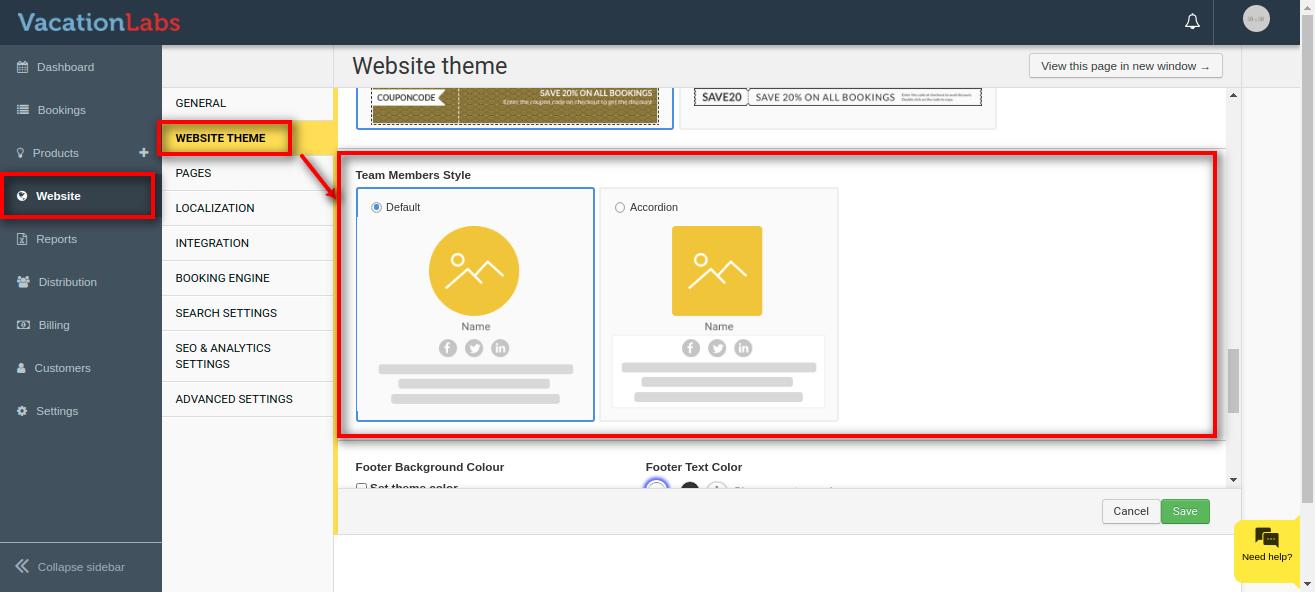
-
Click on Save
Managing Footer Background and Text colour for the website
Footer Background section allows you to have a unique background colour and text colour.
Please follow the below steps to manage the website colour,
-
Click on Website
-
Click on Website theme
-
Select your preferred colour.
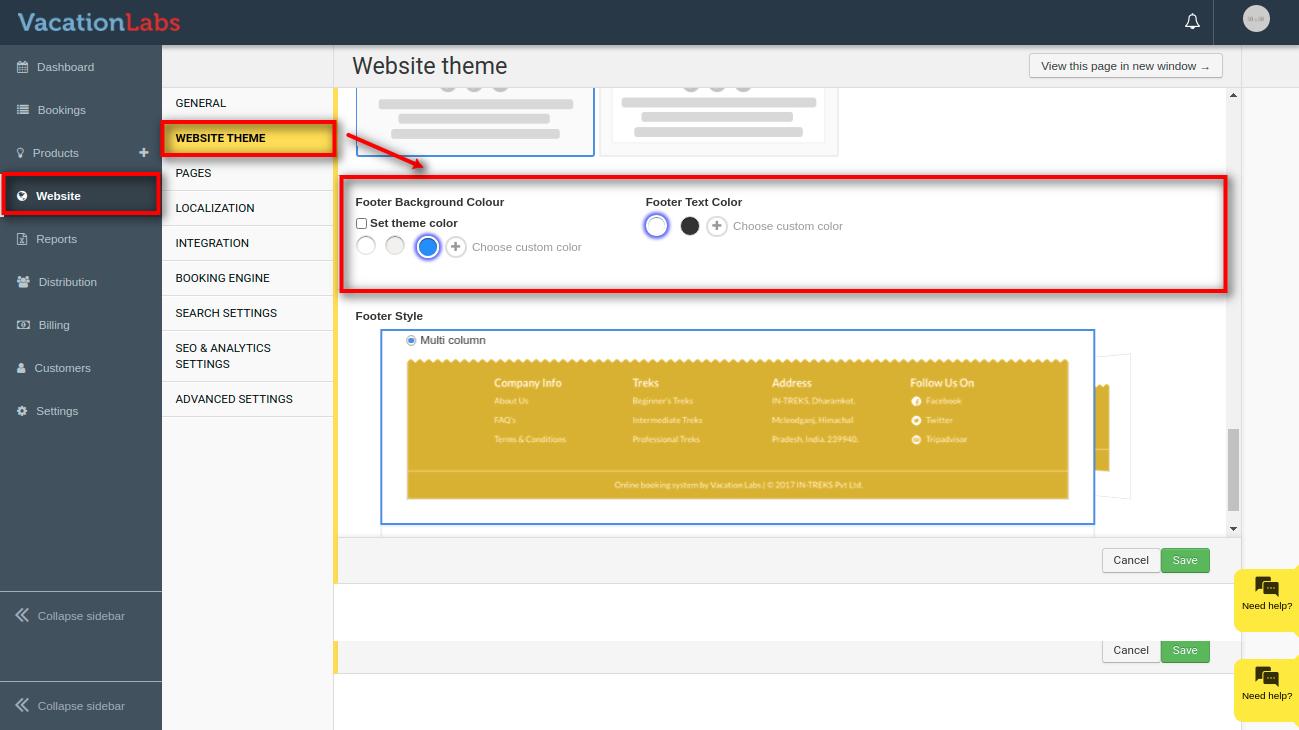
-
Click on Save
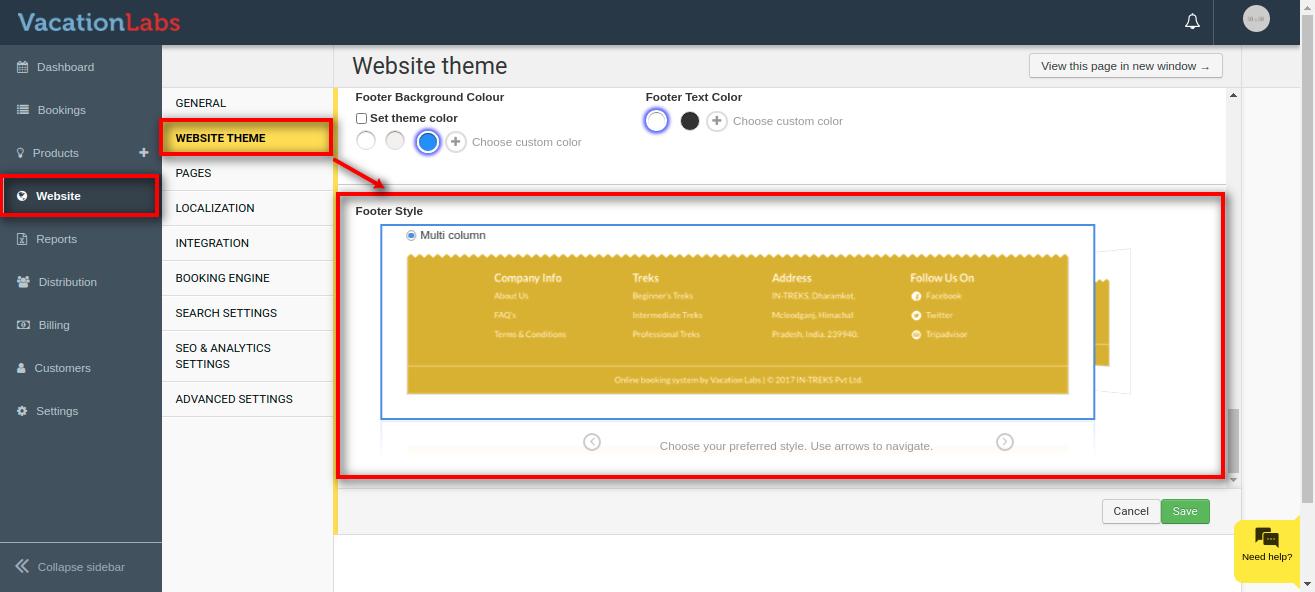
Managing Footer style for the website
Along with your website header, the website footer is equally important for any website. It allows you to show a brief summary of all your website content in short. Most of the customer prefer website footer as the first place on your website to get your contact details, social media links, etc.
Vacation Labs website builder allows you 2 types of Footer styles i.e Multi-Column and Concise
Please follow the below steps to manage the website colour,
-
Click on Website
-
Click on Website theme
-
Select your preferred style from the Footer style.
-
Click on Save
What’s Next?
Planning to add Social Media icons on your website? We wold recommend you to read our support article on Adding Social Media Links to the website