Adding A record and CNAME in Bigrock
To Add an A record in Big Rock follow these steps
- Log in to your Big Rock account.

-
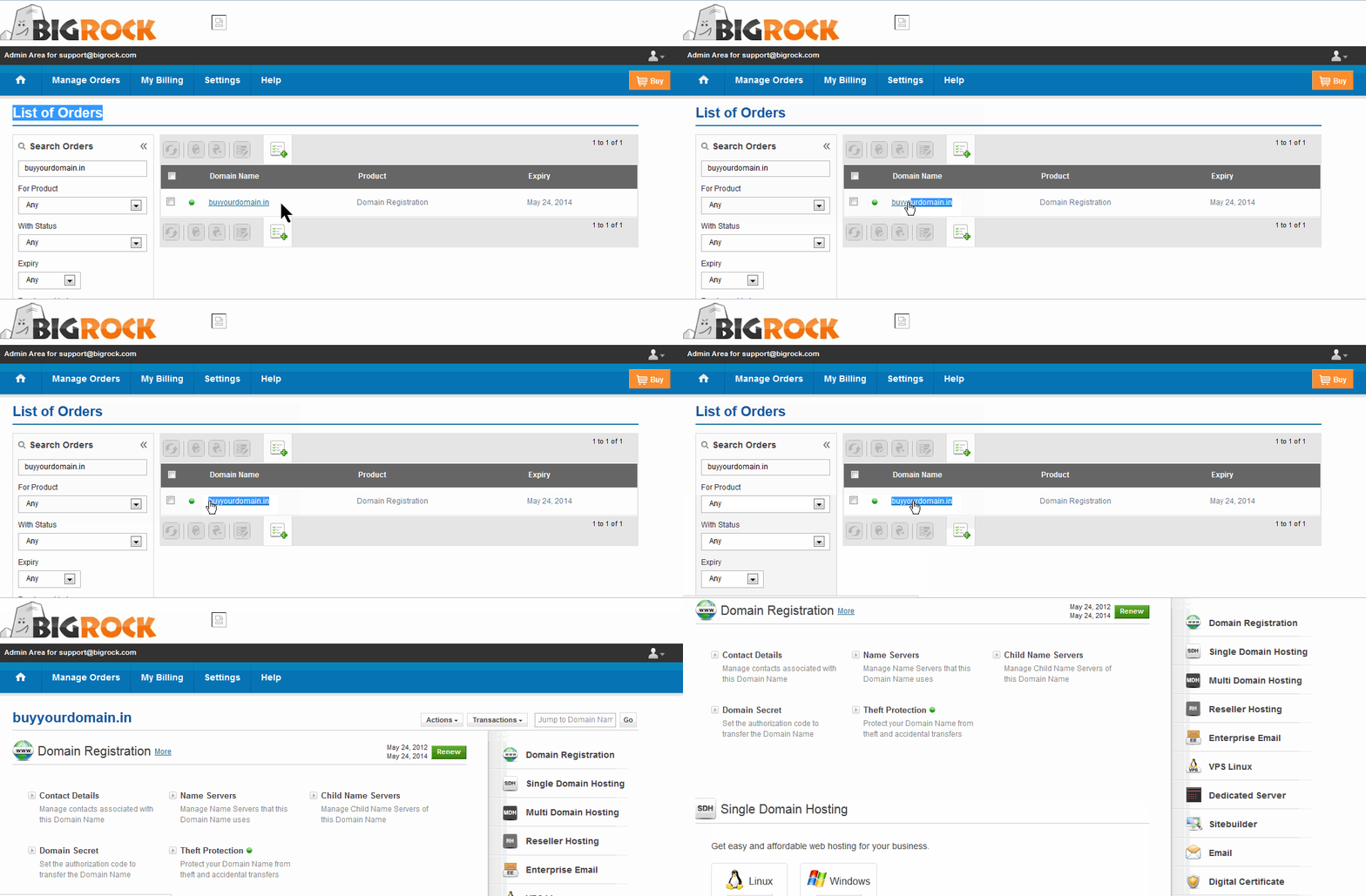
You will now see a page with all purchases made by you on our system
-
Click on the domain name for which you need to change the DNS records
-
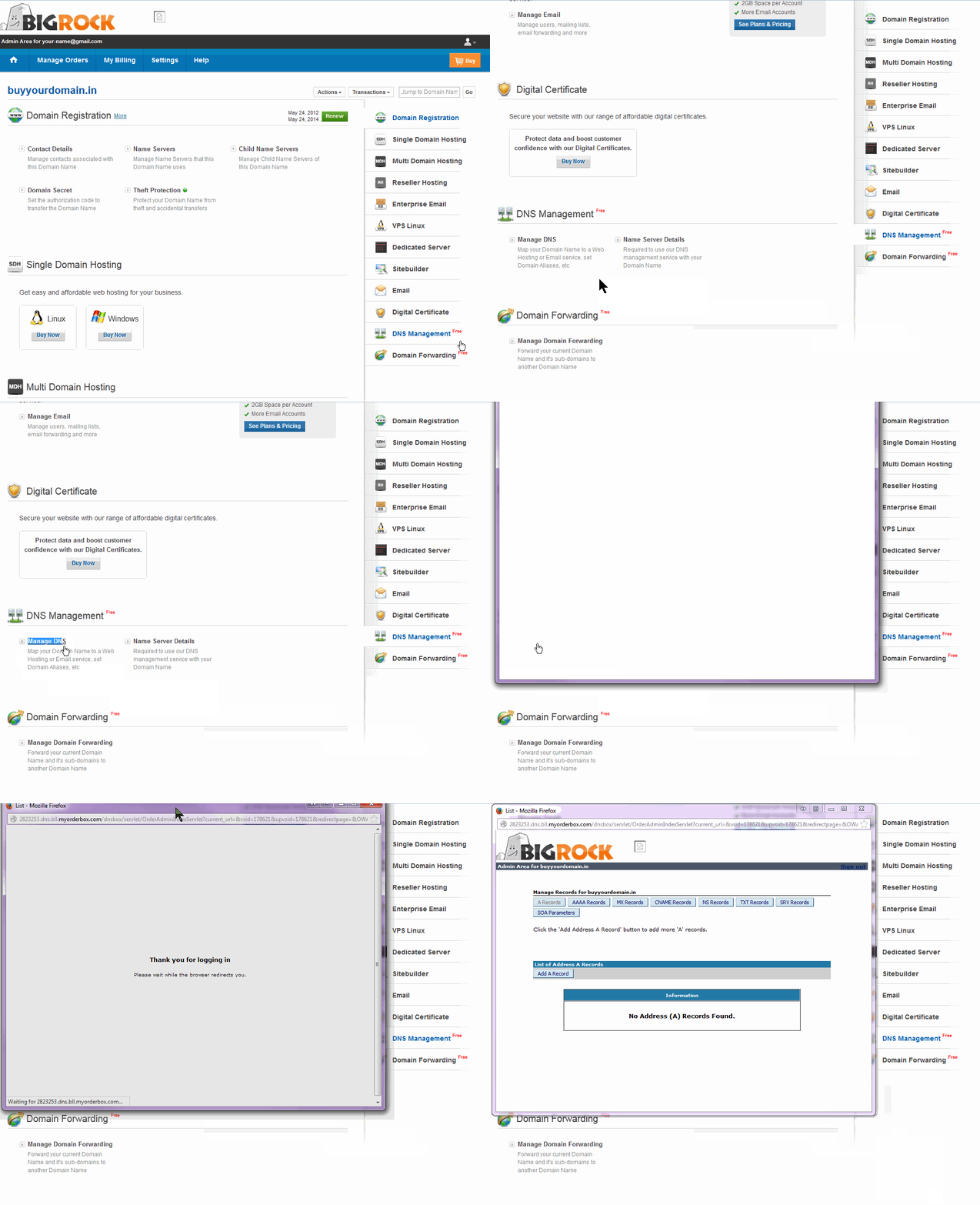
Click on the DNS Management option to the right of this page
-
Click on “Manage DNS”
-
Click on “Add A Record” and enter the following details:
-
Host/Host Name: @
-
Value/Destination/Points to: 13.232.79.15
-
TTL: leave it as whatever is default configured. If there is no value configured then use : 38400 (seconds)
-
Click On Add Record and the record will be added successfully.
To Add a CNAME in Big Rock follow these steps
- Log in to your Big Rock account.
-
You will now see a page with all purchases made by you on our system
-
Click on the domain name for which you need to change the DNS records
-
Click on the DNS Management option to the right of this page
-
Click on “Manage DNS”
-
Click on “Add CNAME Record” and enter the following details:
-
Host/Host Name: www
-
Value/Destination/Points to: sf.vacationlabs.com
-
TTL: leave it as whatever is default configured. If there is no value configured then use : 38400 (seconds)
-
Click on Add Record to successfully add the Cname Record.
Note: DNS changes can take up to 24-48 hours to propagate.