Changing order of photos on tour page gallery
This article explains the steps to rearrange the sequence of photos displayed in the photo gallery on one of your tour pages. The order of images is set during the initial tour setup, but you can change it at any time using the Reorder Option.
Steps to Reorder Tour Photos
Step 1: Navigate to Your Product Tours
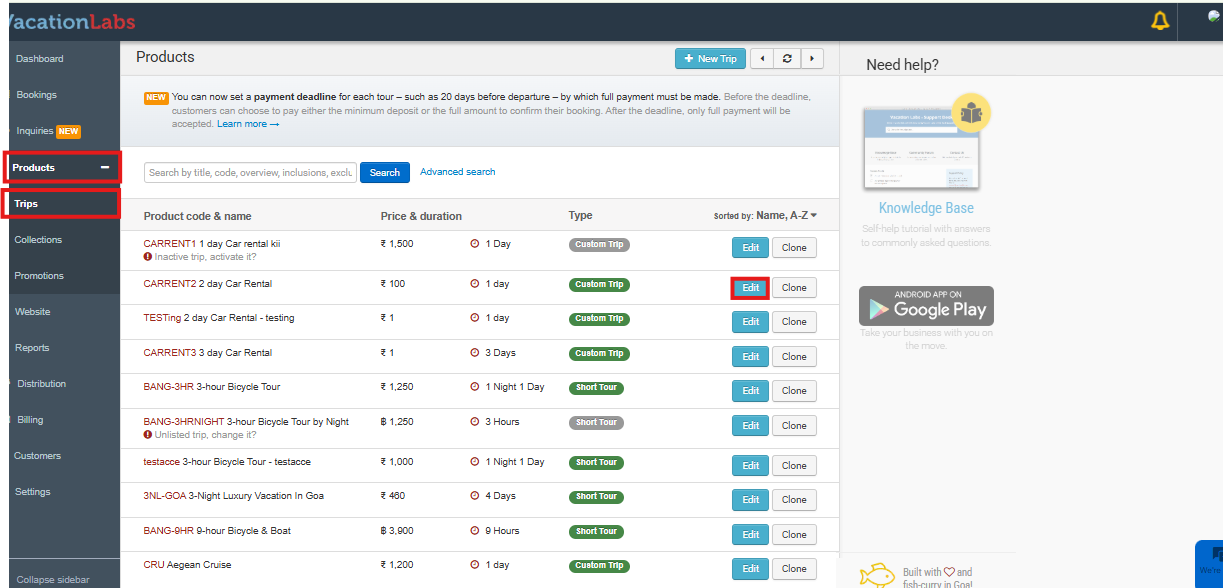
- After logging into your Vacation Labs account, locate and select the Products > Trips option from the main navigation menu. This will display a list of all your available tours and activities.
Step 2: Select the Specific Tour
-
From your list of products, find the specific tour for which you want to rearrange the photos.
-
Click on the Edit to select it and open its management dashboard.
Step 3: Access the Basic Details Section
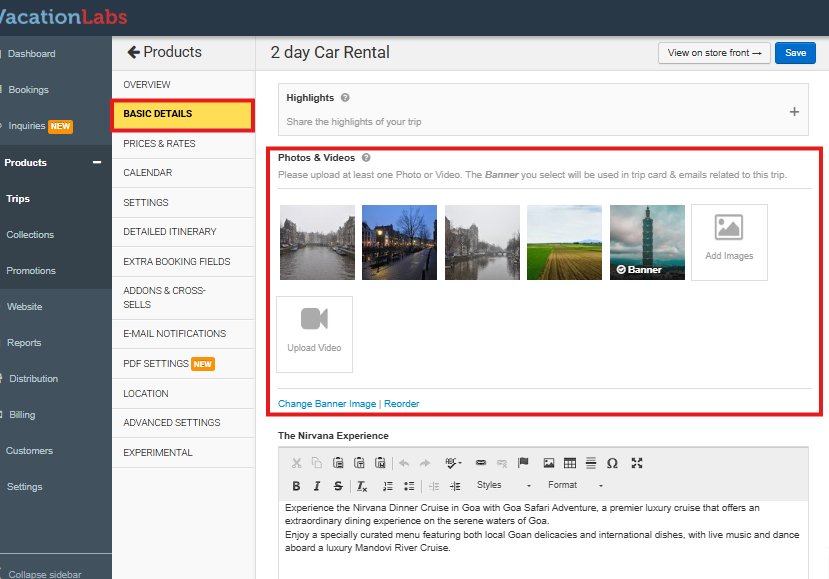
- Within the tour editor, click on the Basic Details tab or section. This section contains the fundamental information about your tour, including its title, overview, photo gallery etc.
Step 4: Locate the Photo Gallery
- Scroll down within the Basic Details section until you find the Photos & Videos section. This is where all images currently associated with this tour are listed.
Step 5: Initiate the Reorder
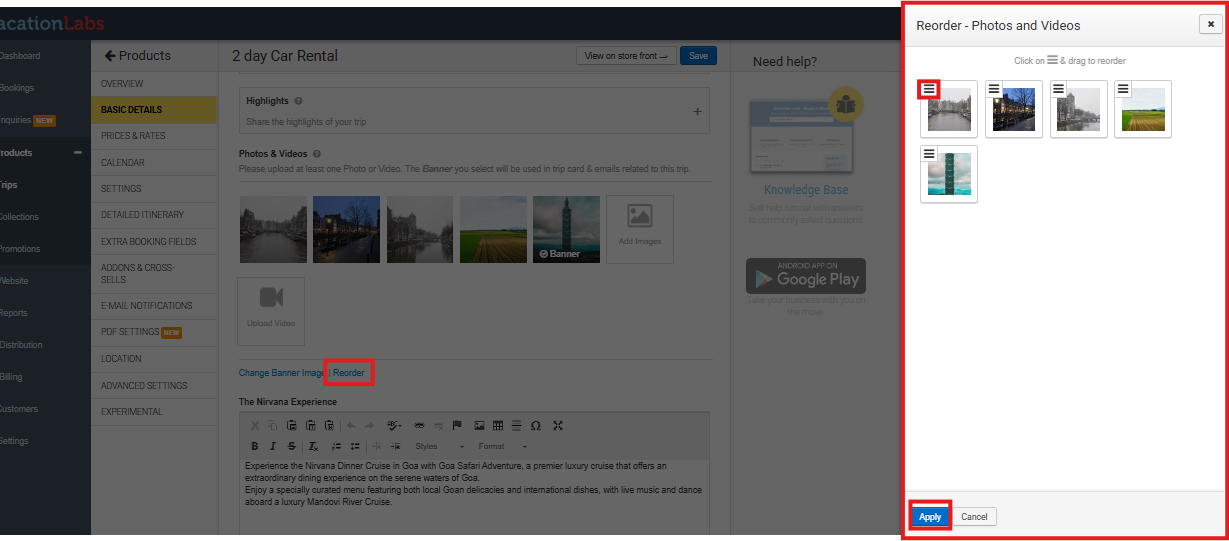
- Within the Photos & Videos Section, click the button labeled Reorder. This action will activate the drag-and-drop interface for rearranging your images.
Step 6: Rearrange Your Images
-
In the Reorder mode, simply click, hold, and drag each photo to your desired new position in the sequence.
-
Drop the photo into place. The other images will automatically adjust their order around it.
Step 7: Save Your Changes
-
Once you are satisfied with the new order of your photos, click the Apply button to finalize the new sequence within the gallery.
-
It will automatically saved.