Creating a Passenger Form with Extra Booking Fields
While the default booking form allows your customers to provide their contact details(Name, Email, Phone), you can attach additional Passenger Form to each trip and ask additional information from each passenger.
Please follow the steps below to setup a Passenger Form.
-
Edit the product and go to the section: Extra Booking fields.
-
We will begin by creating a form and saving it, which can be later used again on any other tour/product
-
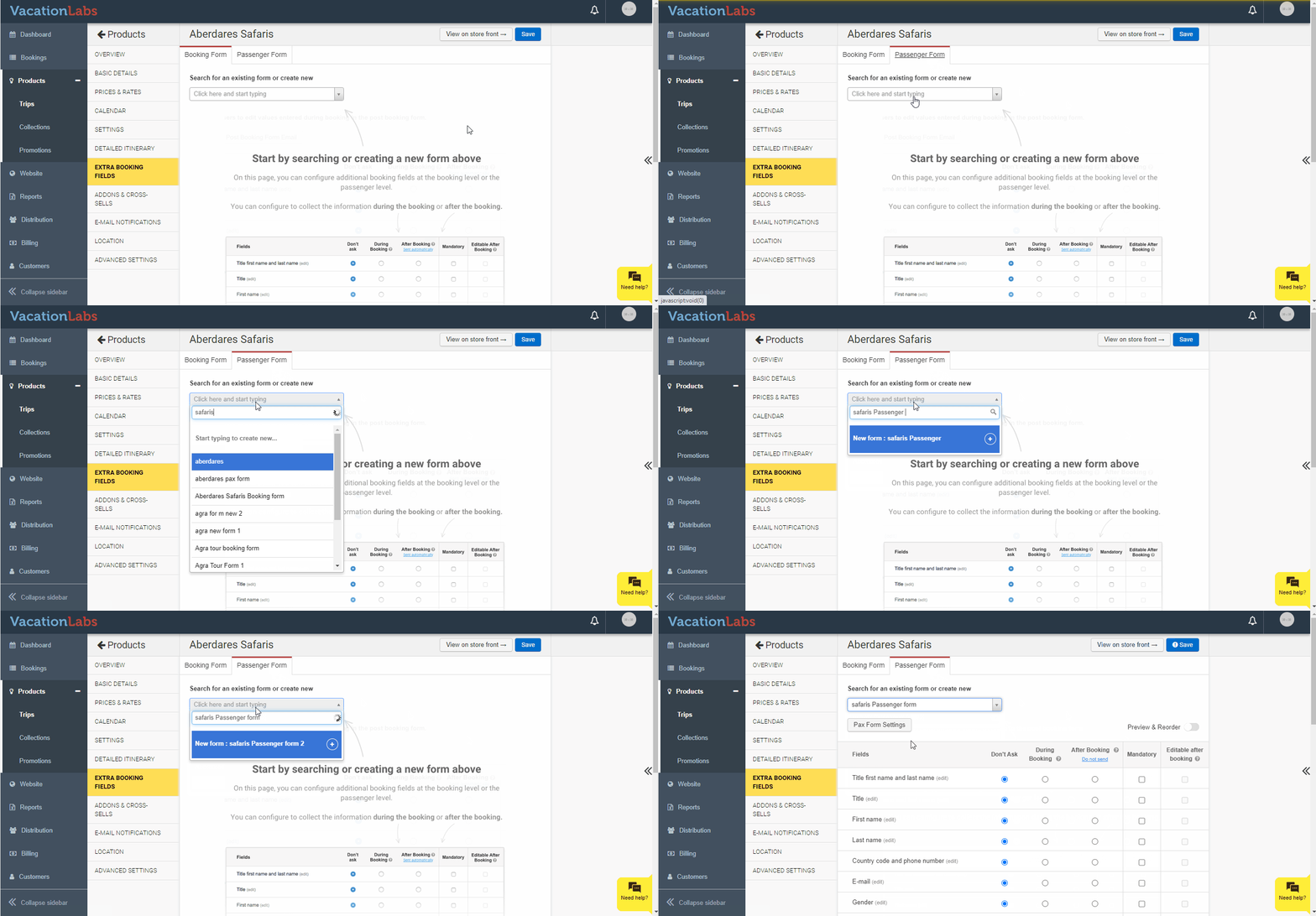
Under the tab Passenger Form, click on the field where it says:Click here and start typingand type the name of the form (see the gif below)
-
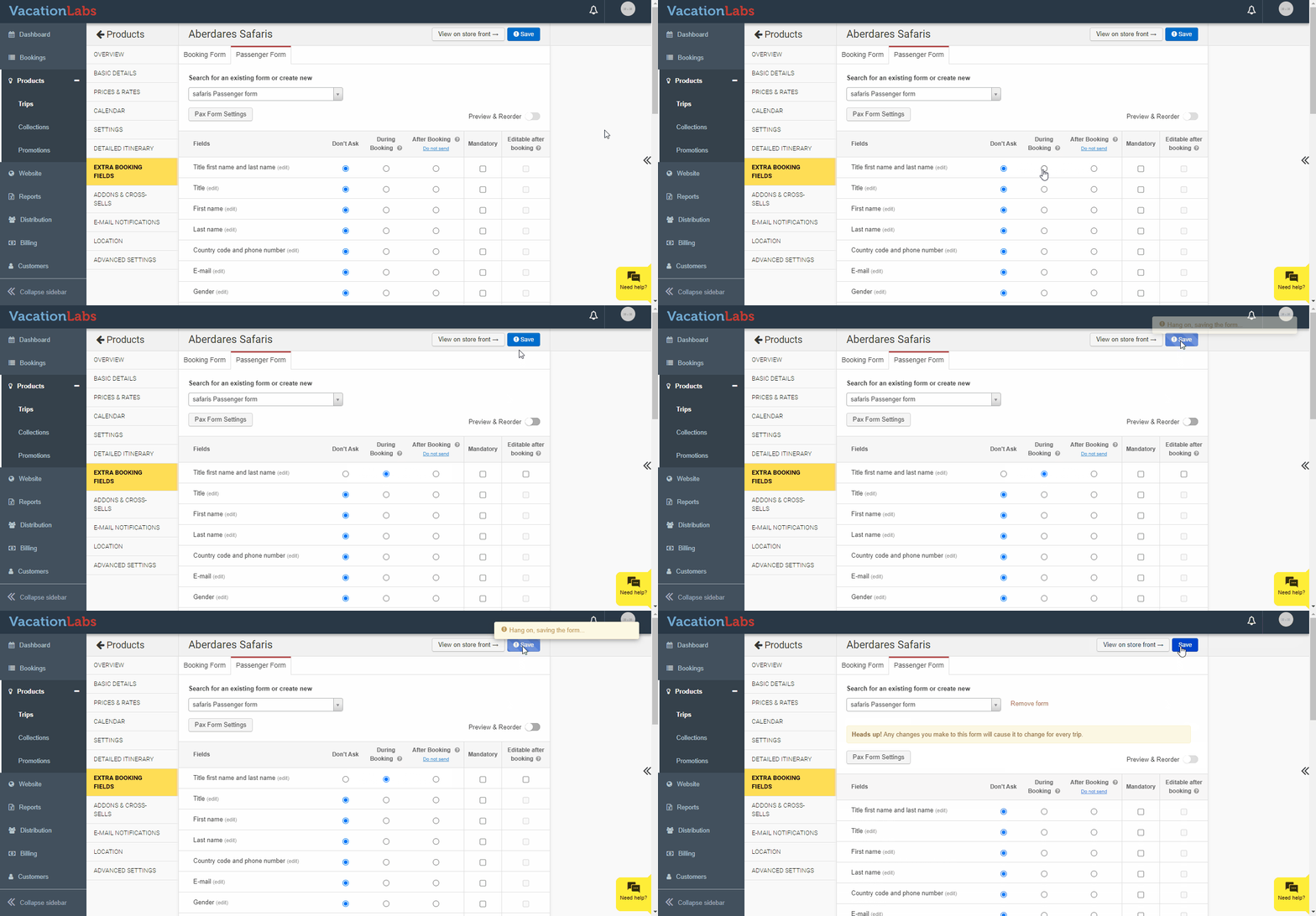
Once you click on the new name, the form will start showing you a list of default fields like Name, Email, Age, Address etc. Immediately we need to save the form by choosing any field from the default list and clicking on theSavebutton. Choose a field by clicking on the radio button against it underDuring bookingcolumn. You can un-select/disable the field later, once the form is successfully saved, you can make any changes to it like adding or removing new fields or creating custom fields.
-
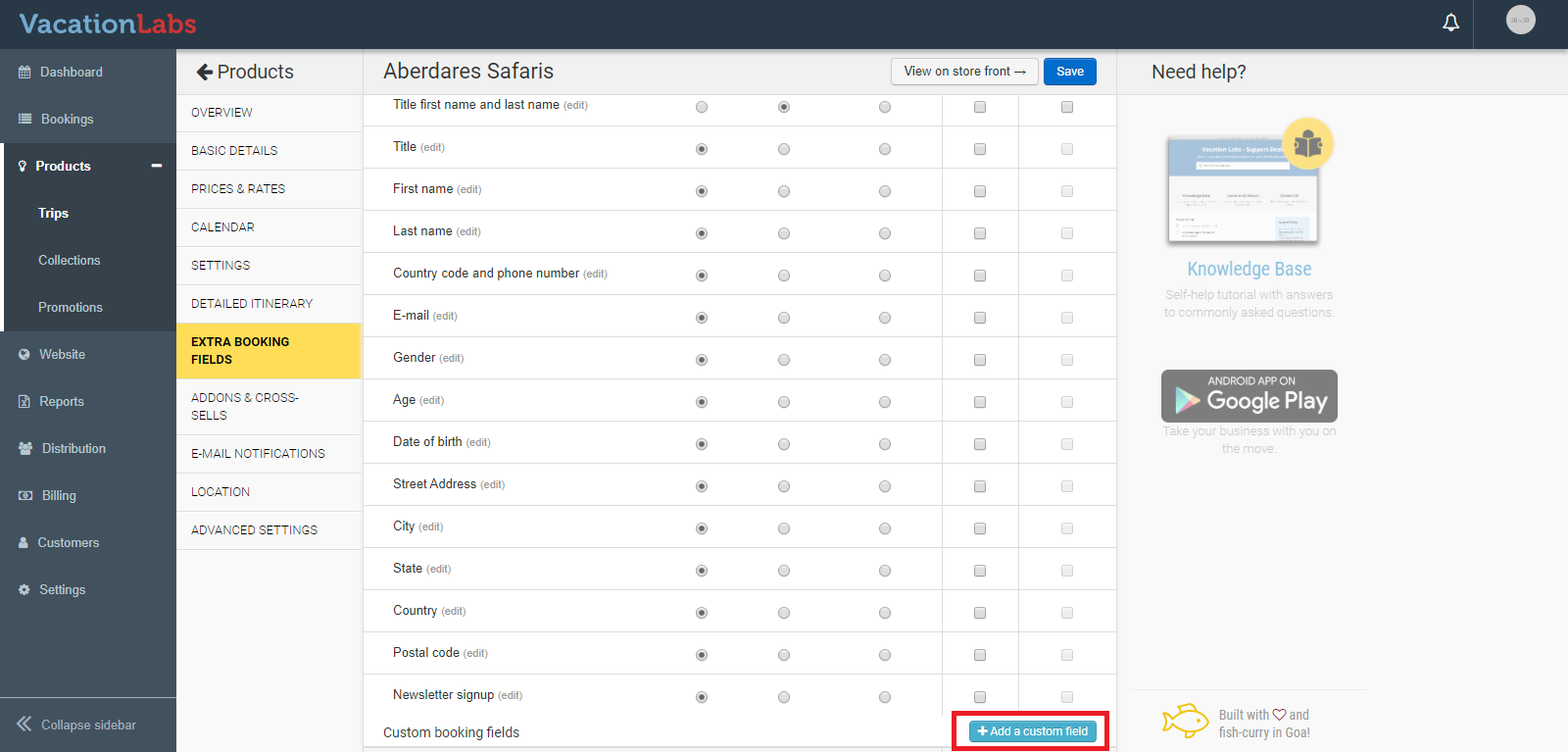
If besides the default fields you wish to create new fields then use theAdd Custom Fieldon the bottom right of your screen to create new fields.
-
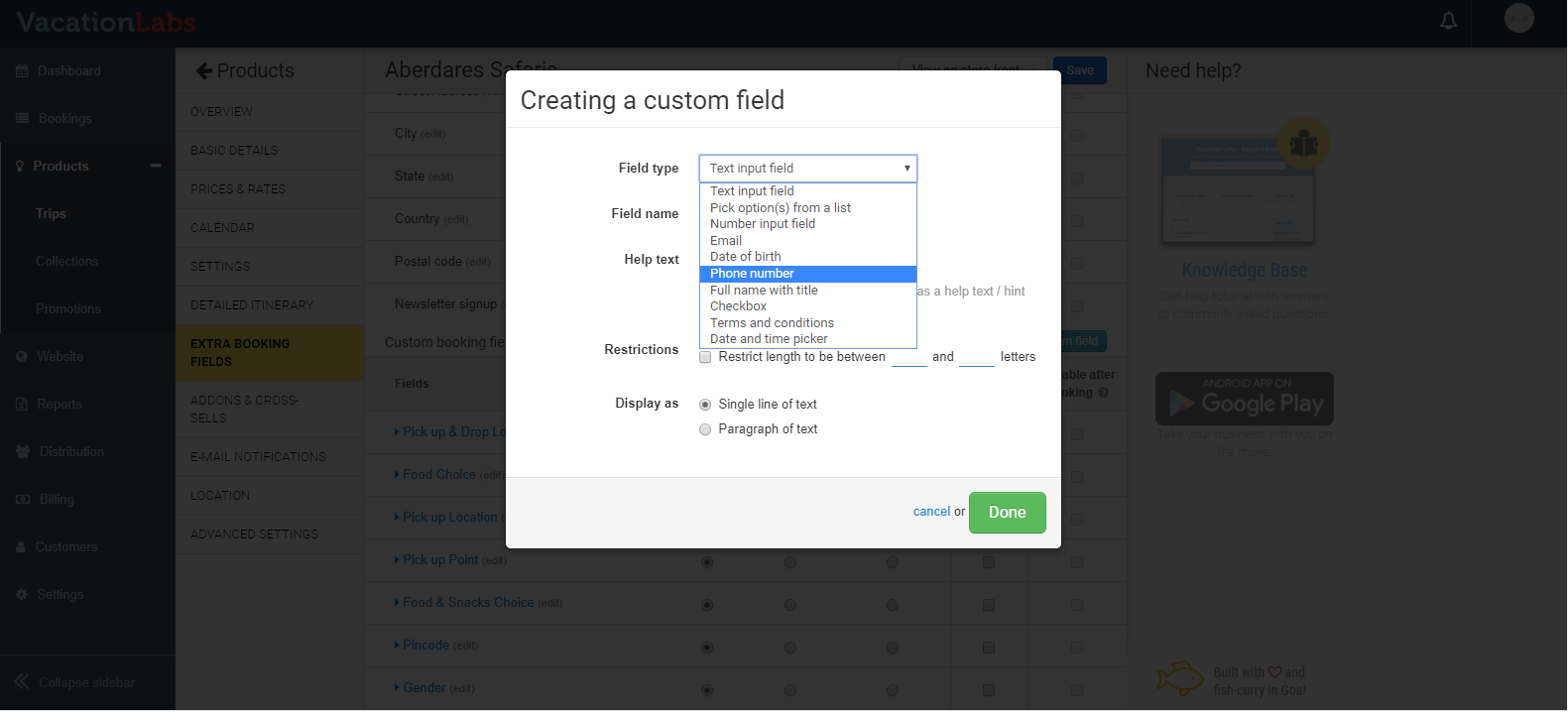
Add Custom field button allows you to crate a new field of your choice. There are multiple field types which can be used as per your requirement. (See screenshot below)
-
If you want to ask for name, phone number or email addresses, you can use the Name, Phone and Email field. If you want your customers to choose from a list of given choices then you use the field: Pick options from a list
-
Once you have created the field, click on Done.
-
The new field will get added to the bottom of the list. In order enable or activate the field, make sure that you click on the radio button against it underDuring bookingcolumn
-
Save the form and you are ready to go. Try making a booking to test and verify if all the activated fields are visible during the booking flow.
-
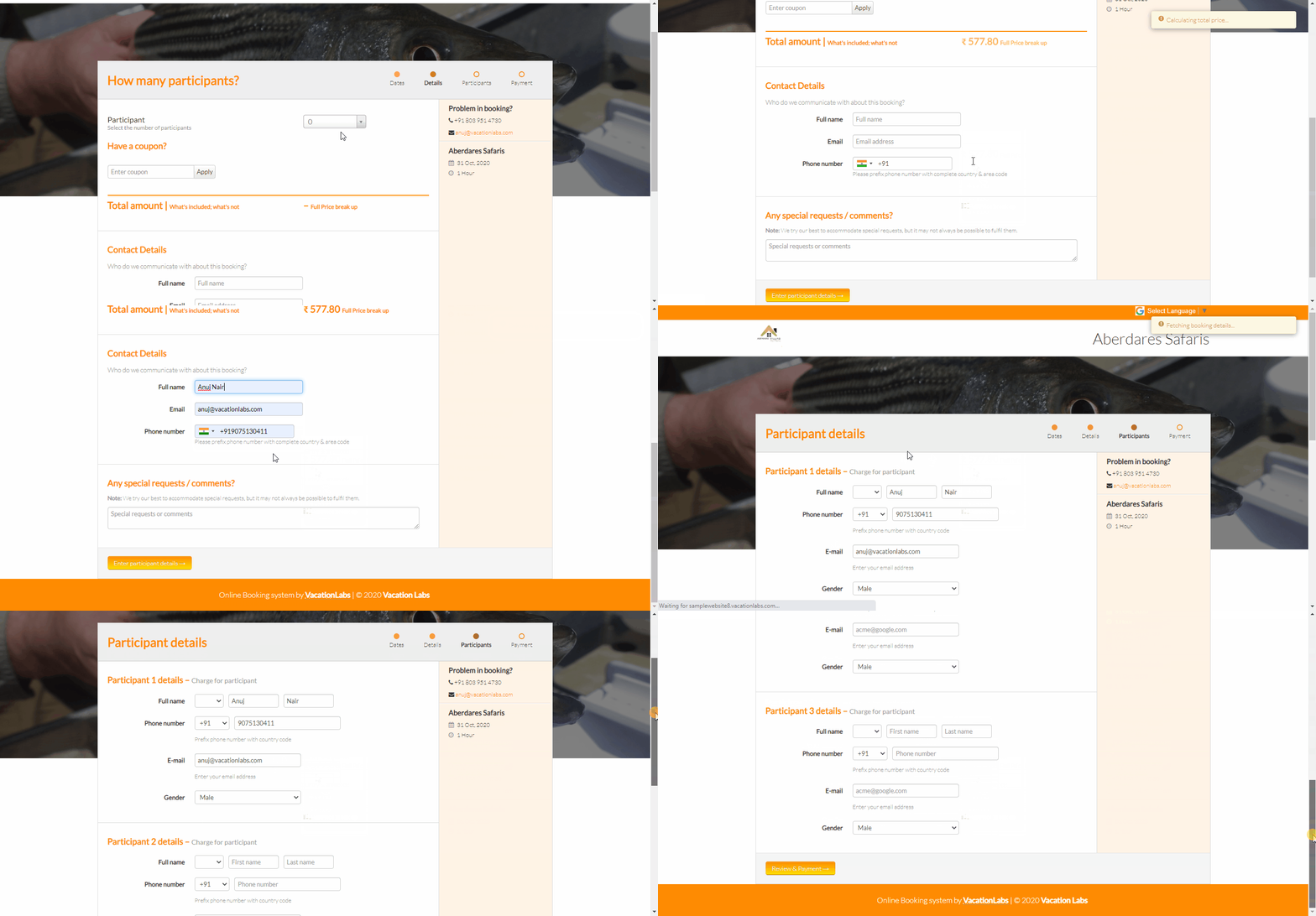
This Passenger Form will make sure that all the information that you wish to collect is asked from each passenger during the booking. (see gif below)
-
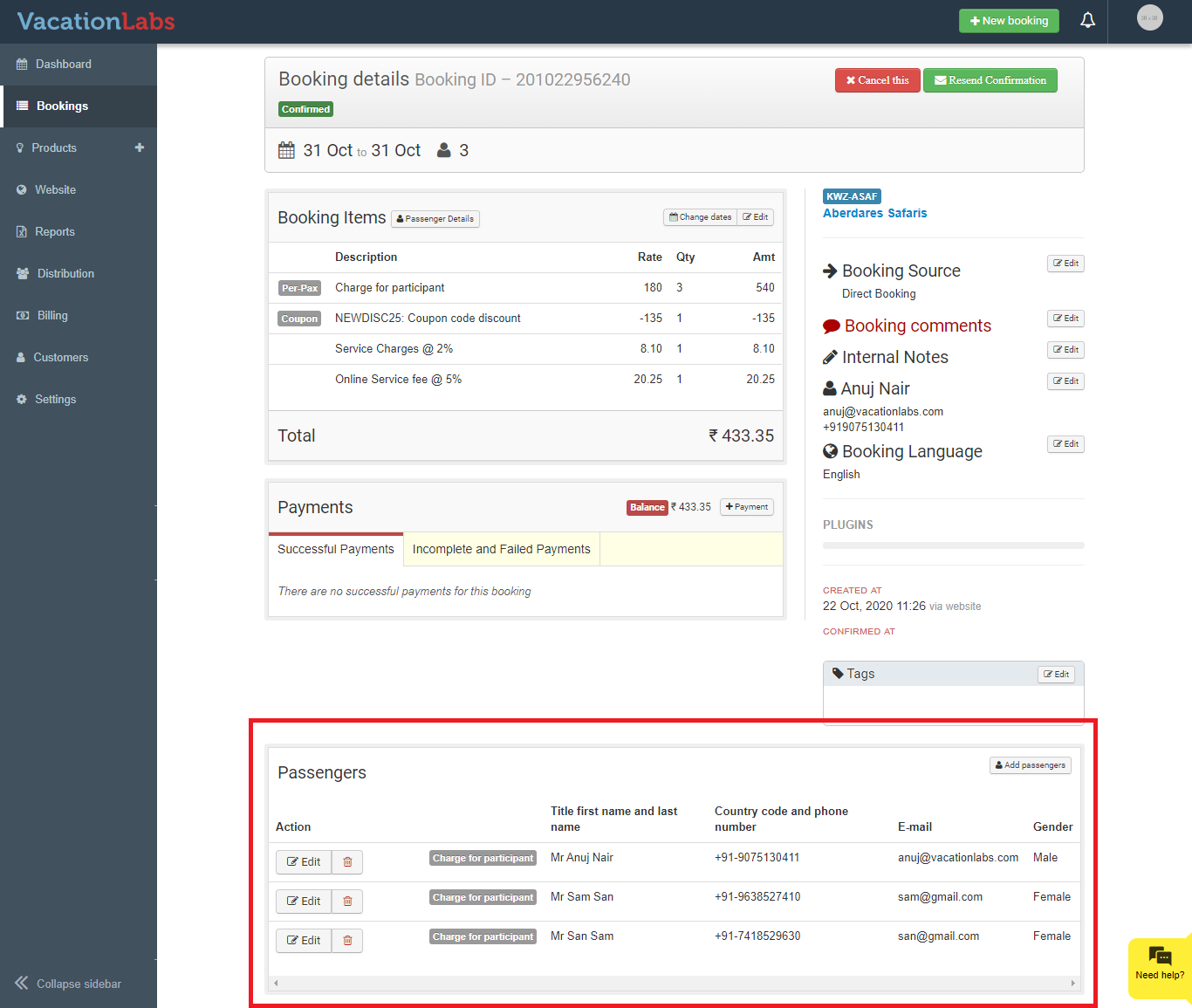
Once this form is filled, the collected information will be immediately visible in the Bookings section under the Details of that booking:
Important :
-
You can always come back and edit a form or use the same form for other products too. A very important thing to know about these forms is that if one form(example: Form ABC) is used in 10 different trips, then making any changes or modifications to the Form ABC on any 1 trip will automatically get applied to all products on which that same Form ABC is being used.
-
If you wish to have different fields for different trips, we would recommend creating a new form for them.