Creating coupons & managing discounts and offers
Coupons let you offer discounts and promotions on your Vacation Labs booking website. Here’s how you can create and activate them:
Create a New Coupon
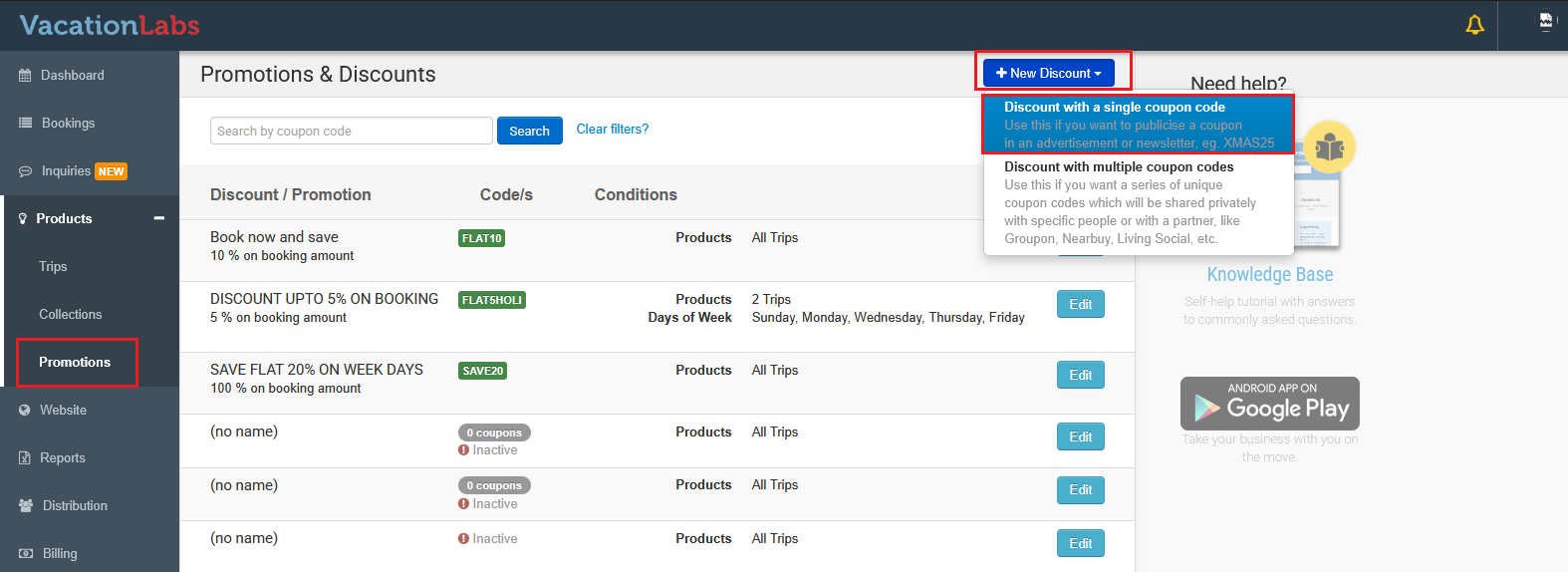
Go to Products > Promotions and click + New Discount and choose Discount with Single Coupon Code.
Add Basic Details
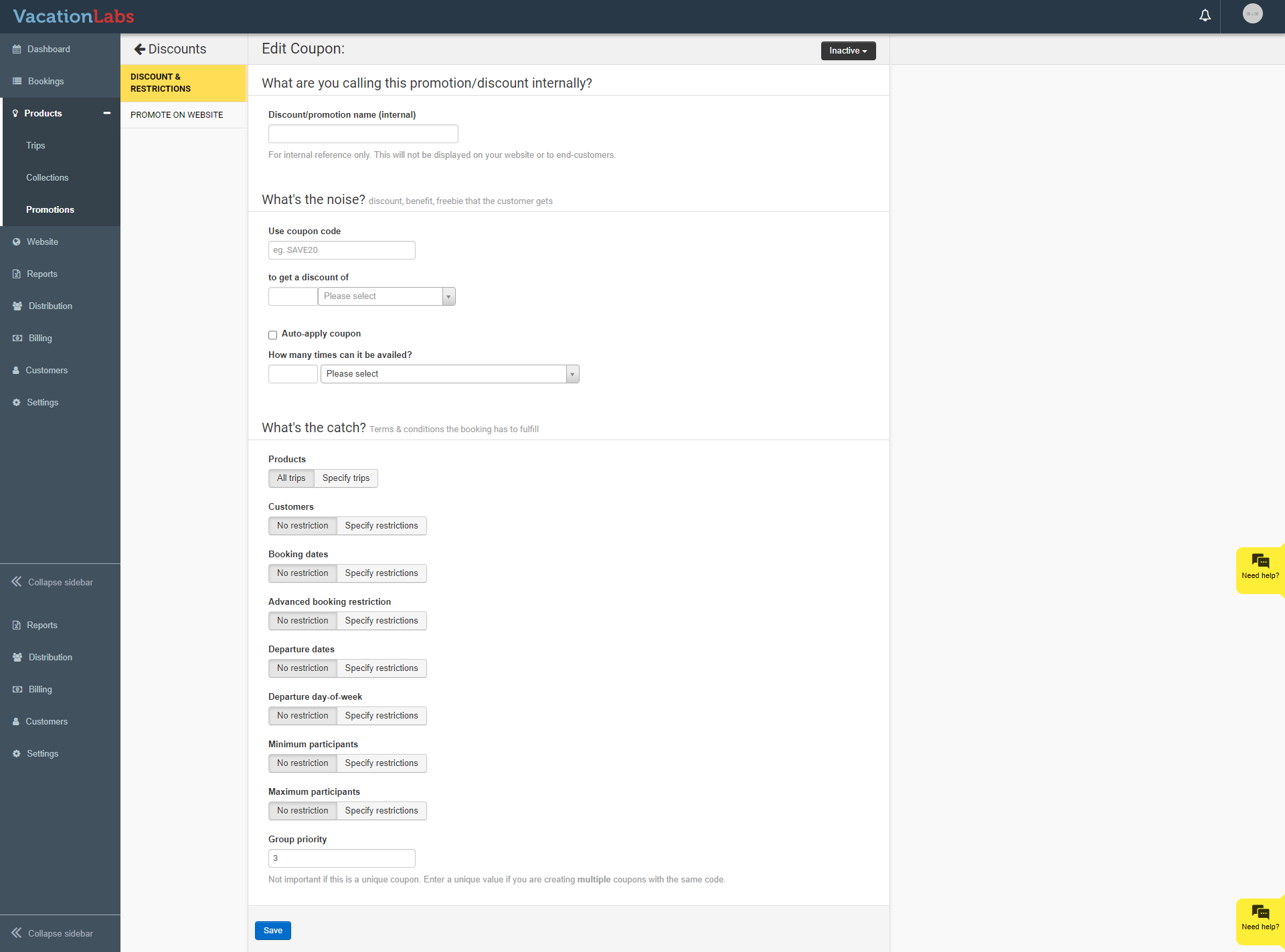
Enter a Coupon Name in the field Discount/promotion name (internal) (this is for internal use only and will not be visible to customers).
In the What’s the noise? section:
-
Use coupon code – Enter the code that customers will use to apply the discount (e.g., SAVE20).
-
To get a discount of – Specify the discount value and choose the type:
-
Percentage discount (e.g., 20% off the total booking).
-
Flat discount (either per booking or per participant).
-
Require Full Payment for a Coupon Pro Available on the Pro plan and above.
Some offers only make sense when the customer pays the full booking amount upfront — a flash sale, or an early-bird deal where you would rather not accept a partial deposit. The Require full payment option turns any coupon into a full-payment deal.
In the What’s the noise? section, tick Require full payment to avail this coupon (just below Auto-apply coupon).
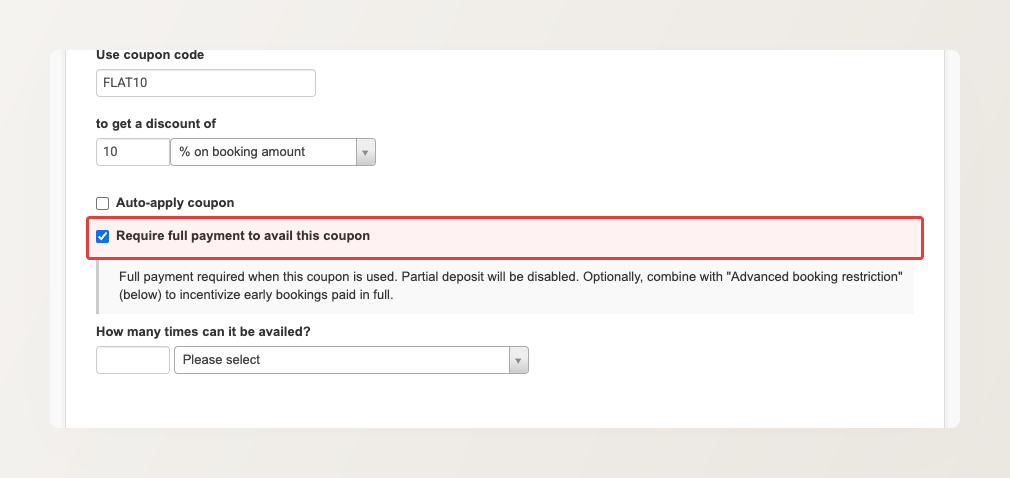
When this is on and a customer applies the coupon, the partial-deposit option is switched off — they must pay the full (discounted) amount to confirm the booking.
Here is what the customer sees — the promoted coupon offered on the booking form, and the deposit option crossed out once it is applied:
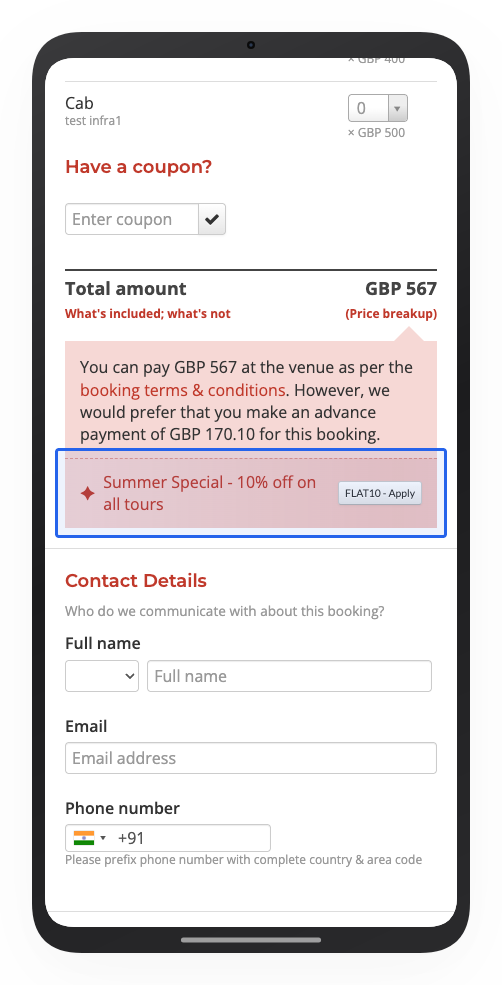
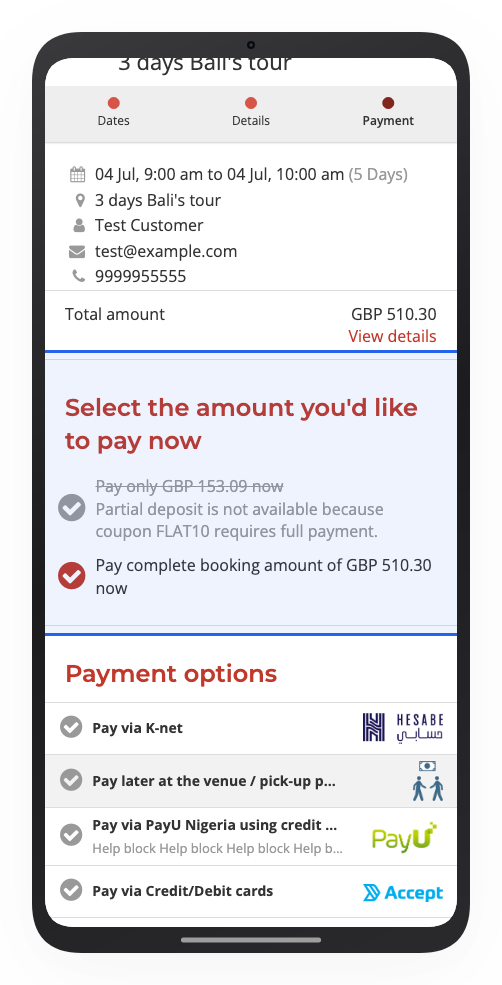
This option only has a visible effect on tours that have minimum deposit enabled. If a tour already requires full payment, there is no deposit to switch off. See Payment flows for how to set up a minimum deposit.
Pair it with an Advanced booking restriction (in the What’s the catch? section) to build an early-bird offer: customers who book far enough ahead of departure and pay in full get the discount.
Set Constraints (Optional)
In the What’s the catch? section, you can decide where and when the coupon applies. For example:
-
Limit to a specific trip or allow for all trips.
-
Make it valid for bookings made within a date range.
-
Restrict it to travel during a specific period.
-
Apply only on certain days of the week.
Please Note: Constraints are optional. Add only the ones you need.
Group Priority: If you create multiple coupons with the same code, their order of priority is managed by the Group Priority setting.
Save and Activate
-
Click Save to create the coupon.
-
By default, the coupon is inactive. To activate it:
-
Click Inactive coupon at the top right.
-
Select Activate this coupon.
-
-
To remove a coupon, choose Delete this coupon from the same dropdown.
Promote On Website
Once you’ve created and saved a coupon, you can choose to display it on your website - on the tour page, collection page, or tour card
To promote a coupon on your website:
-
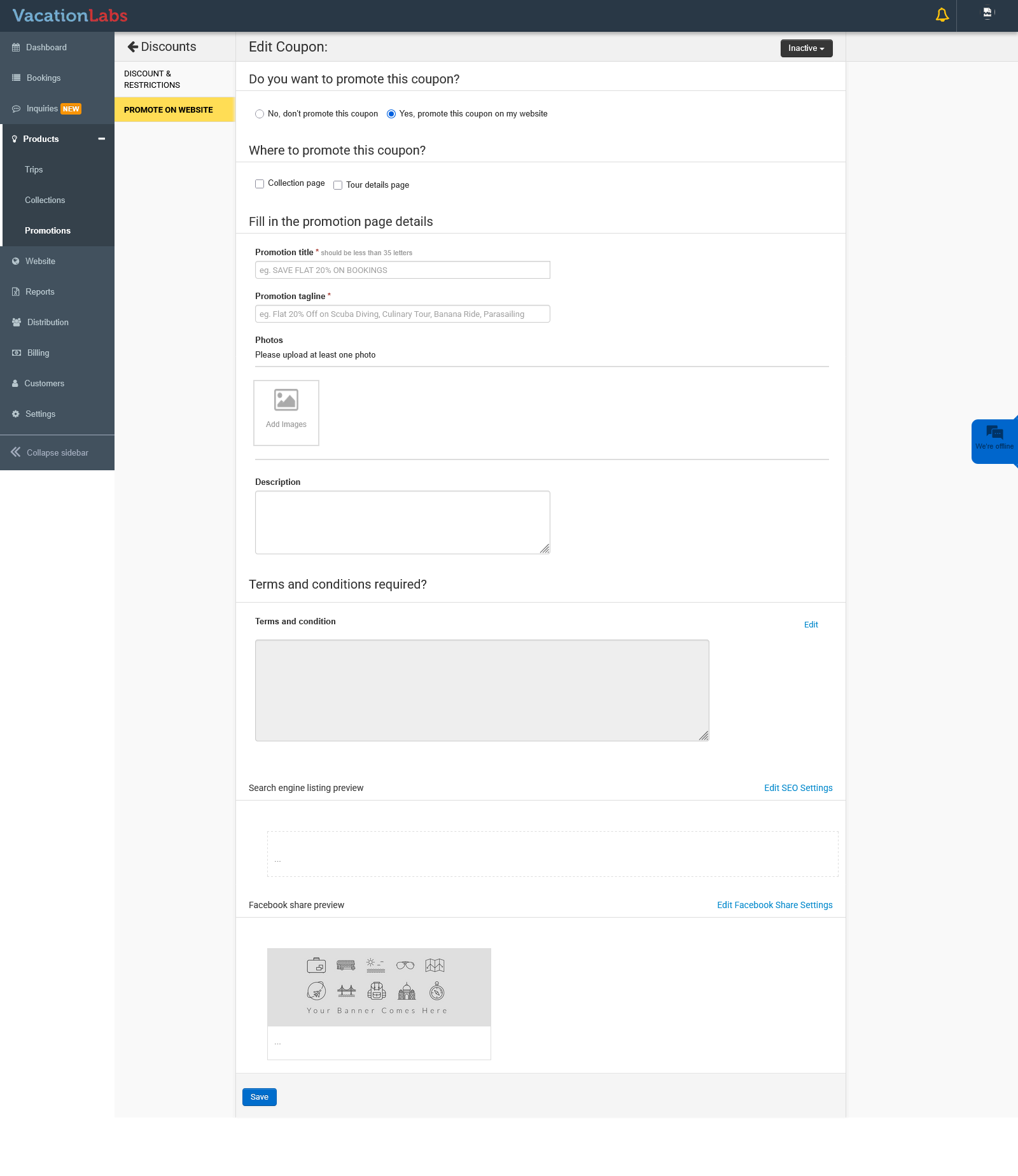
Go to Promote on Website and toggle Yes, promote this coupon on my website.
-
Configure the promotion settings:
-
Where to promote this coupon? – Select the location (Collection page or Tour page).
-
Promotion page details – Enter the title and tagline you want to display on the coupon/promotion page. You can also upload a banner image for this page.
-
Description and Terms & Conditions – Add a description of the offer along with any terms and conditions.
-
SEO & Facebook settings – Manage search engine and social sharing settings for better visibility.
-