Creating coupons & managing discounts and offers
Coupons let you offer discounts and promotions on your Vacation Labs booking website. Here’s how you can create and activate them:
Create a New Coupon
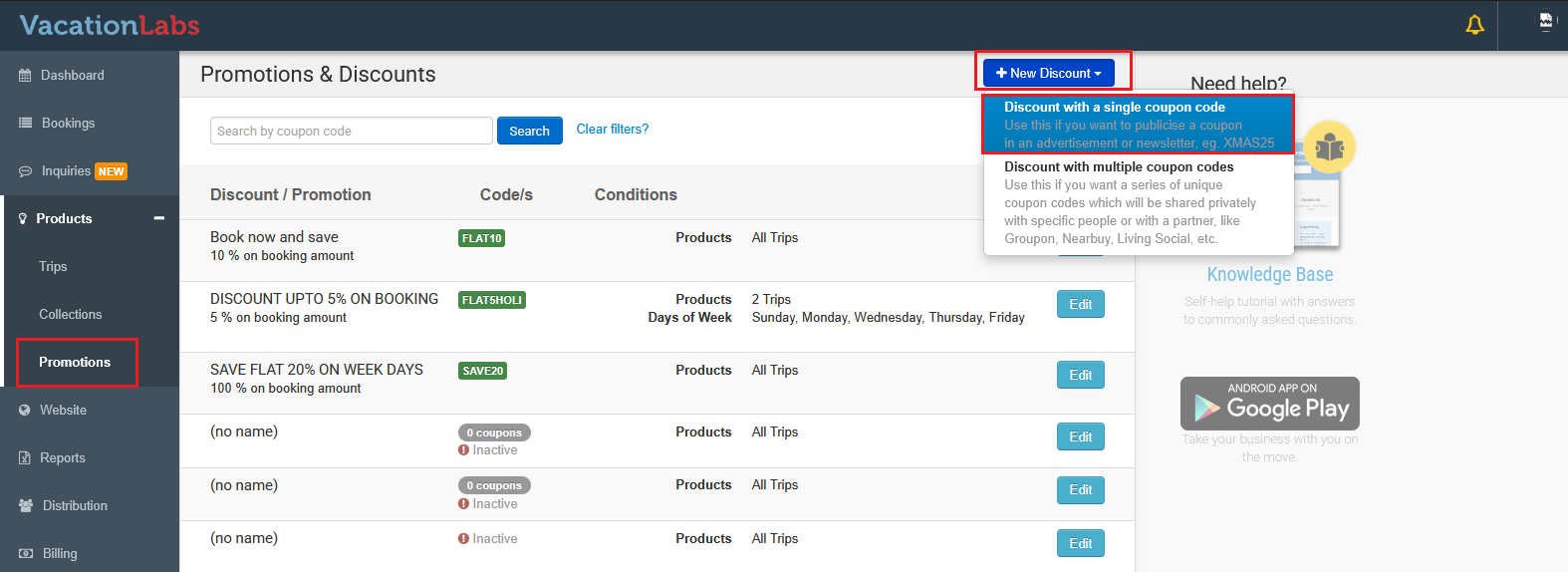
Go to Products > Promotions and click + New Discount and choose Discount with Single Coupon Code.
Add Basic Details
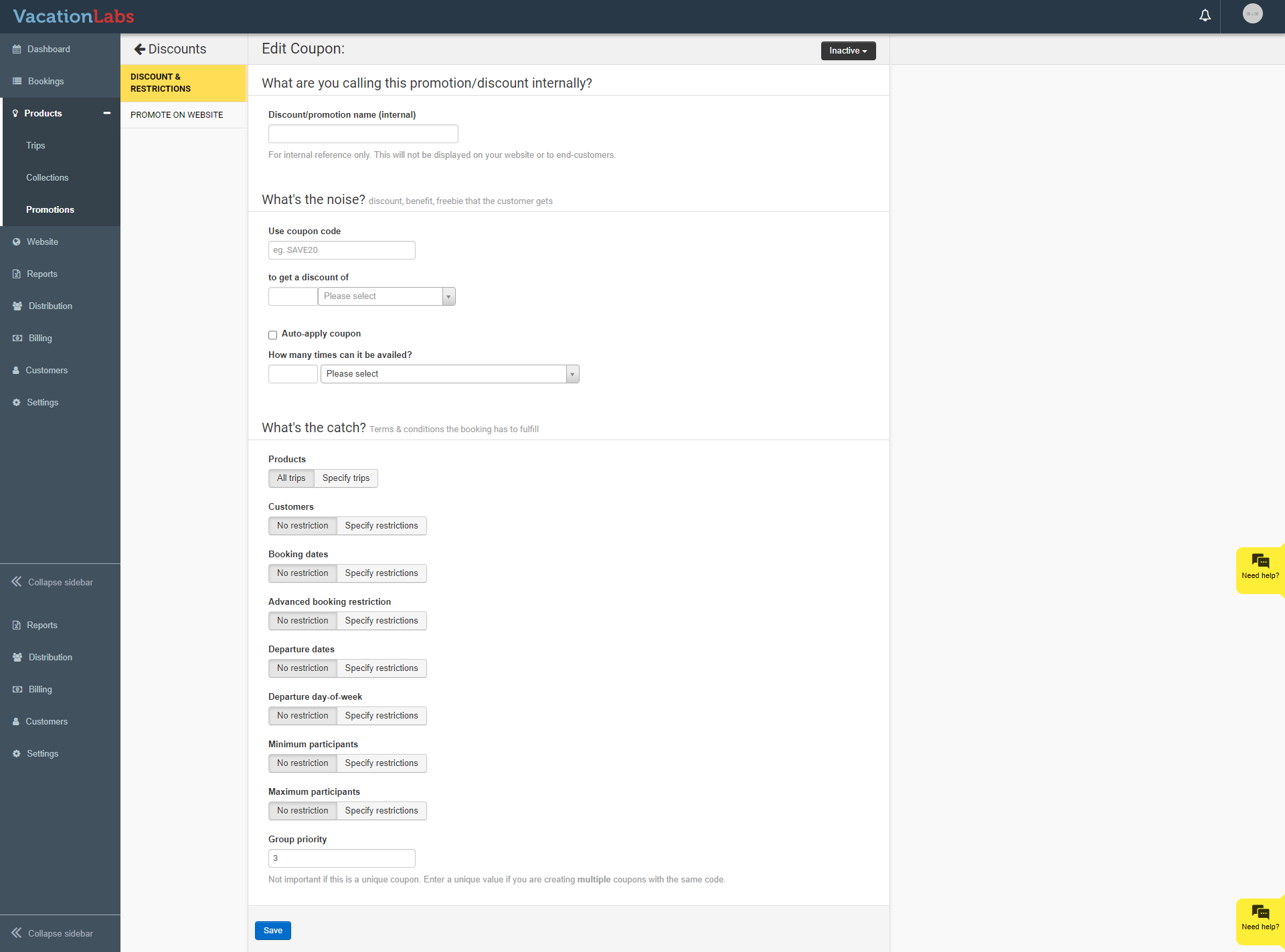
Enter a Coupon Name in the field Discount/promotion name (internal) (this is for internal use only and will not be visible to customers).
In the What’s the noise? section:
-
Use coupon code – Enter the code that customers will use to apply the discount (e.g., SAVE20).
-
To get a discount of – Specify the discount value and choose the type:
-
Percentage discount (e.g., 20% off the total booking).
-
Flat discount (either per booking or per participant).
Set Constraints (Optional)
In the What’s the catch? section, you can decide where and when the coupon applies. For example:
-
Limit to a specific trip or allow for all trips.
-
Make it valid for bookings made within a date range.
-
Restrict it to travel during a specific period.
-
Apply only on certain days of the week.
Info
Please Note: Constraints are optional. Add only the ones you need.
Tip
Group Priority: If you create multiple coupons with the same code, their order of priority is managed by the Group Priority setting.
Save and Activate
-
Click Save to create the coupon.
-
By default, the coupon is inactive. To activate it:
-
Click Inactive coupon at the top right.
-
Select Activate this coupon.
-
To remove a coupon, choose Delete this coupon from the same dropdown.
Promote On Website
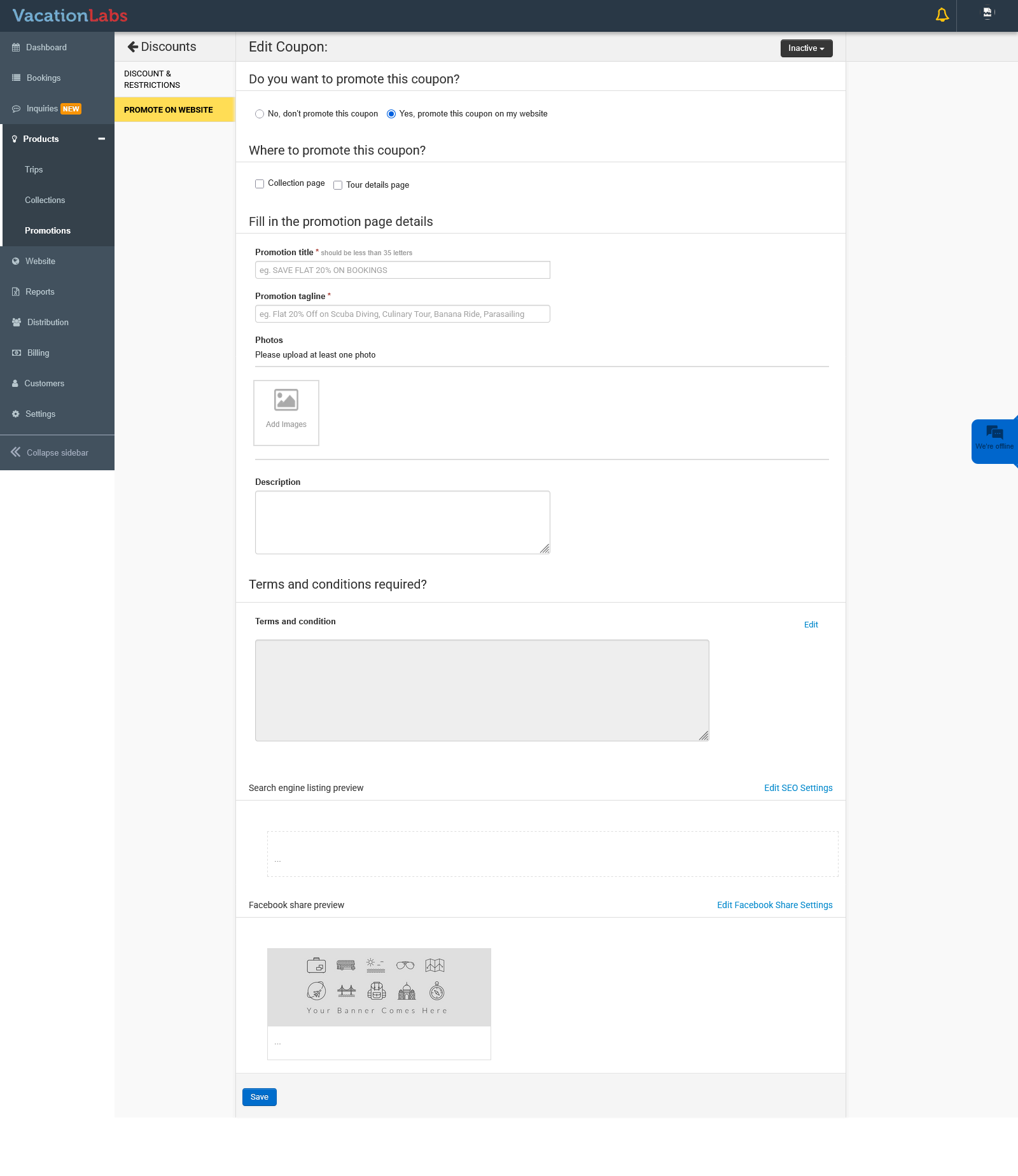
Once you’ve created and saved a coupon, you can choose to display it on your website - on the tour page, collection page, or tour card
To promote a coupon on your website:
-
Go to Promote on Website and toggle Yes, promote this coupon on my website.
-
Configure the promotion settings:
-
Where to promote this coupon? – Select the location (Collection page or Tour page).
-
Promotion page details – Enter the title and tagline you want to display on the coupon/promotion page. You can also upload a banner image for this page.
-
Description and Terms & Conditions – Add a description of the offer along with any terms and conditions.
-
SEO & Facebook settings – Manage search engine and social sharing settings for better visibility.