Hiding Advertised Tour Price
Overview
There are times when you do not wish to mention a price for your trip upfront, especially when the trip is “on request” and/or each booking is highly customized based on the traveller’s requirements. In such cases this feature will hide your trip’s advertised price from the trip page, collection page, tour cards, Google rich snippets, etc. while still maintaining it internally for the purpose of sorting/searching of trips on the basis of price. Here’s what this article will take you through:
- Hiding the Advertised price from the end-customer
- Observing all the places on the storefront where the price is no longer visible
Steps to hide the advertised tour price
To Hide the advertised tour price from the website tour details page please follow the steps listed below:
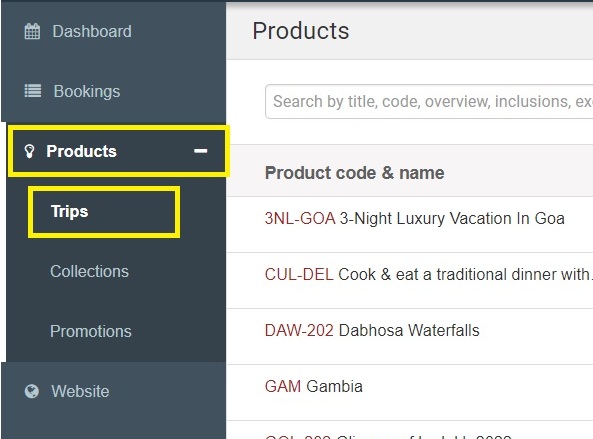
1. Go into the Products > Trips section
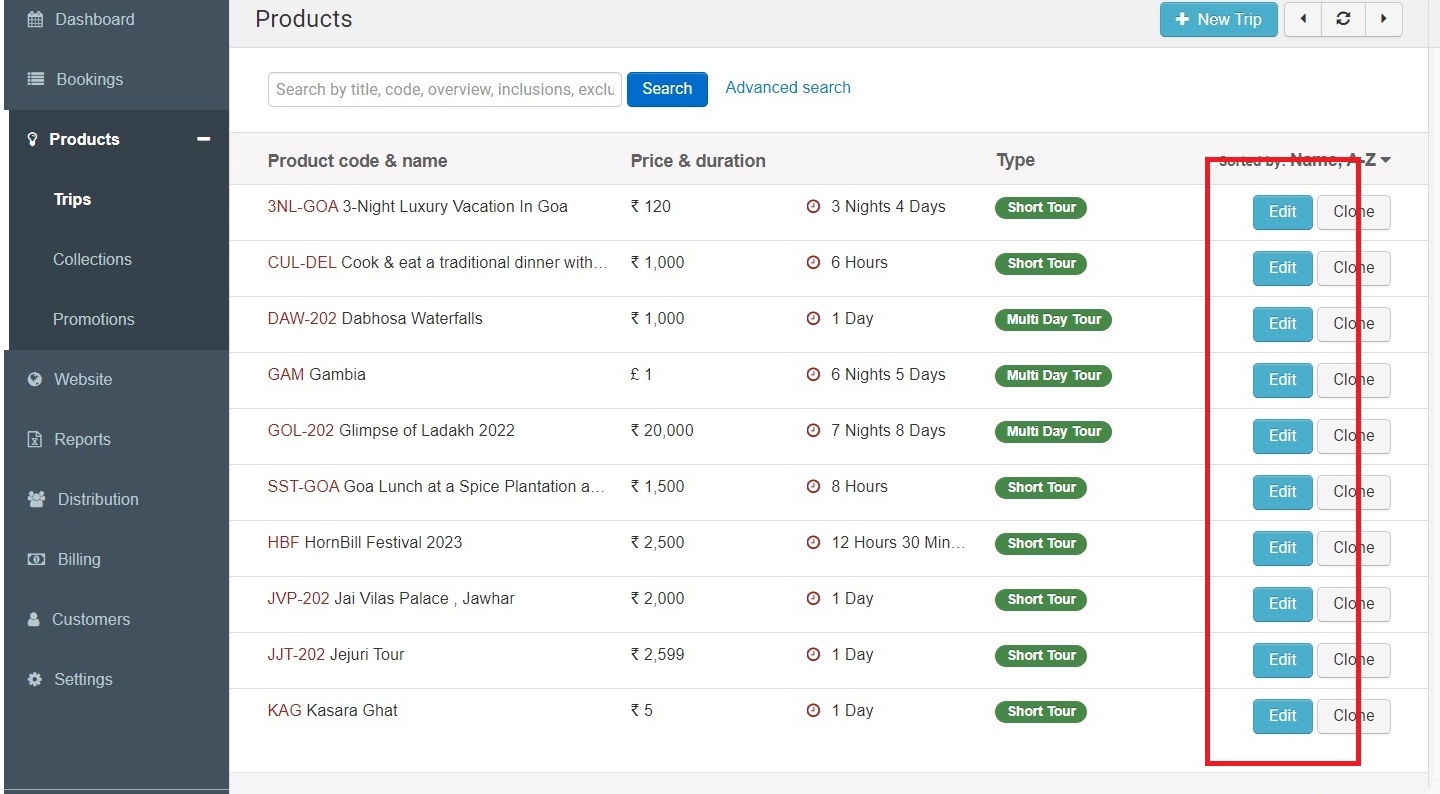
2. Click on EDIT for the Trip for which you want to hide the advertised tour price.
3. Go into the Prices and Rates section of the Trip.
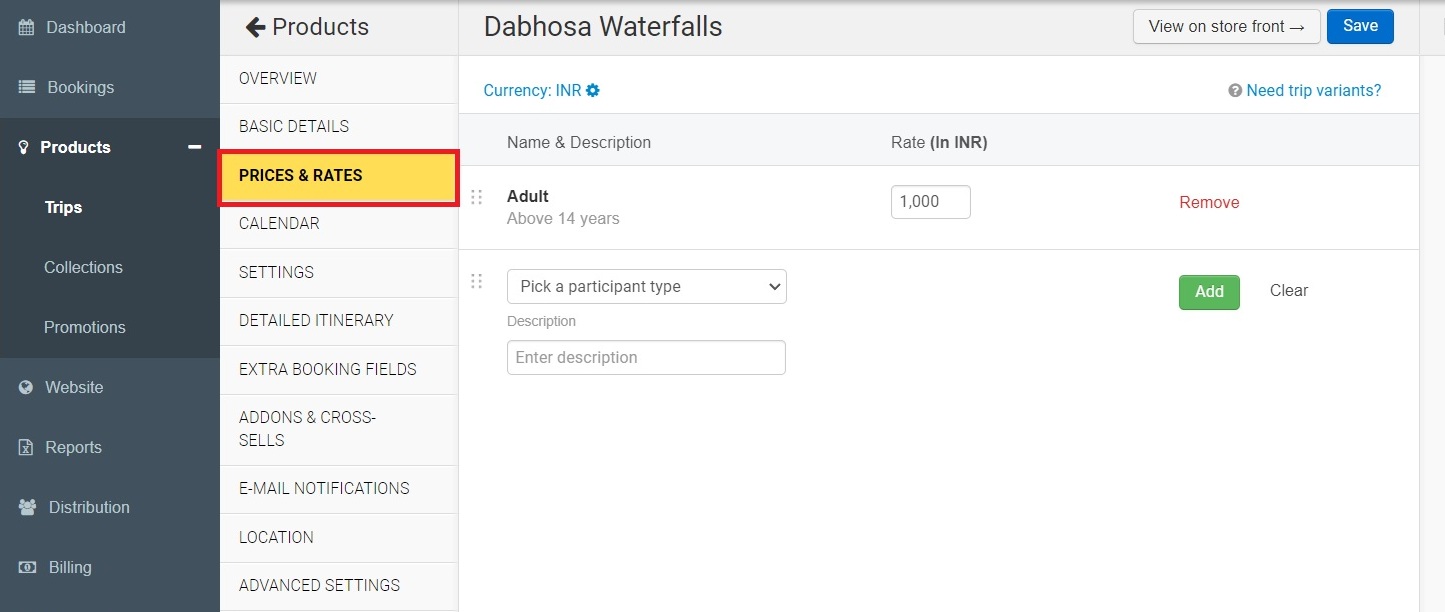
4. Here you can Select the option titled “Hide Tour’s Advertised Price from Customers” and this will hide the advertised tour price from the storefront.
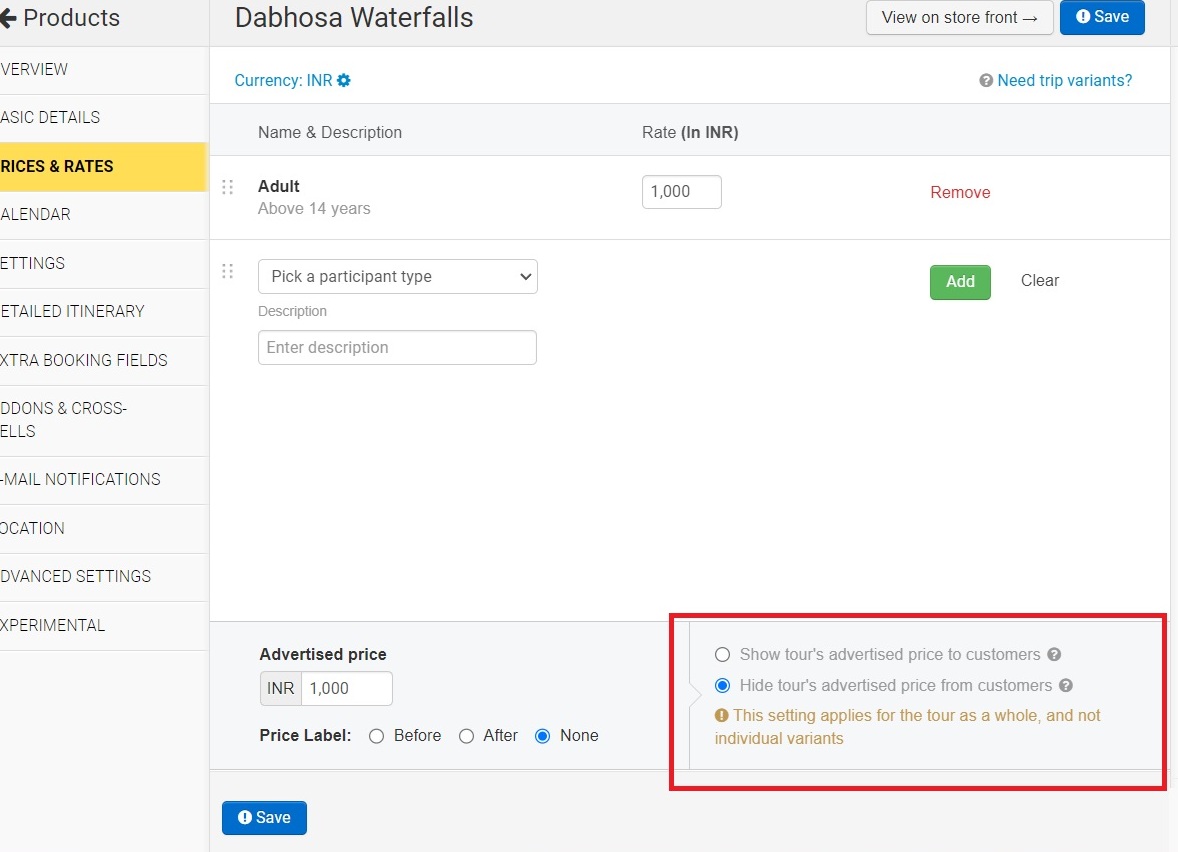
5. Don’t forget to SAVE the changes you have made.
Confirm that the price has been hidden
-
Open the Tour page and check if the Advertised price has been hidden from the Book Now unit (it should appear like the screenshot below)
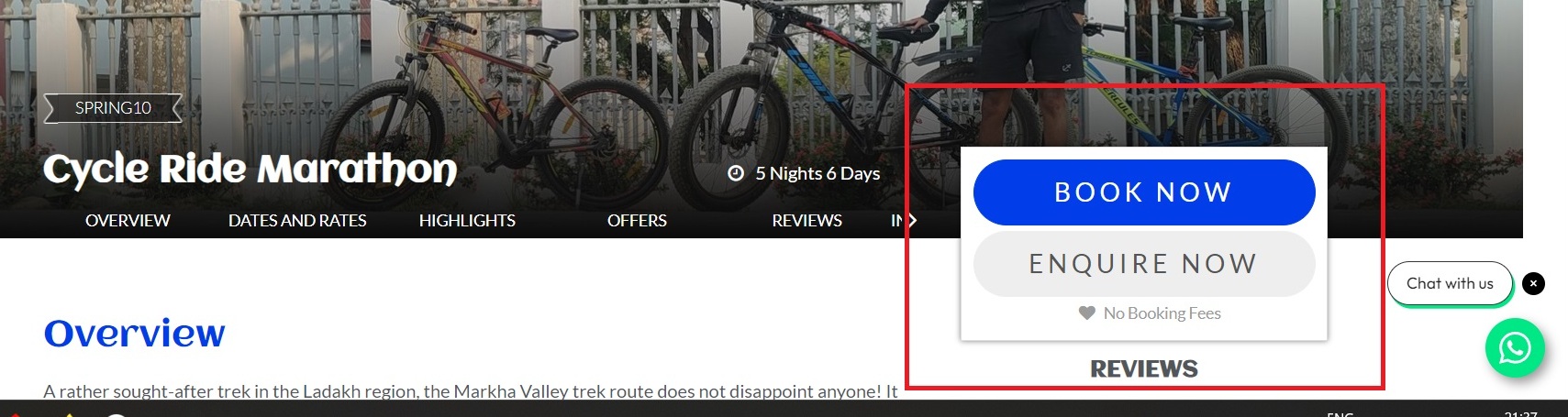
-
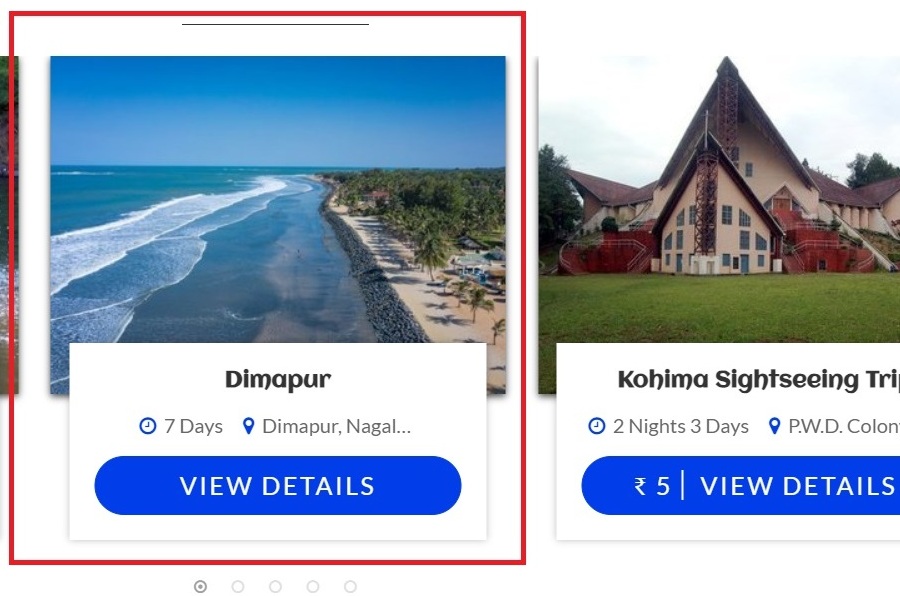
Check that the Price has been hidden from the tour cards as well (refer screenshot below)