How to Add an Autoplay Video to a Page Banner
You can enhance your website’s homepage by adding an auto-playing video to the banner slider. This feature is ideal for short, engaging clips that play on a continuous loop.
Important Considerations Before You Begin
-
Performance Impact: Autoplaying video can increase your website’s load time, which may affect the user experience and search engine ranking. We recommend using this feature only with short, optimized video files.
-
User Experience: Autoplay is best for ambient, silent-looping videos. For longer content with audio, consider the lightbox option to avoid disrupting users.
Step-by-Step Instructions
Follow these steps to enable autoplay for a video in your homepage banner.
-
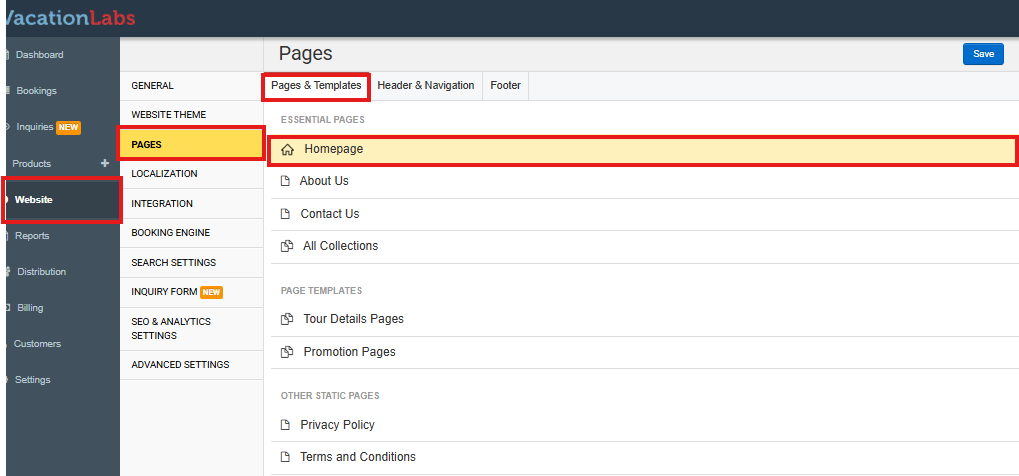
Log in to your Vacation Labs admin dashboard.
-
Navigate to the Website section from the main menu.
-
Within the Website section, click on Pages.
-
On the Pages and templates screen, locate and select the page where you want to add the video (e.g., Homepage, About Us, Contact Us). This will open the page editor.
-
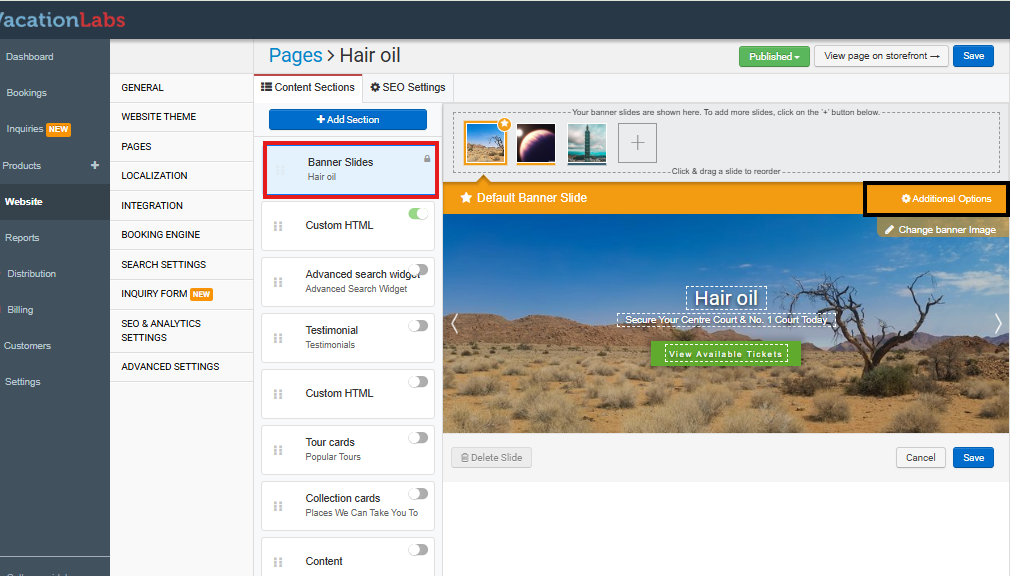
In the editor, find and click on the section labeled Banner Slides. This is where you manage all content appearing in your pages banner.
-
Inside the Banner Slide settings, look for a button called Additional Options. Click on it to reveal more configuration choices.
-
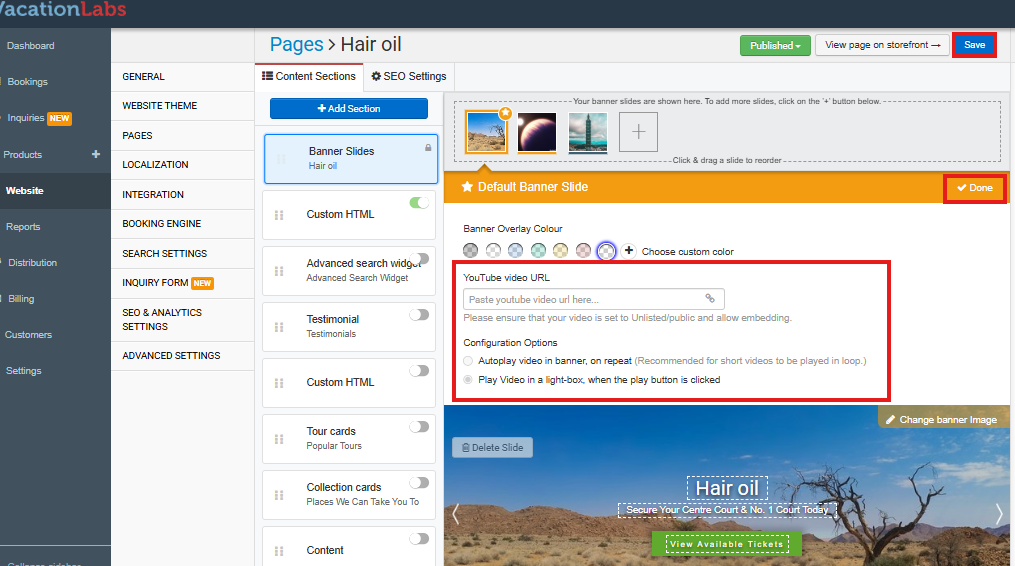
Among the additional options, configure your video settings:
-
Add a YouTube Video Link: In the designated field labeled “YouTube Video URL”, paste the full URL of the YouTube video you want to play on the homepage.
-
Choose a Playback Mode: You will find radio buttons to select how the video behaves.
-
To enable autoplay: Select the option labeled
Autoplay video in banner, on repeat. This is recommended for short videos intended to play in a continuous loop without user interaction. -
To disable autoplay: Select the option labeled
Play Video in a light-box, when the play button is clicked. This user-triggered mode is better for longer videos and will not autoplay, preserving your site’s performance.
-
-
After configuring your settings, click Done to close the Additional Options panel.
-
To apply all your changes to the live website, you must click the Save button at the top or bottom of the page editor.
Tip
Pro Tip: We recommend using a short, dedicated video rather than a long livestream or recording. A shorter, faster-loading video provides a better user experience. Choosing the lightbox option is a good compromise for showcasing longer content without impacting initial page load.