Integrate with your website
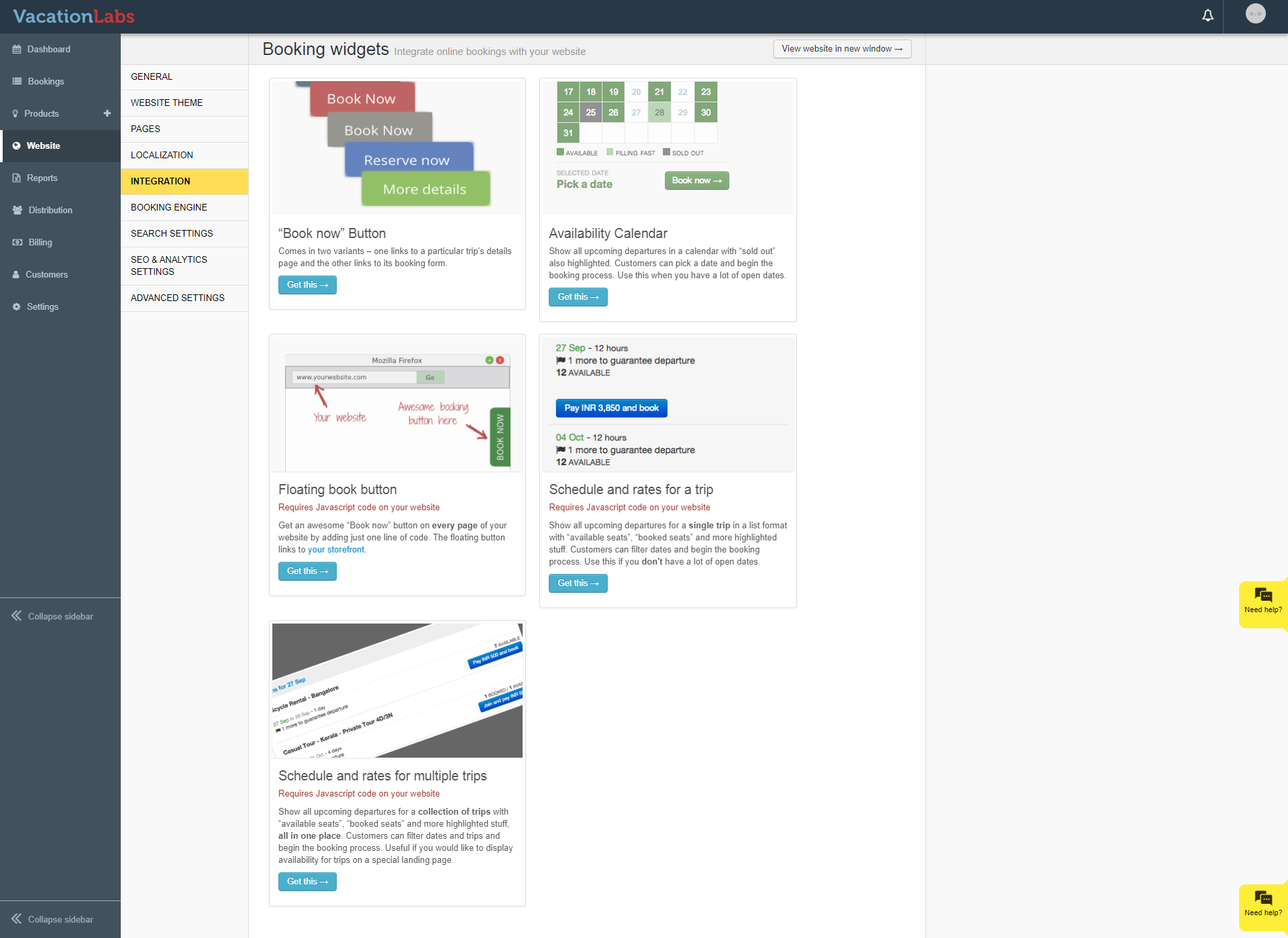
If you are not subscribed to the Vacation Labs Website builder because you already have your own website, then you can use our integration widgets to connect your website with the booking engine. There are 5 types of widgets available under integration:
-
Book Now button
-
Availability Calendar
-
Floating book button
-
Schedule and rates for a trip
-
Schedule and rates for multiple trips
The Integration section is available under WEBSITE:
Book Now Button
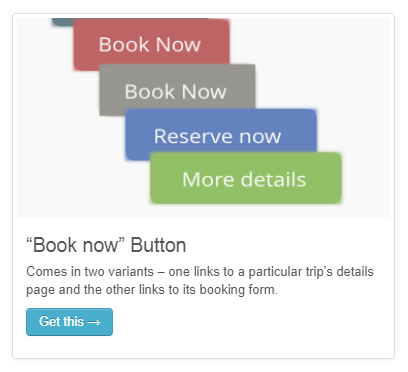
To generate a Book Now button take the following steps:
-
Click on GET THIS
-
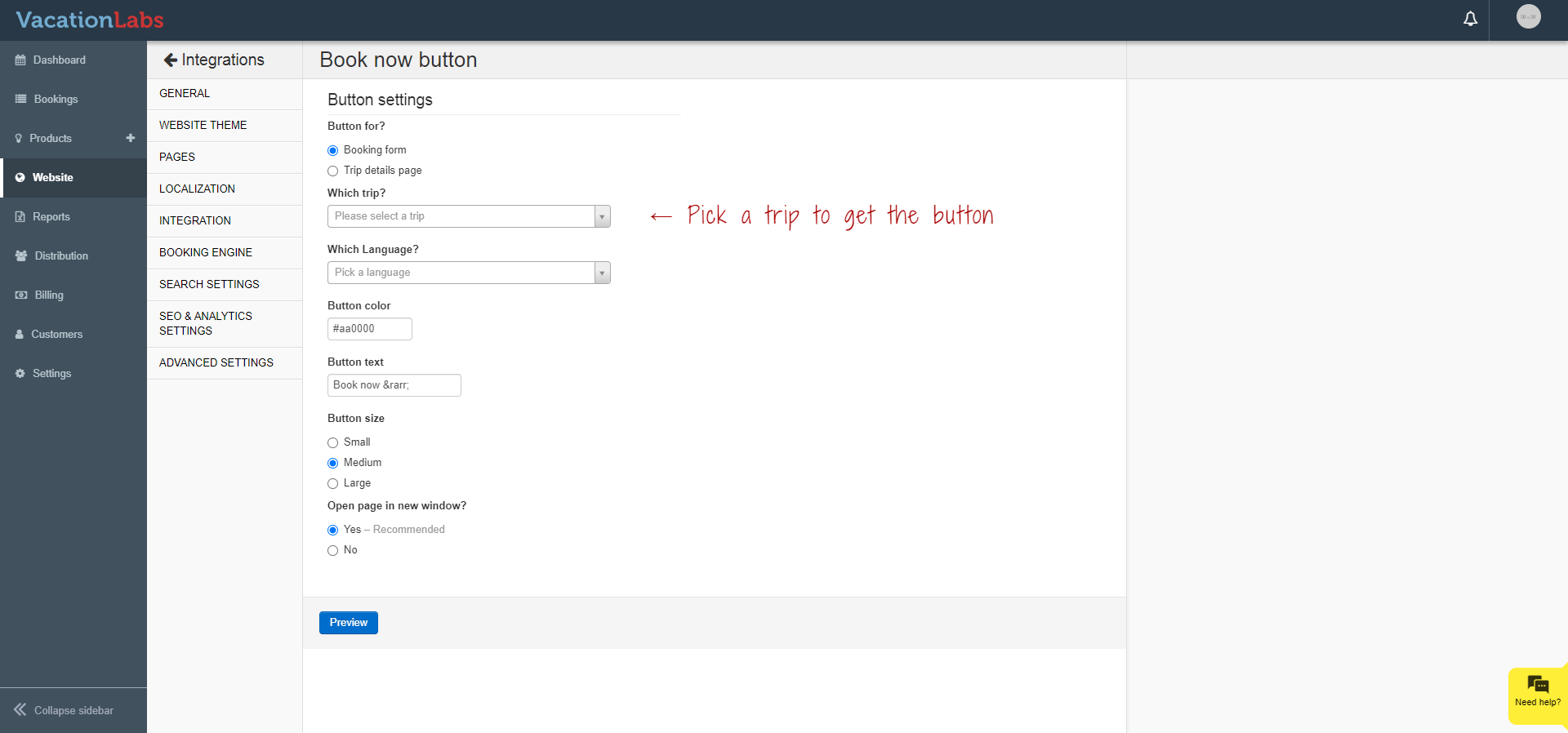
You will arrive on a page that would allow you to configure and customise the widget:
-
Under Button for? Always choose Booking Form
-
Under Which trip? Click on the dropdown and choose the trip for which you wish to generate the Book Bow button
-
You can change the background colour of the button to match the theme of your website
-
You can also rename the text on the button to anything you like for example: “Buy Now” or “Reserve Now”
Availability Calendar
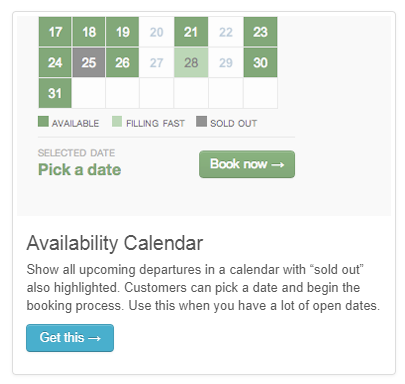
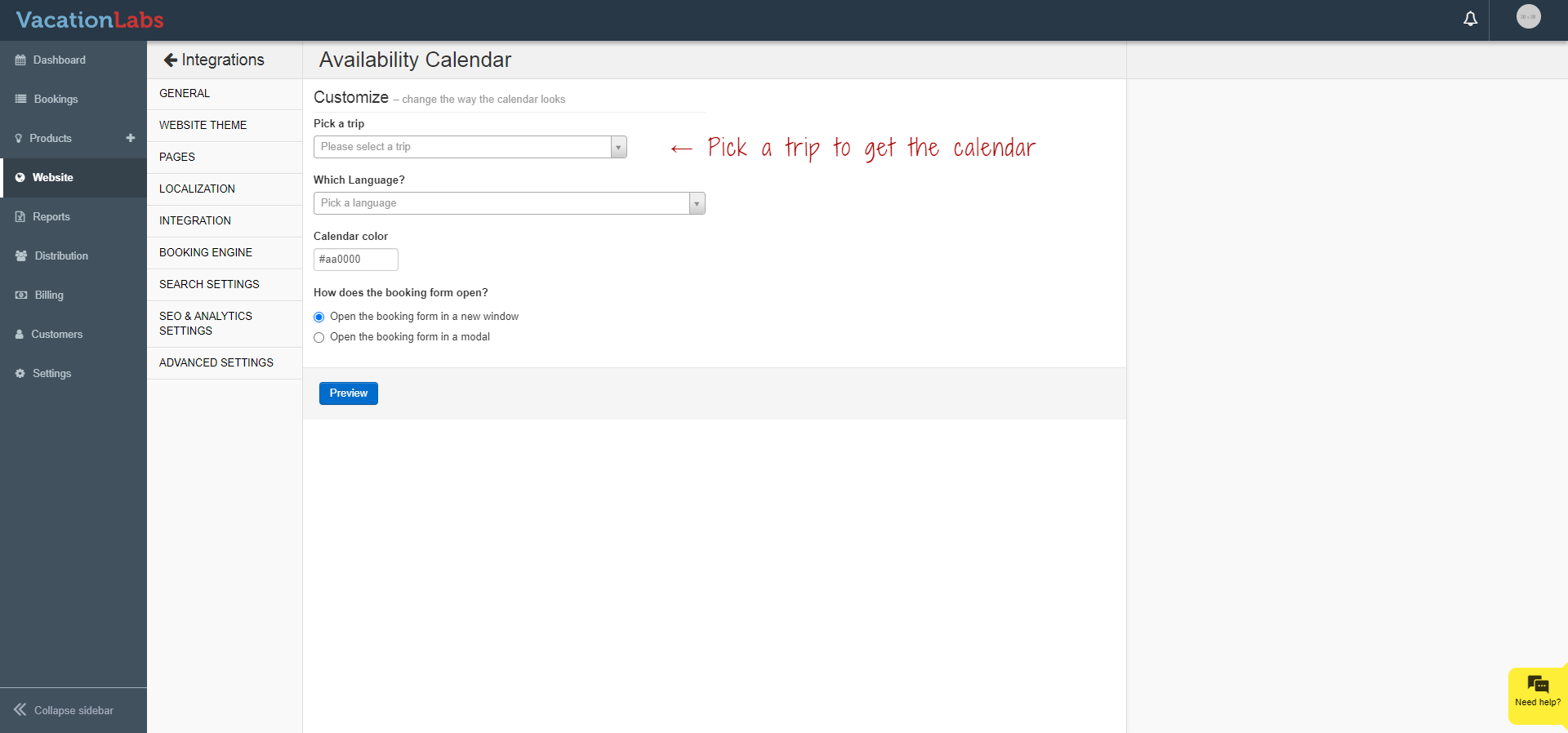
Show all upcoming departures in a calendar with “sold out” also highlighted. Customers can pick a date and begin the booking process. Use this when you have a lot of open dates. To generate a Book Now button take the following steps:
-
Click on Get This:
-
Choose the trip you want
-
You can change the background colour of the Calendar to match the theme of your website
-
If you want the booking form to open in a new page, choose the visible option.
-
If you want the form too open in the same page on a lightbox/pop-up, then choose the option Open the booking form in a modal
Open the booking form in a modal
Info
Requires Javascript code on your website
Paste the following javascript code before the closing </body> tag on every page of your website. There is usually a common footer that is used throughout a website – you can put this Javascript code in the common footer file.
<script type="text/javascript" id="vl-5b70b7461493c8056ad5d93f61e7b69d">
window.VL = window.VL || {};
VL.client_key = “5b70b7461493c8056ad5d93f61e7b69d”;
VL.domain = “app.vacationlabs.com”;
(function(window, document) {
var sc = document.createElement(‘script’);
sc.type = ‘text/javascript’;
sc.async = true;
sc.src = (‘https:’ == document.location.protocol ? ‘https://’ : ‘http://’) + VL.domain + ‘/trips/integration-’+VL.client_key+‘.js’;
var s = document.getElementsByTagName(‘script’)[0];
s.parentNode.insertBefore(sc, s);
})(window, document);
</script>
Check if the code is properly installed on your website.
Follow the steps shown on the page to verify the placement of the javascript.
Floating Book Now button
Info
Requires Javascript code on your website
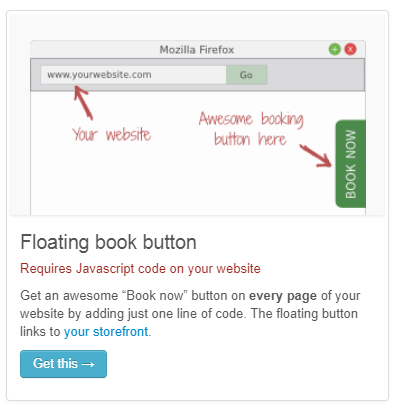
Get an awesome “Book now” button on every page of your website by adding just one line of code. The floating button links to your storefront.
-
Click on Get This:
-
In order for the Floating button to work you will have to add the paste the following javascript code before the closing
</body>tag onevery pageof your website. There is usually a common footer that is used throughout a website – you can put this Javascript code in the common footer file.<script type="text/javascript" id="vl-5b70b7461493c8056ad5d93f61e7b69d">window.VL = window.VL || {}; VL.client_key = “5b70b7461493c8056ad5d93f61e7b69d”; VL.domain = “app.vacationlabs.com”;(function(window, document) { var sc = document.createElement(‘script’); sc.type = ‘text/javascript’; sc.async = true; sc.src = (‘https:’ == document.location.protocol ? ‘https://’ : ‘http://’) + VL.domain + ‘/trips/integration-’+VL.client_key+‘.js’; var s = document.getElementsByTagName(‘script’)[0]; s.parentNode.insertBefore(sc, s); })(window, document);
</script>Check if the code is properly installed on your website.
Follow the steps shown on the page to verify the placement of the javascript.
-
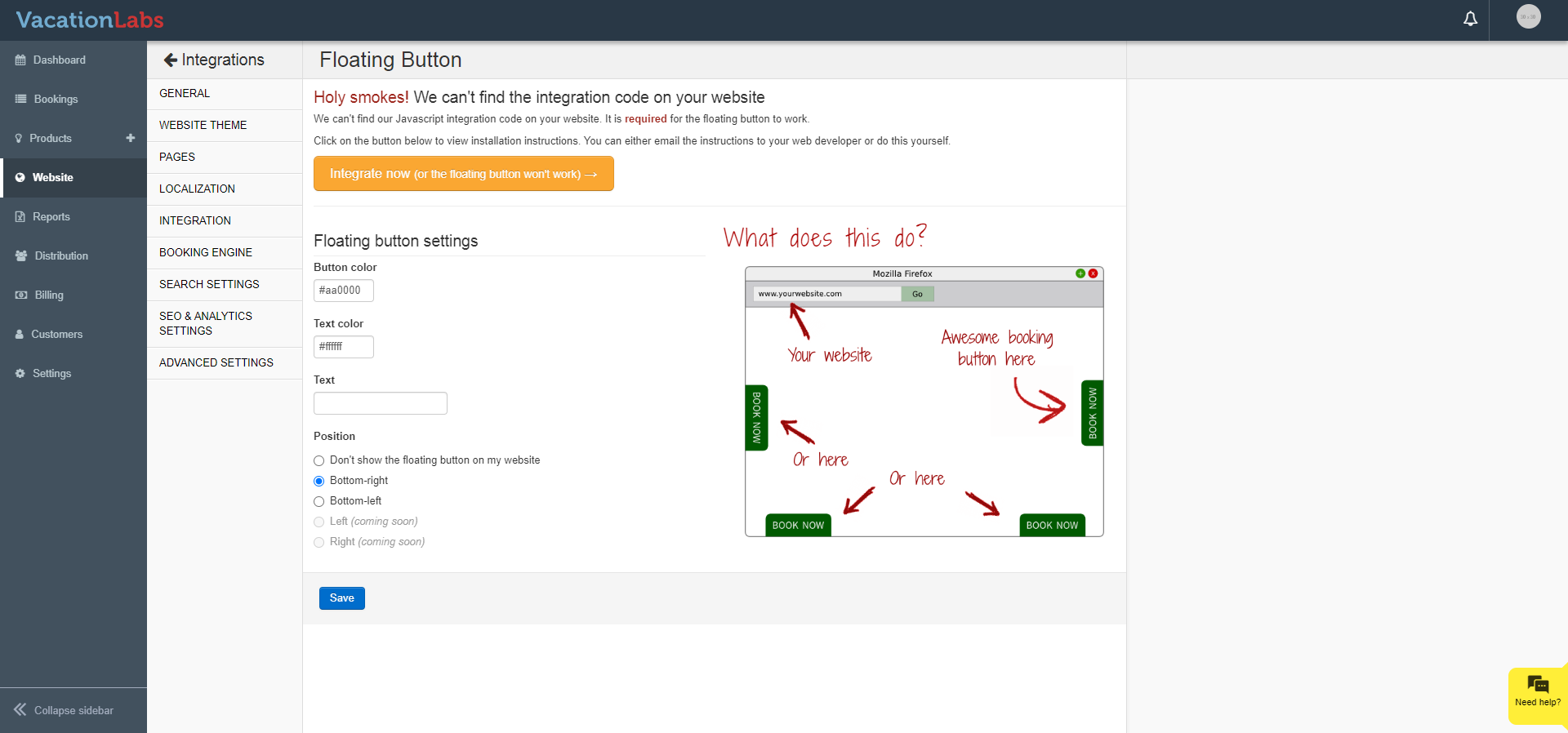
Choose the Button colour, Text colour, the title on the button and its position on your website
-
Once done click on Save
-
Check your website to verify that the button is visible as configured
Schedule and rates for a trip
Info
Requires Javascript code on your website
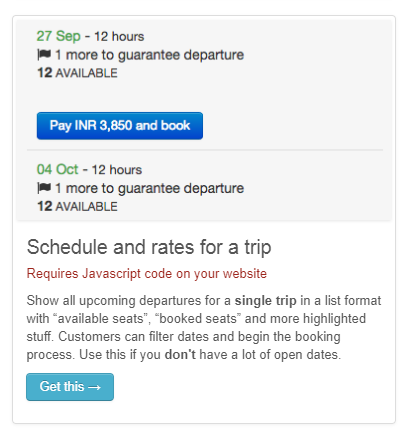
Show all upcoming departures for a single trip in a list format with “available seats”, “booked seats” and more highlighted stuff. Customers can filter dates and begin the booking process. Use this if you don’t have a lot of open dates.
-
Click on Get This:
-
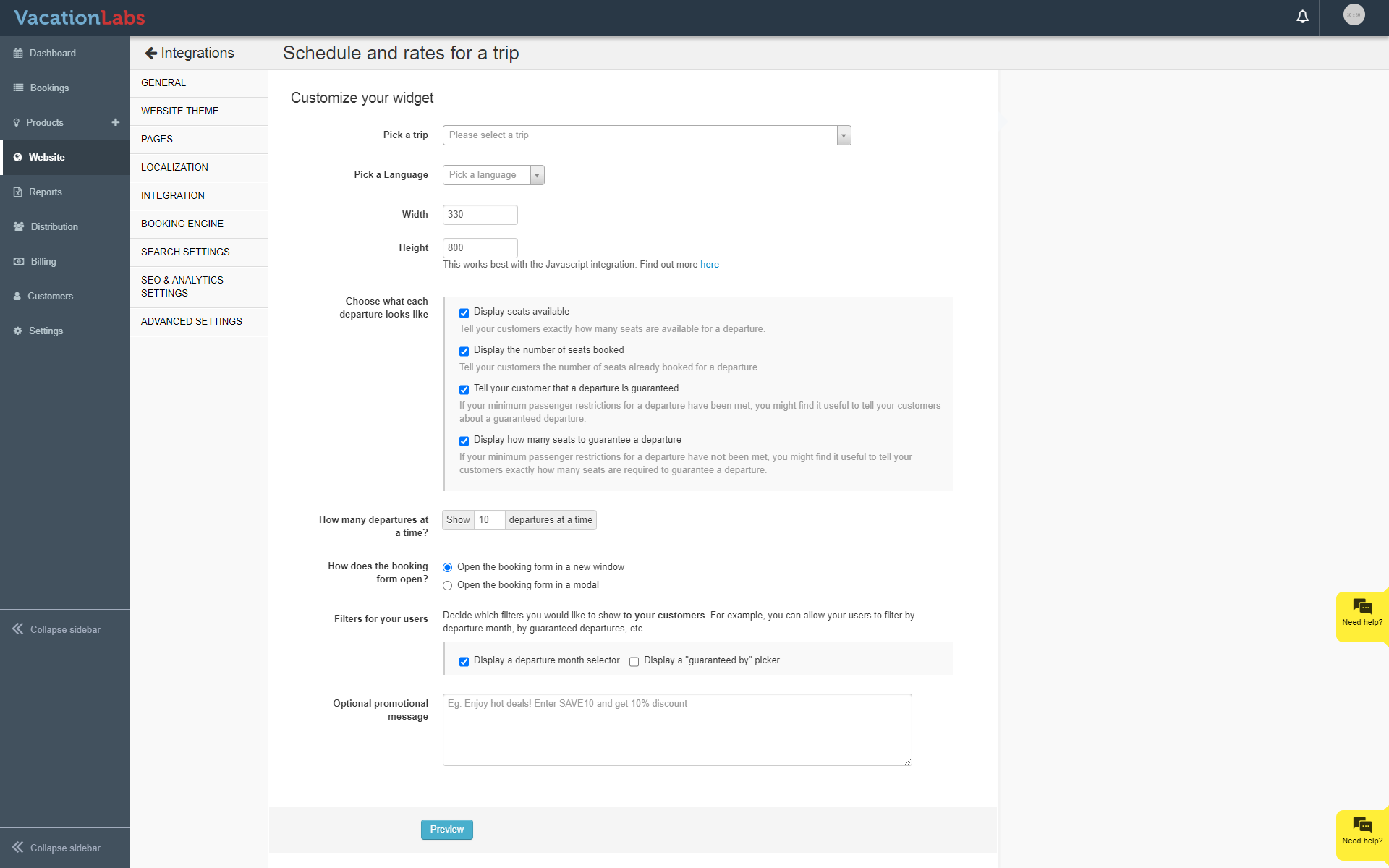
Choose the trip you wish to generate the widget for and configure its dimensions. You can also decide what information you want to be displayed on the widget and upto how many departures should be displayed:
-
Optional Message appears on the top of the widget
-
You can also choose to have the booking flow in a modal. Make sure that you have installed the Javacript as mentioned in the previous steps.
Schedule and rates for multiple trips
Info
Requires Javascript code on your website
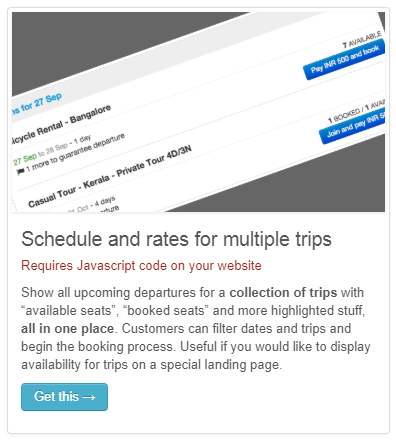
Show all upcoming departures for a collection of trips with “available seats”, “booked seats” and more highlighted stuff, all in one place. Customers can filter dates and trips and begin the booking process. Useful if you would like to display availability for trips on a special landing page
-
Click on Get This:
-
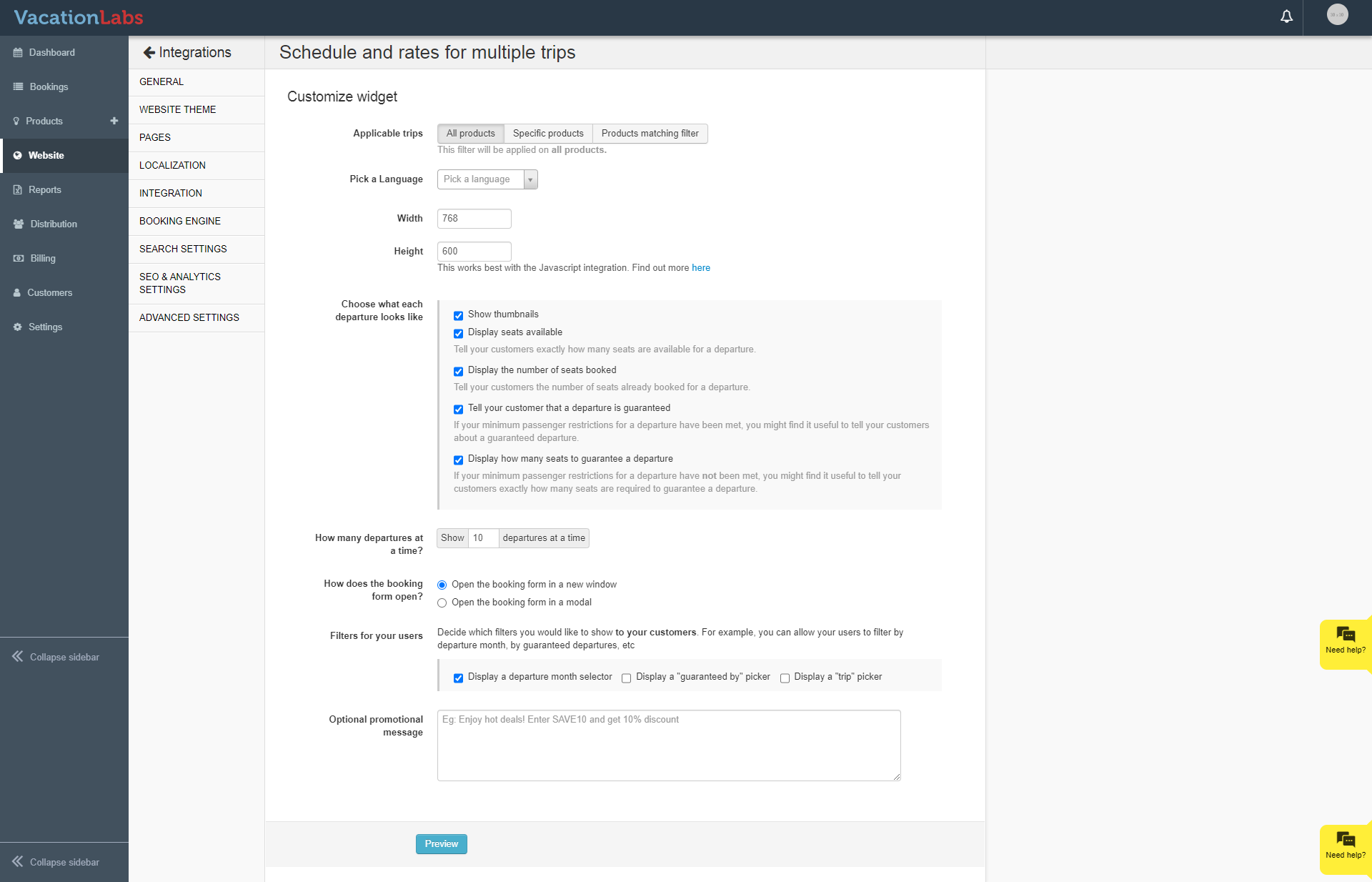
Choose the trips you wish to generate the widget for and configure its dimensions. You can also decide what information you want to be displayed on the widget and upto how many departures should be displayed:
-
Optional Message appears on the top of the widget
-
You can also choose to have the booking flow in a modal. Make sure that you have installed the Javacript as mentioned in the previous steps.