Managing the default Booking Terms URL
Booking Terms and Conditions are a mandatory part of the checkout process. Customers must agree to them to complete a booking. This article explains how to set a default URL that contains your terms. This URL will be automatically linked during checkout, ensuring a consistent and legally compliant booking flow.
Prerequisite: You must have already created a webpage containing your Terms and Conditions. This could be a page on your main website, a page built within your Vacation Labs site, or a hosted PDF document.
Procedure: Adding Your Booking Terms URL
Follow these steps to configure the default Booking Terms URL in your Booking Engine settings.
Step 1: Access the Booking Engine Settings
-
Log in to your Vacation Labs account.
-
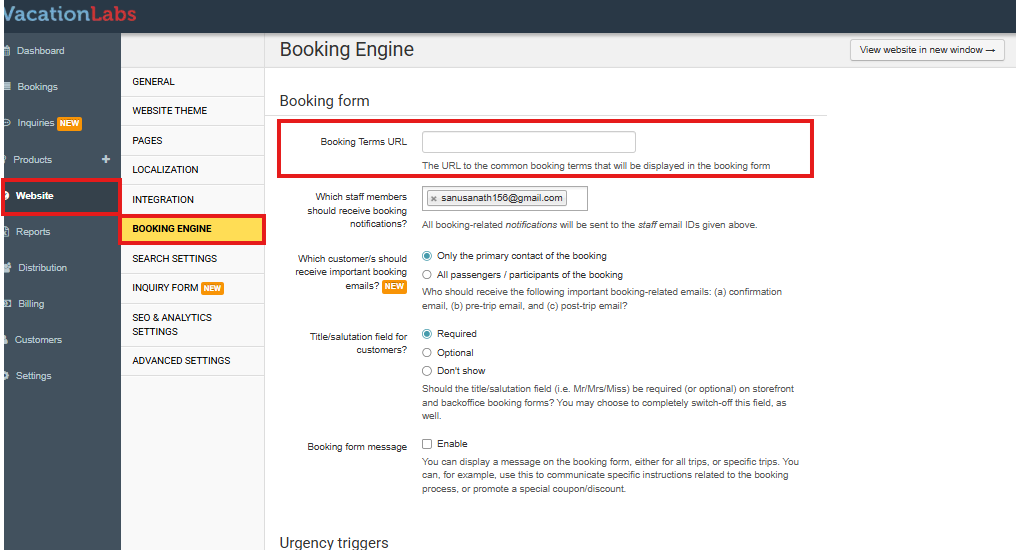
From the main dashboard on the left, navigate to the Website section.
-
Within the Website menu, select Booking Engine. This will open the configuration settings for your booking engine.
Step 2: Locate the Booking Terms Field
On the Booking Engine settings page, scroll to find the section labeled “Booking Terms URL”. This section typically contains a single input field specifically for the terms URL.
Step 3: Enter and Save Your URL
-
In the “Booking Terms URL” field, carefully paste the full web address (URL) of your Terms and Conditions page.
-
Tip: Ensure the URL is correct and the page is publicly accessible to customers.
-
After entering the URL, click the Save button at bottom of the page to confirm and apply this change.
What Happens Next?
Once saved, the URL you provided will be automatically applied to all new bookings. During checkout, customers will see a link to these terms and must check a box to agree before they can proceed with their payment.