Setting Up Post Booking Form
Overview
In addition to the regular booking form (where customers provide details during the booking process), Vacation Labs also offers a Post Booking Form. This form is sent to customers after their booking is recorded.
With this setup, you only need to collect the customer’s email address during the booking process while moving the other booking fields to “After Booking.” This simplifies the journey, making it quicker and easier for customers. Once the booking is recorded, the Post Booking Form is automatically sent to collect the remaining details.
Info
Please Note: The Post Booking Form is a Pro feature and is only available on Pro plans. If you are on a Basic plan and would like to activate it, please email support@vacationlabs.com. It’s also mandatory to enable the Passenger Form and capture email IDs, since these are required to send the post-booking form.
Steps to Configure the Post Booking Form
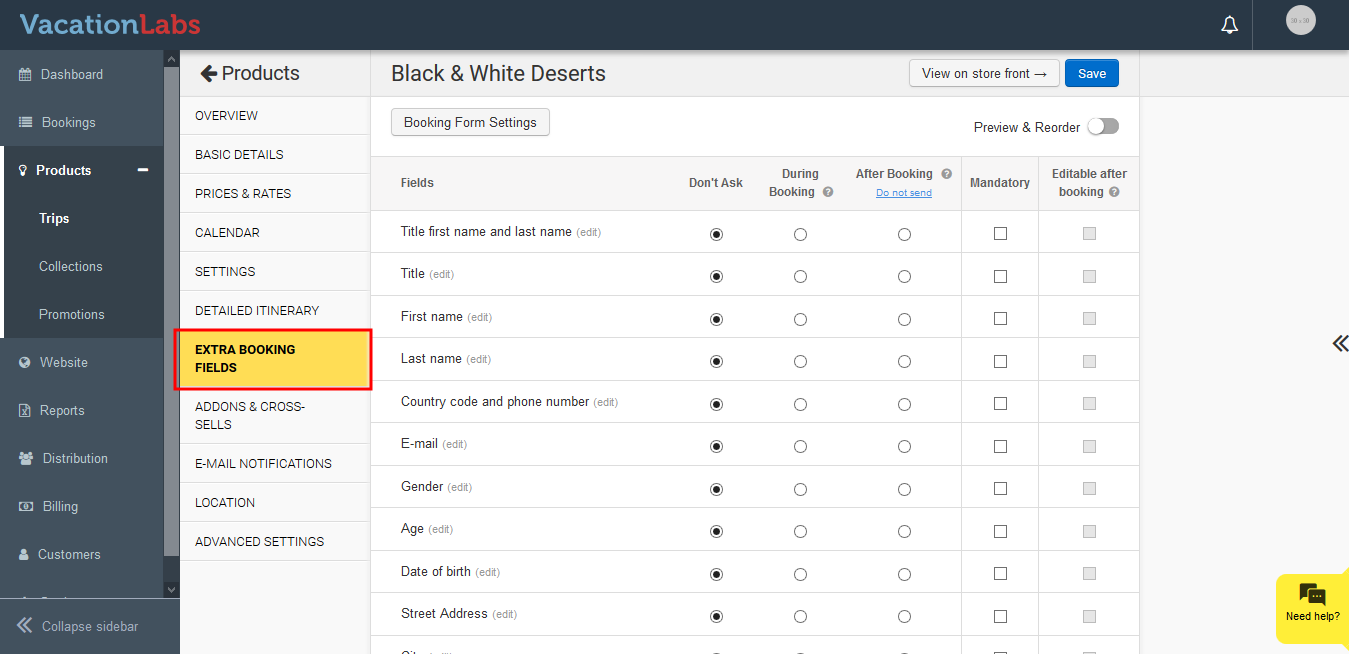
Log in to Vacation Labs, go to Products, and choose the product you want to configure. Click Edit → **Extra Booking Fields
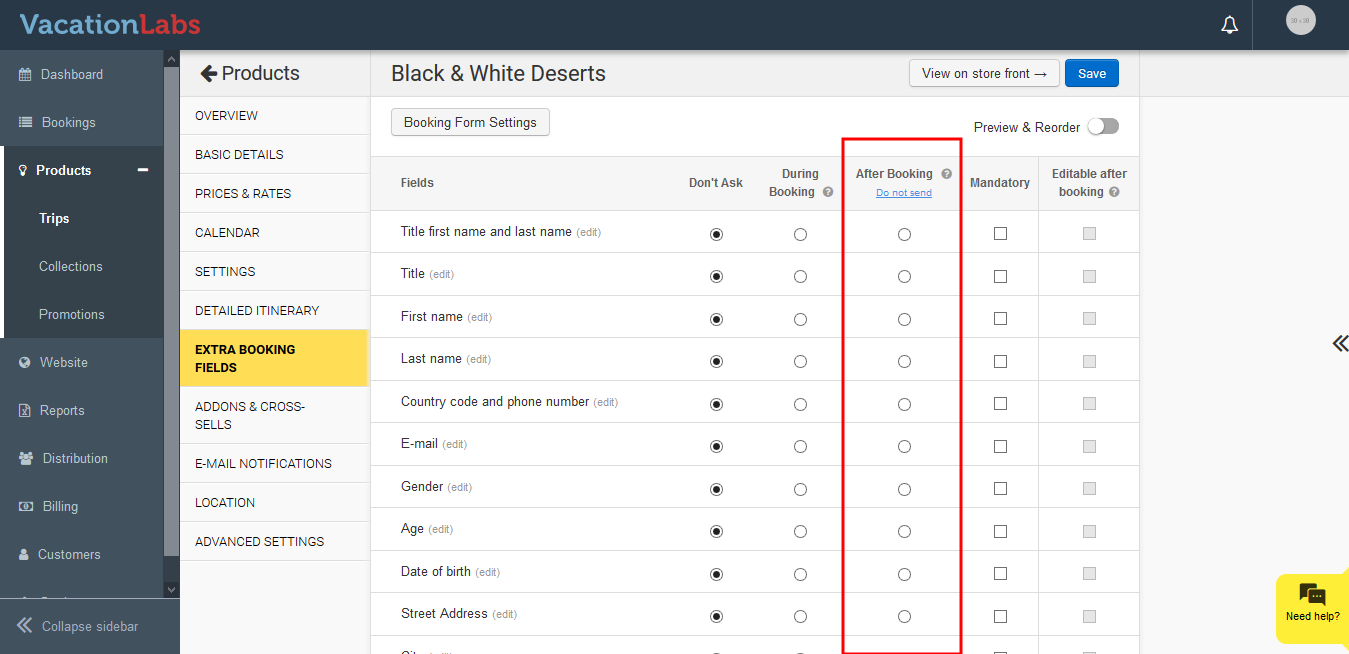
 **Under After Booking, select the fields for customers to complete and click Save
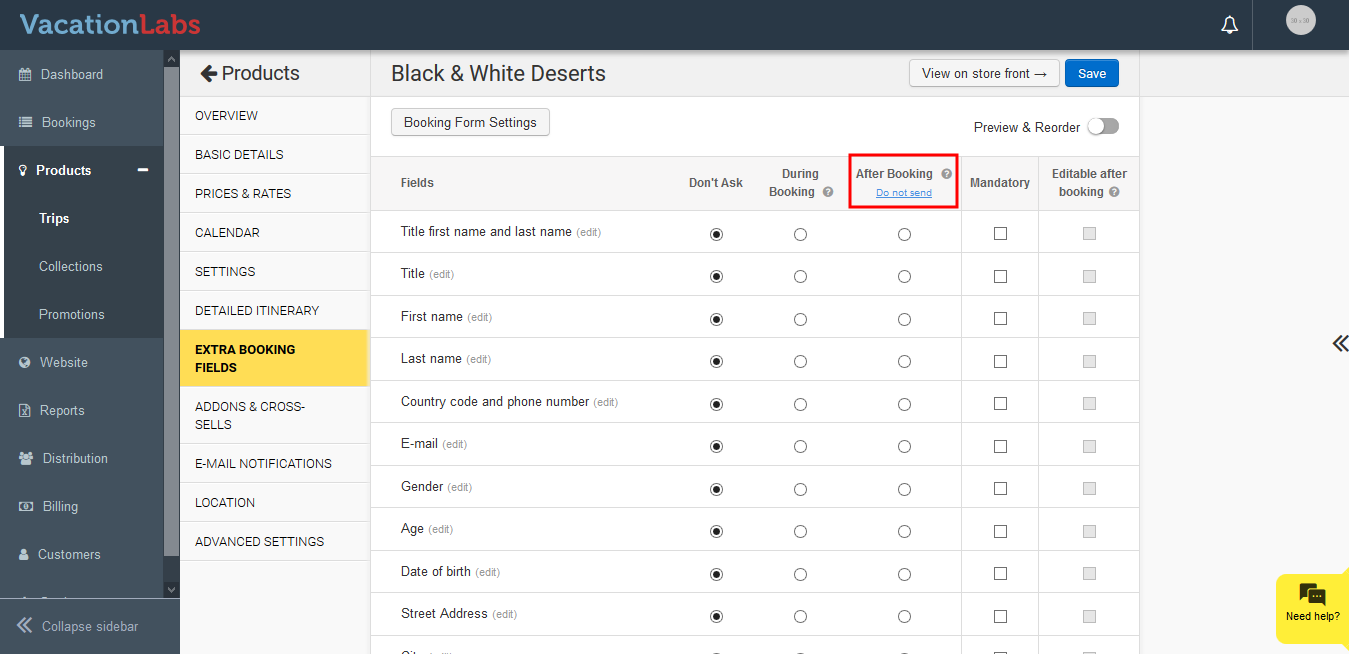
Once the form is saved, you can customize how and when the post booking form email is sent:
Click on Do Not Send link to change settings.**
 **
**
Add a Form description or instructions if needed.
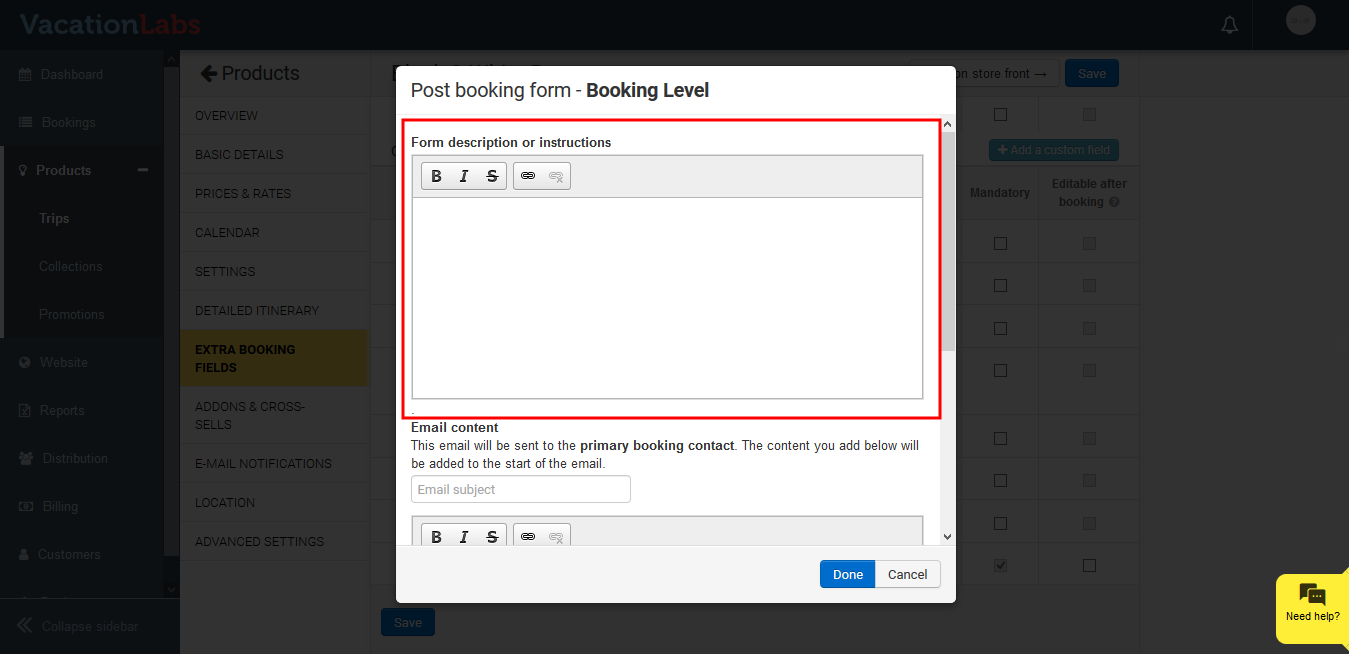
Edit the email content if required.
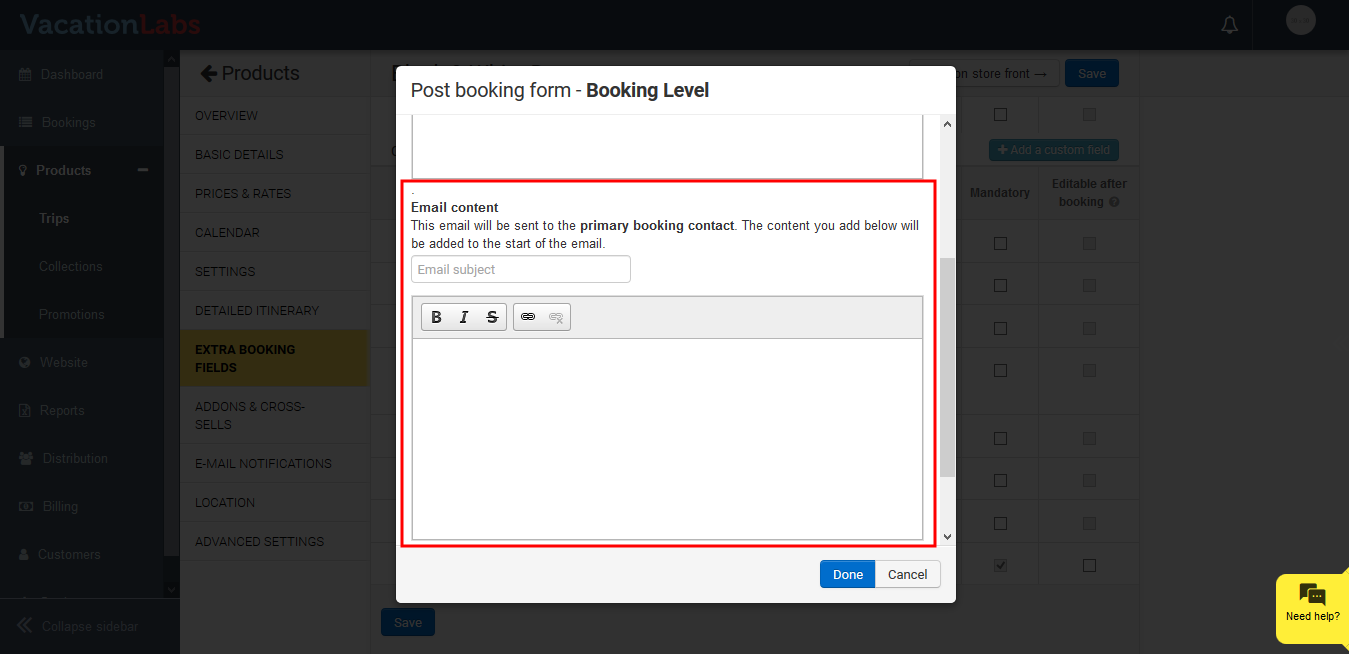
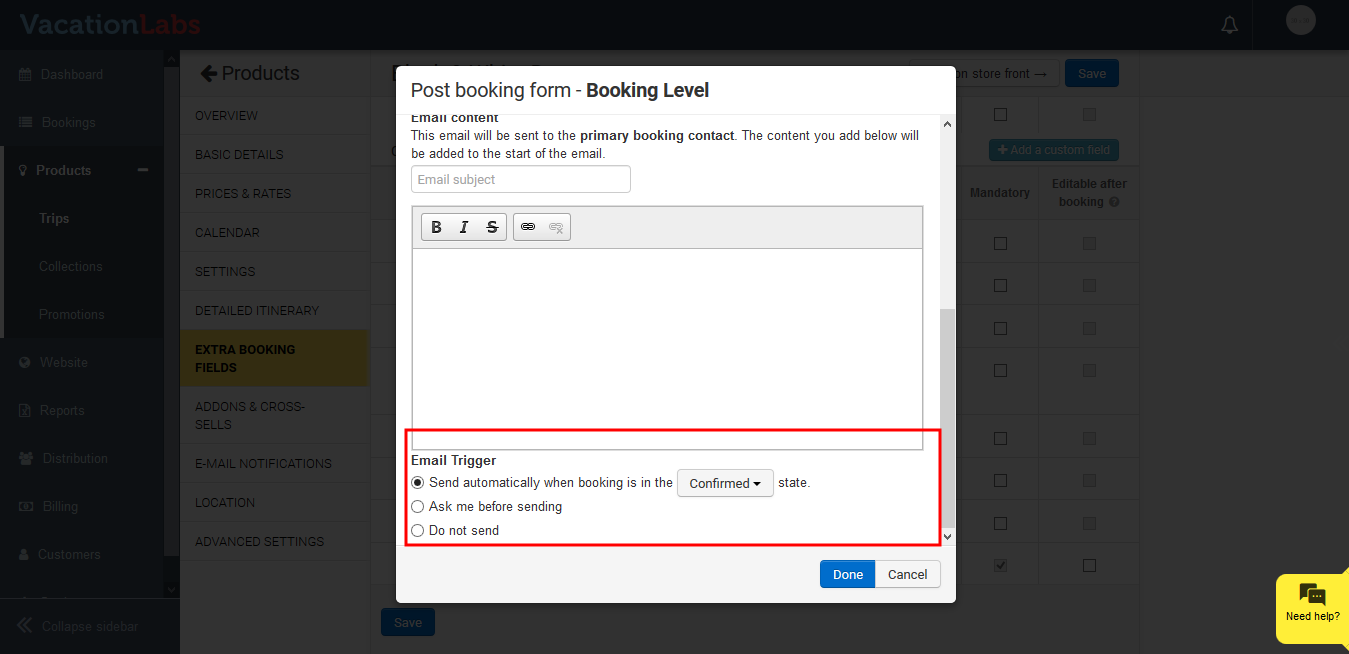
Configure the Email trigger:
-
Send after booking is confirmed, unconfirmed, or pending confirmation, OR
-
Ask before sending, OR
-
Do not send automatically.
Click Done.
Tip
You can repeat these steps to configure the Post Booking Form for participants as well.