Record a payment collected offline
This article explains how to manually record a payment you have received outside of the online payment system, such as cash, direct bank transfer (NEFT/IMPS), cheque, or card payment via a physical swiping machine.
When to use this: Use this process after you have physically collected payment from a customer for an existing booking.
Steps to Record an Offline Payment
Step 1: Locate the Booking
-
Log in to your Vacation Labs backoffice.
-
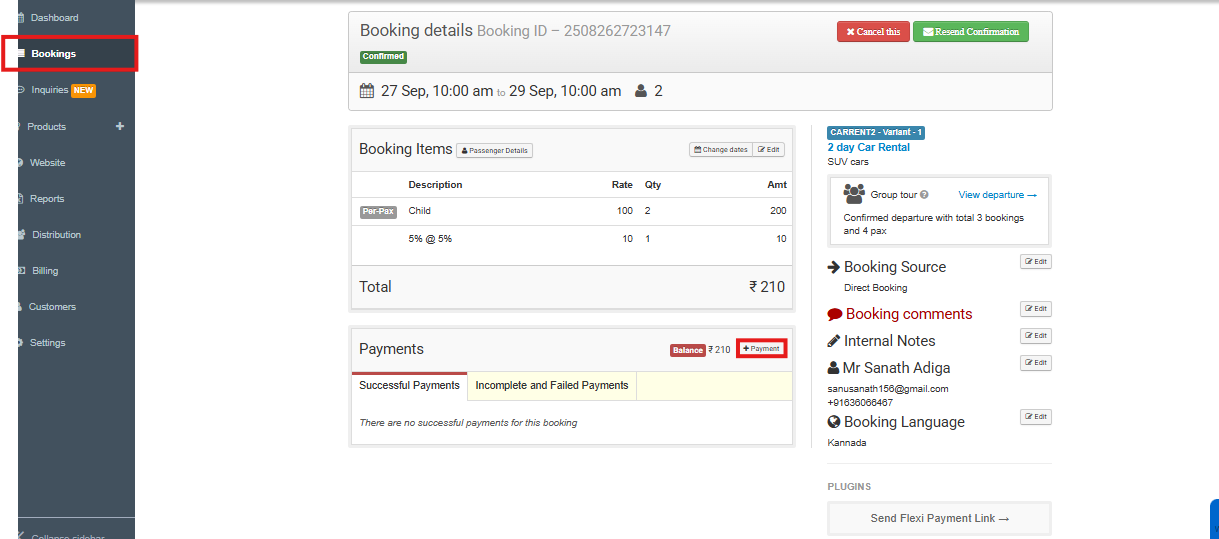
Navigate to the Bookings section from the main menu.
-
Find the specific booking for which you have received the payment. You can use the search or filter options to locate it quickly.
-
Click on Booking to open its detailed view.
Step 2: Initiate the Payment Recording Process
-
Inside the booking details page, locate the Payment section.
-
Click on the + Payment button to add a new payment entry.
Step 3: Enter the Payment Details
-
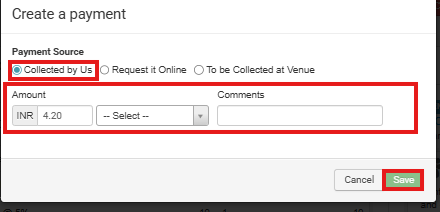
In the payment method selector, choose Collected by Us.
-
Enter the Amount Collected: Input the exact amount you have received. The system will automatically calculate and update the remaining balance (if any).
-
Select the Payment Method: Choose the appropriate method from the dropdown (e.g., Cash, Cheque, NEFT, Card Swipe).
-
(Optional) Add a Comment: It is highly recommended to add clear notes for your records. For example:
-
Collected by Sam at front desk -
NEFT Ref No: XXXX9876 -
Pending ₹200 to be collected on checkout
-
Step 4: Save the Payment
-
Review the details you have entered for accuracy.
-
Click the Save button to finalize and record the payment. The booking’s financial status will now reflect this transaction.
Visual Guide (Screenshot)
The screenshot below shows the + Payment button within the booking details and the “Collected by Us” payment form for visual reference.