Remove Domain Forwarding in GoDaddy
Removing Domain Forwarding
In some cases you will see that there are some existing A records which you can neither DELETE nor EDIT. These exist as a result of Domain Forwarding. You may need to remove these existing A records. You can do so by following the steps lsited below:
-
Sign in to your GoDaddy Domain Portfolio.
-
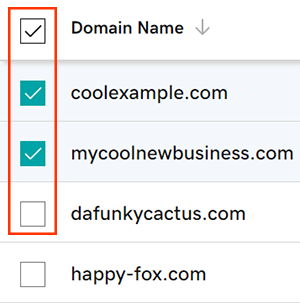
Select the checkboxes next to the domains you’ll be updating. Or, select the checkbox next to Domain Name and then choose Select All.
-
Select Forward from the action menu.
-
Depending on your screen size, you may need to select the More menu and scroll down to see Forward.

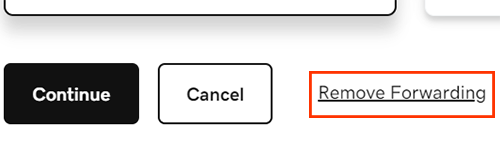
- Select Remove Forwarding.
-
Confirm removal by selecting Remove Forwarding.
- If your domain has Domain Protection, you’ll need to verify your identity. If you’ve had two-step verification (2SV) turned on for at least 24 hours, enter the code we sent via SMS, or enter the code from your authenticator app. Otherwise, enter the one-time password we sent to your registrant email address.
-
After which the unwanted A records will get auto removed or you can remove them manually.
Most DNS updates take effect within an hour, but could take up to 48 hours to update globally.