Uploading Logo and Favicon on the website
Personalize your website by adding your logo and favicon. These elements help establish your brand identity across your site and in browser tabs.
Before You Begin
Recommended image specifications:
-
Logo: 130×130 pixels (square format works best)
-
Favicon: 16×16 pixels (the small icon displayed in browser tabs)
Step-by-Step Instructions
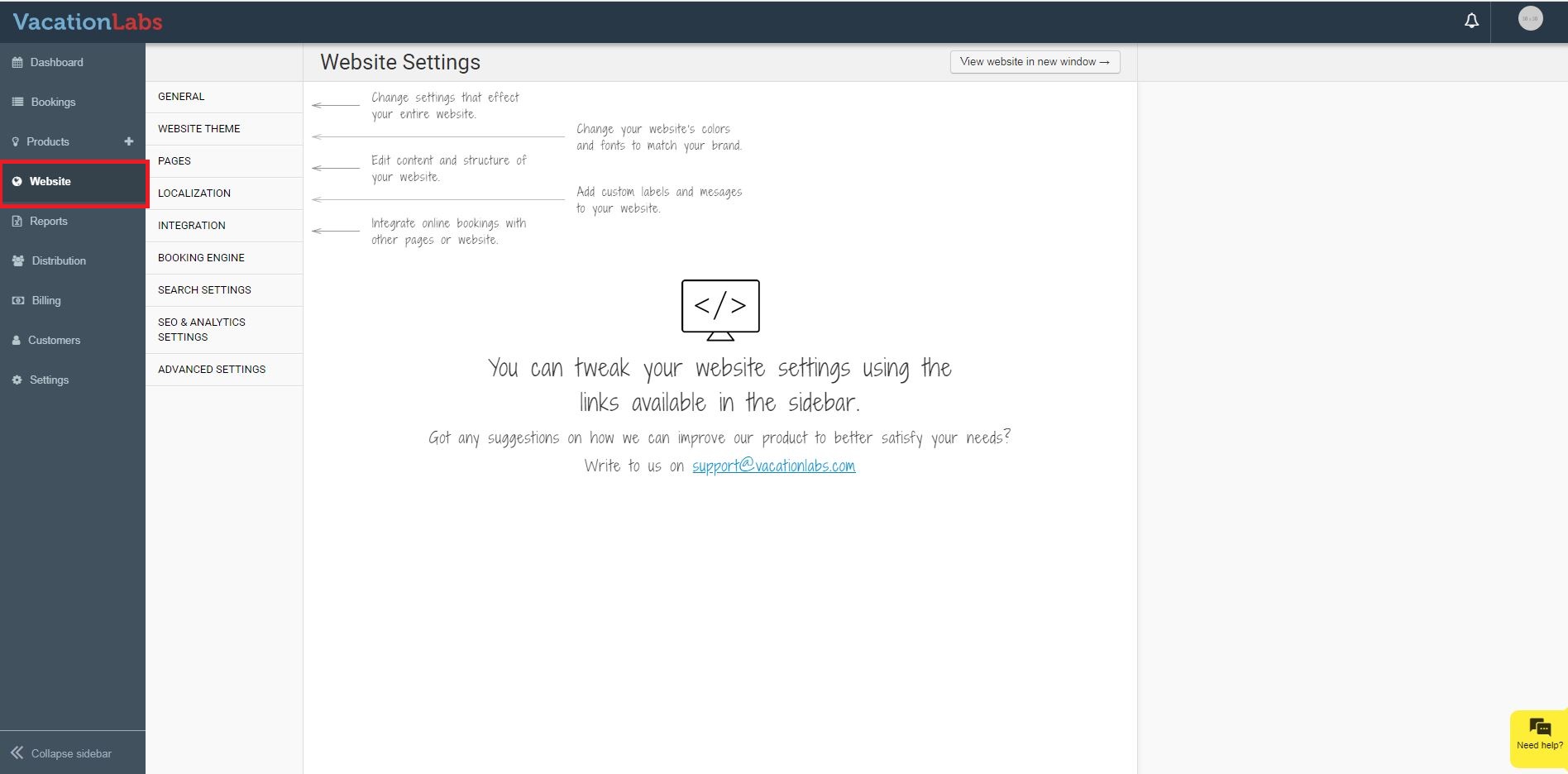
1. Access Website Settings
-
Log in to your Vacation Labs account
-
Locate and click on the Website tab in the left sidebar menu
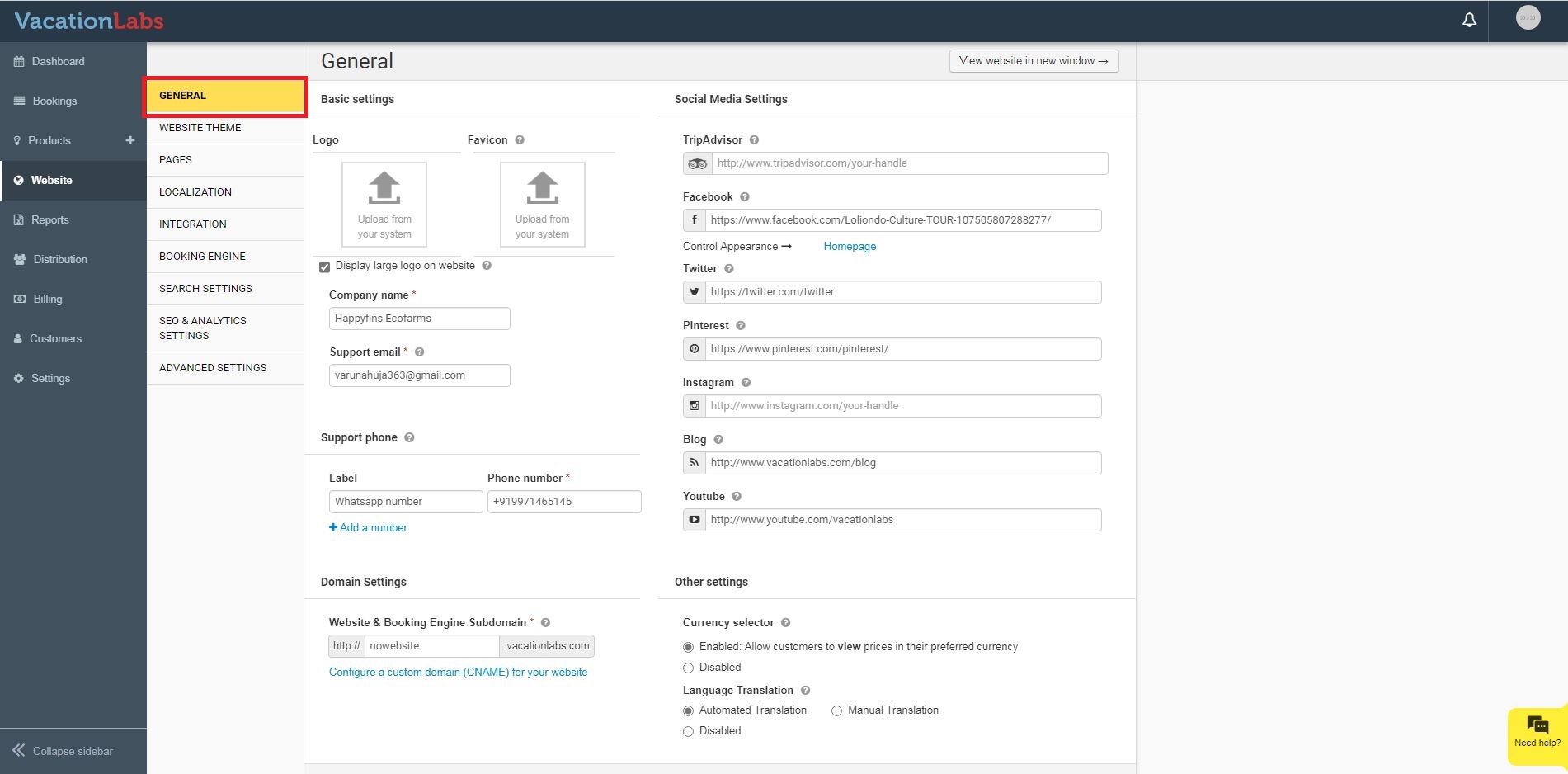
2. Navigate to General Settings
-
In the sub-menu that appears, select the General tab
-
This section contains all the basic customization options for your website
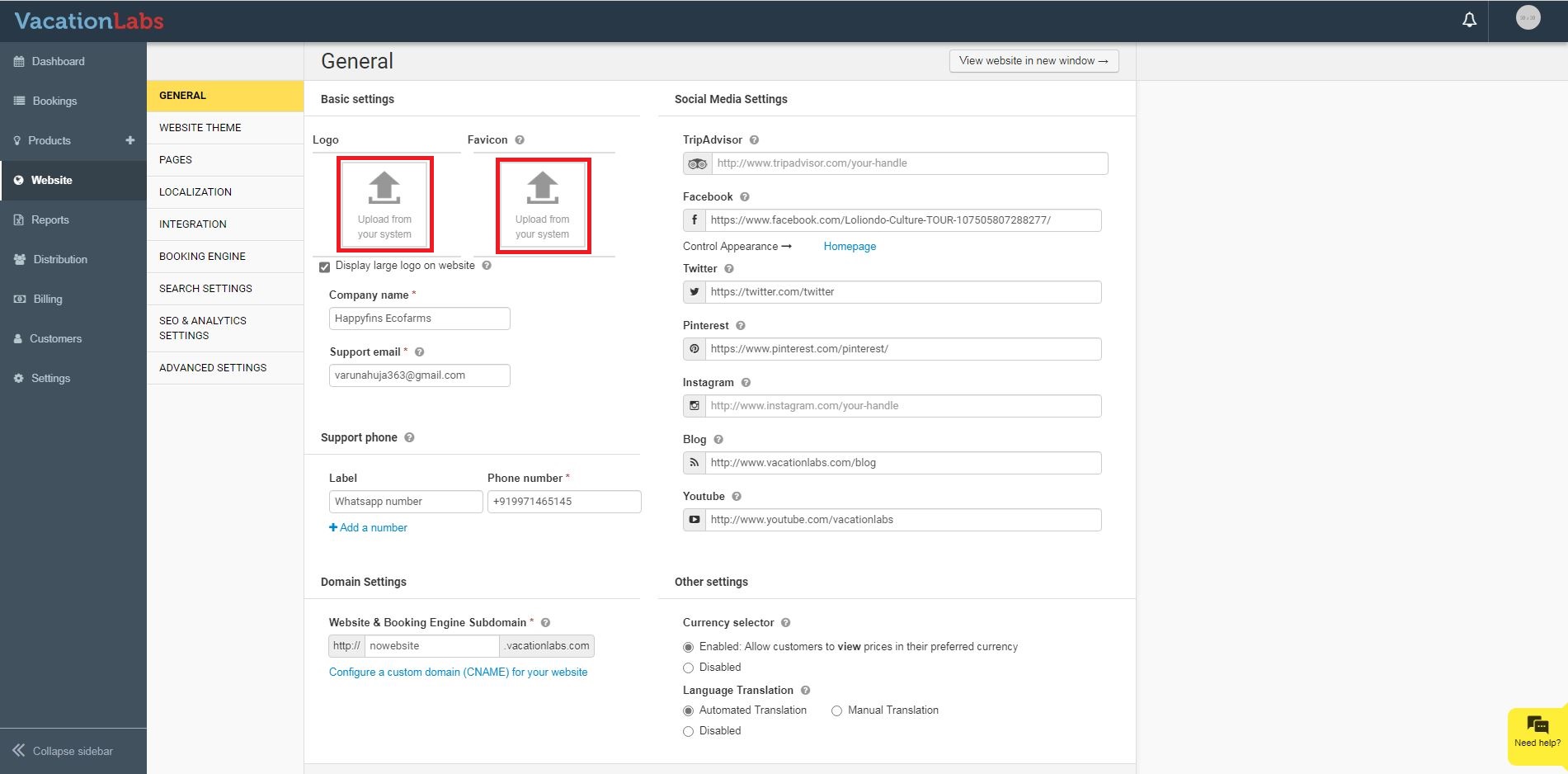
3. Upload Your Images
-
To upload your logo:
-
Click on the Logo upload area.
-
Select your logo file from your computer and Upload
-
For tall logos or designs with fine details:
- Check the box labeled “Display large logo on Website” to ensure proper visibility
-
-
To upload your favicon:
-
Click on the Favicon upload area (beside the logo upload section)
-
Select your prepared favicon file
-
Pro Tips
-
Favicon clarity: Since favicons are very small, use simple designs with high contrast for best results.
-
Format recommendations: Use PNG format for logos with transparency, and ICO or PNG for favicons.
Troubleshooting
If your images don’t appear correctly after uploading:
-
Verify the image dimensions match our recommendations
-
Refresh your browser cache (Ctrl+F5 or Cmd+Shift+R)