Creating and managing collections
Collections help you organize your products on your website, making it easier for customers to browse and find what they’re looking for.
Create a New Collection
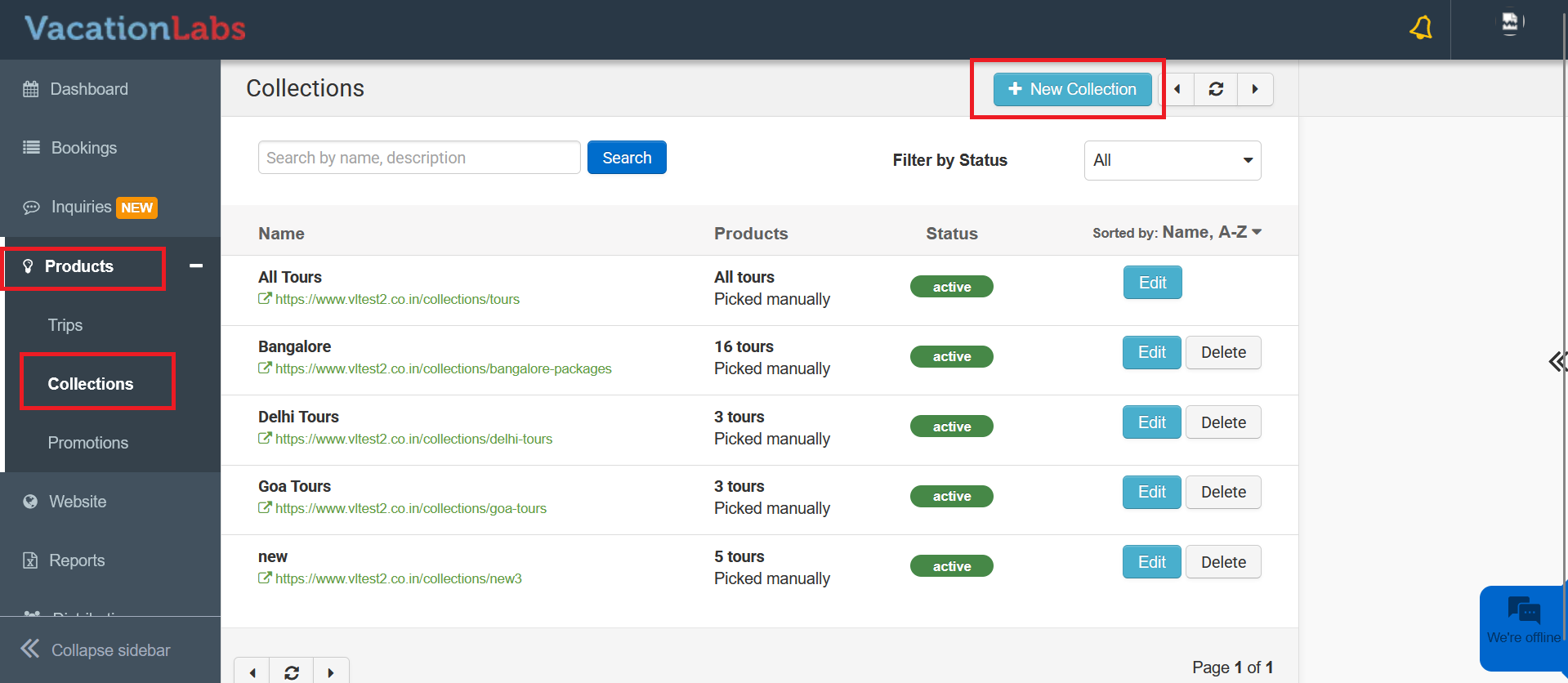
To create a collection, Go to Products > Collections. Click + New Collection.
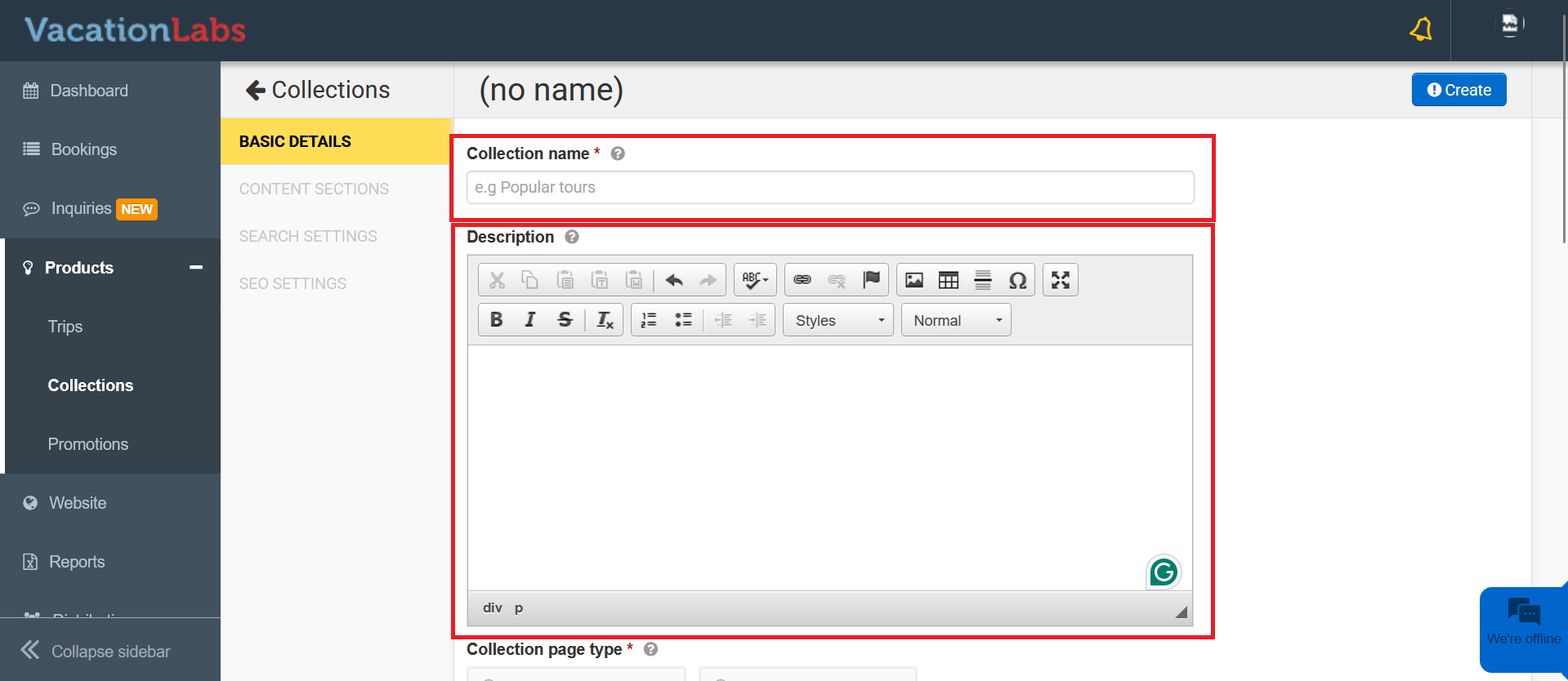
Next, enter a name, add a brief description.
Info
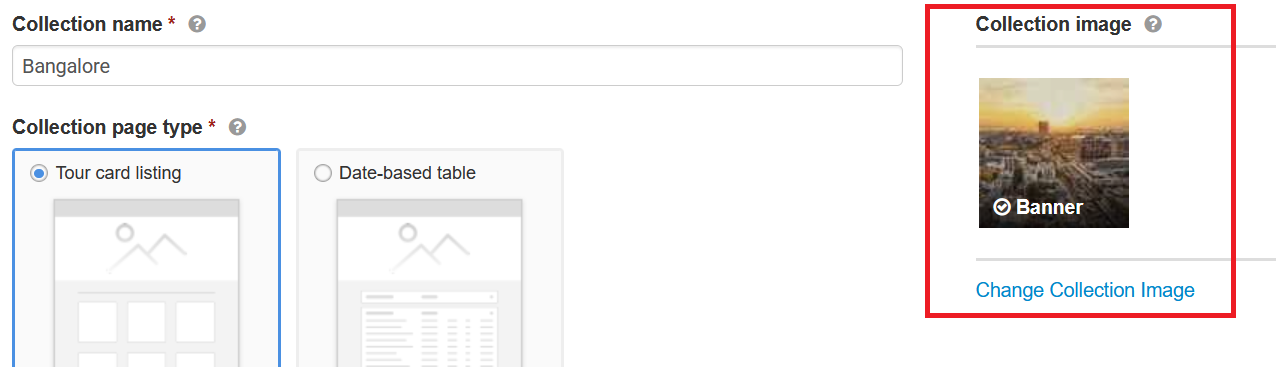
Please Note: After creating the collection, you’ll see an option to upload a banner image next to the collection name. Click on it to add a banner image for the collection.
Choose Display Format
The products in a collection can be displayed in two formats:
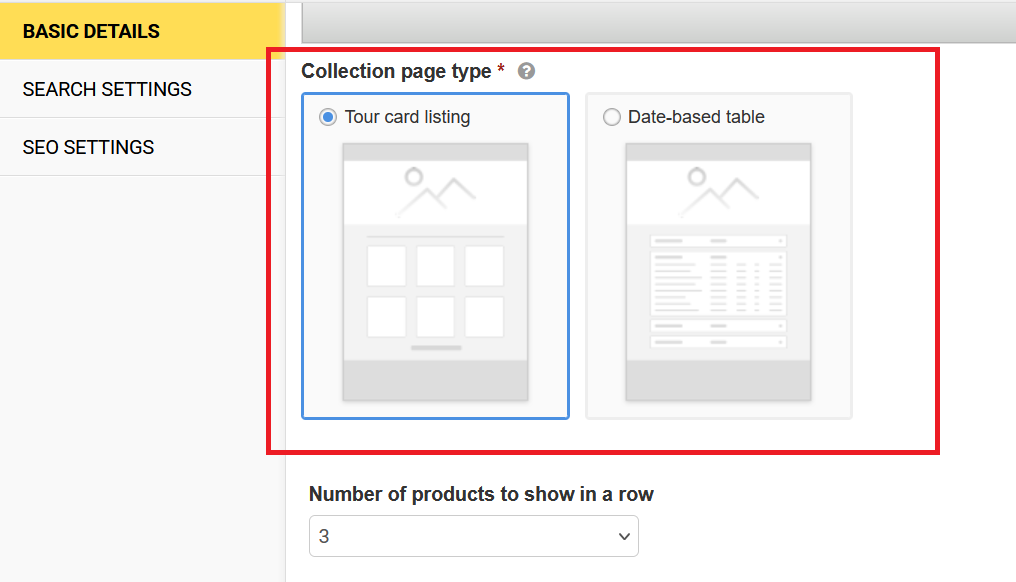
Tour Card Listing:
Products are displayed as cards (Tour Cards):
-
All products in the collection will be shown, whether or not they are available for booking.
-
Inactive or Unlisted products will not be visible to customers.
Tip
To learn more about tour card styles and designs, see our support article: How to manage themes on website.
Date-Based Table
Products are displayed in a calendar-style format, sorted by the latest upcoming departures and grouped by month.
-
Only tours with available dates will be shown. For example, if a collection has 10 products but only 2 have open dates, only those 2 will appear.
-
In this format, products are displayed based on their upcoming departures, organized month by month.
-
Unlisted or Inactive products will not be visible to customers.
Tip
To manage availability of tours, see our support article: Managing Availability of Tours.
Adding Products & Sorting Order
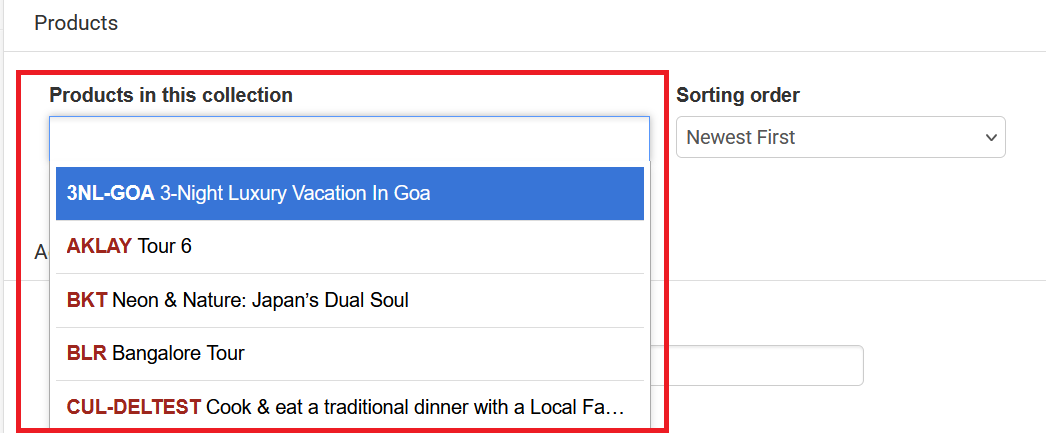
Click in the Products in this collection field and either scroll through the list or type the product name to add it.
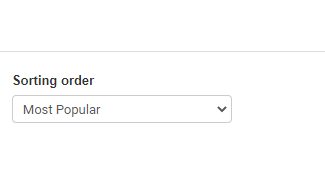
Configure a default sorting order for products (mandatory before publishing)
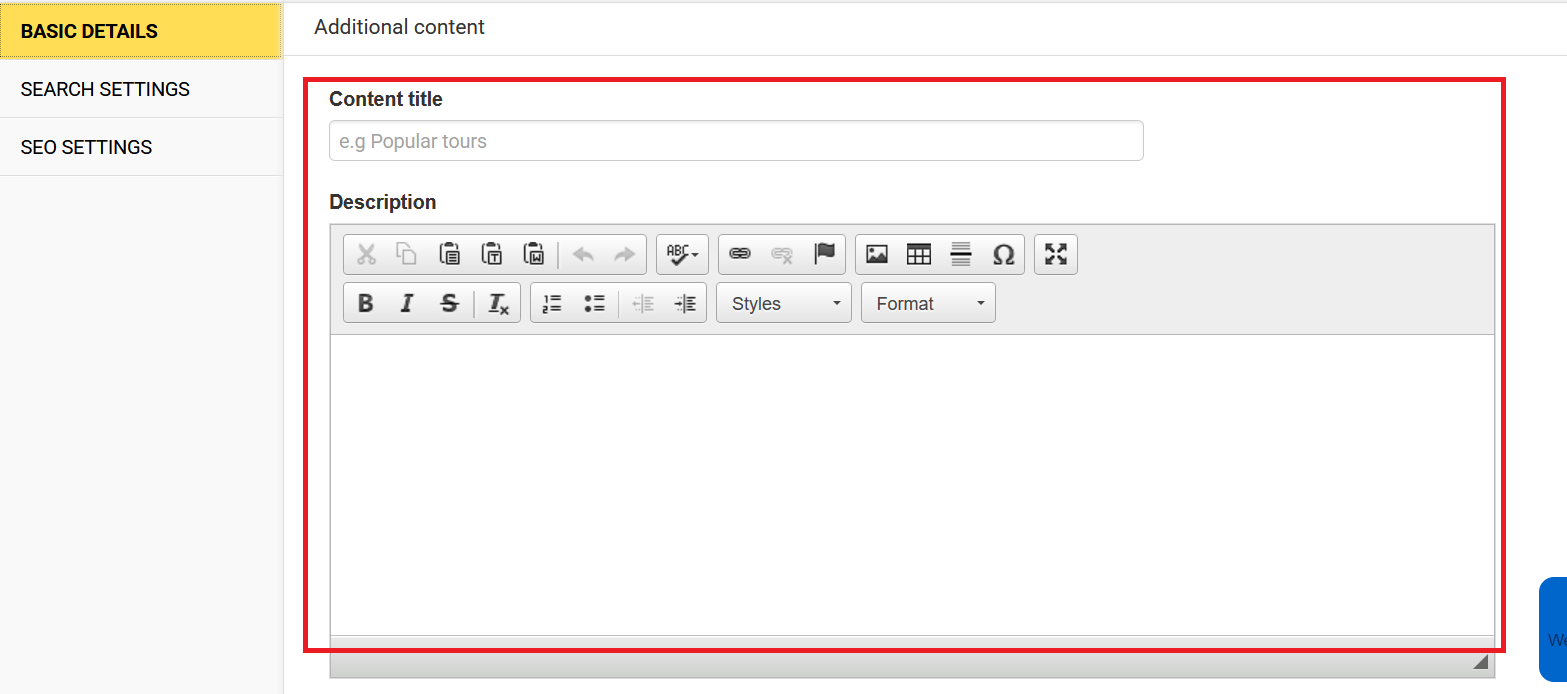
Additional Content
Add additional content to the collection page (displayed below the list of tours).
Search Settings
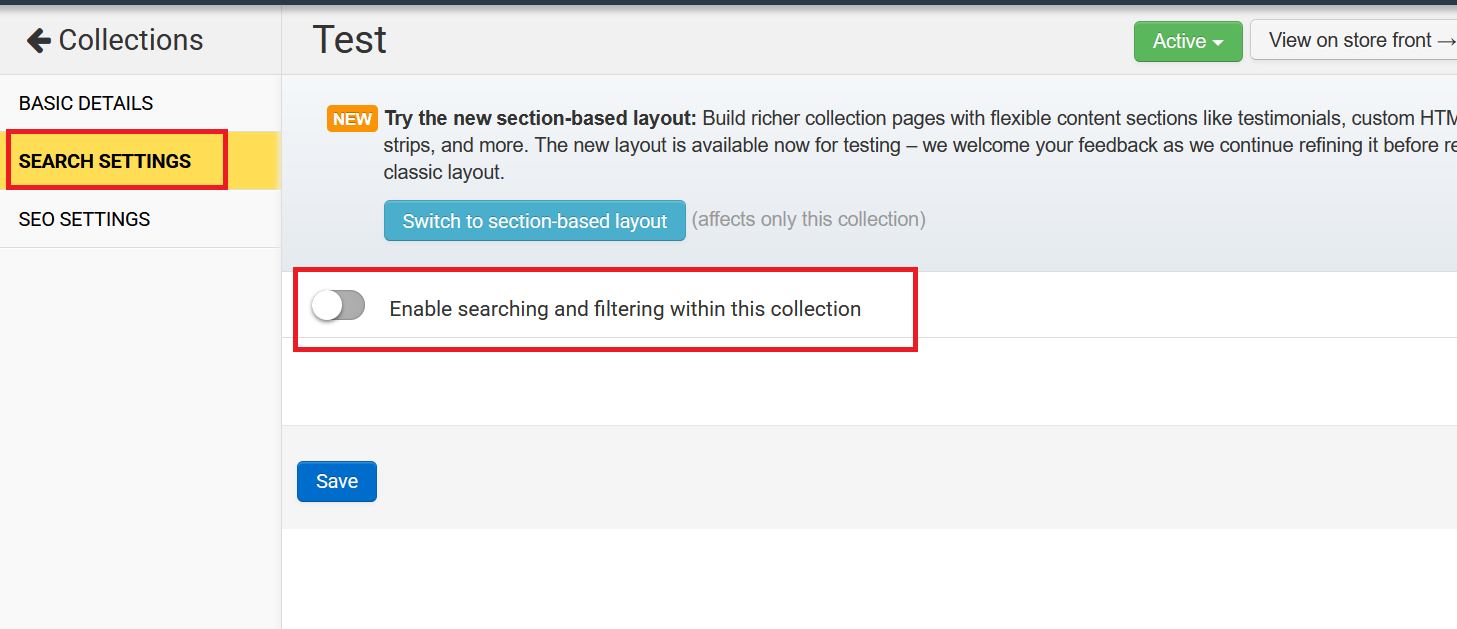
To enable search and filtering on a collection page, go to Search Settings and turn on Enable searching and filtering within this collection.
Info
For detailed instructions on enabling and configuring search and filters in a collection, please refer to this support article: **Search and Filtering in a Collection **
SEO Settings
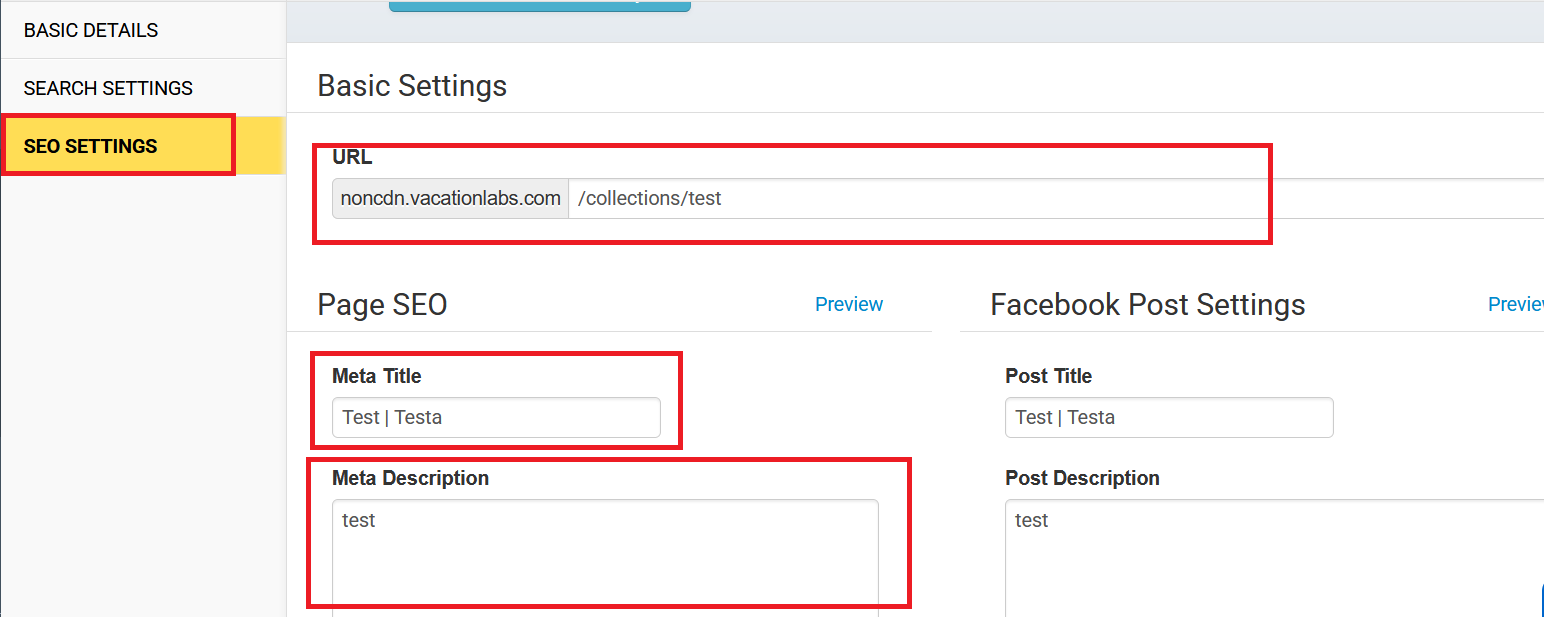
To update your collection’s SEO, click on SEO Settings and edit the Meta Title, Meta Description, and URL Slug of the collection page.
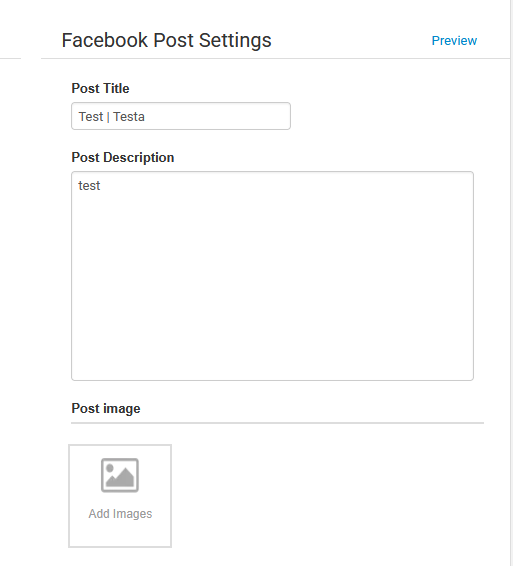
The Facebook Share Preview lets you edit the title, description, and image that appear as a snippet when your collection’s URL is shared on social media
New: Section-Based Layout
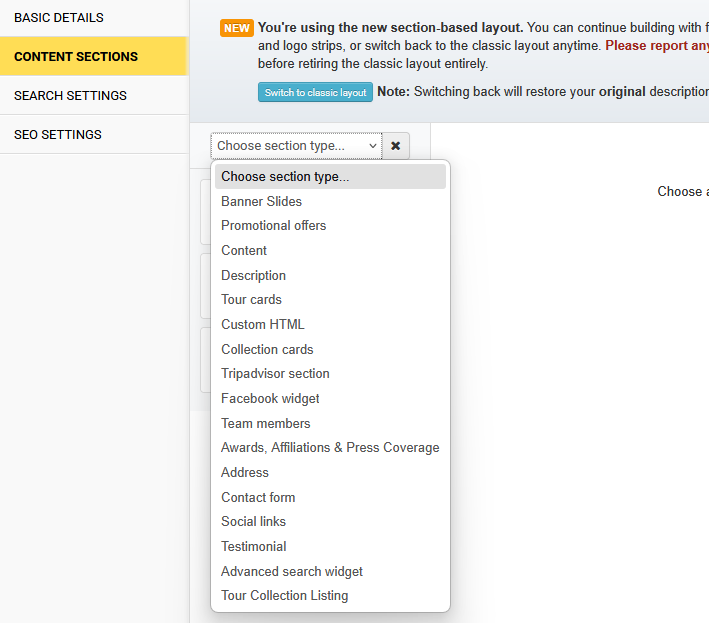
With the recent upgrade, a new feature has been added to collection pages that allows you to include multiple and different types of sections, similar to a static page.
To activate this, click the Switch to Section-Based Layout button in the callout at the top of the page.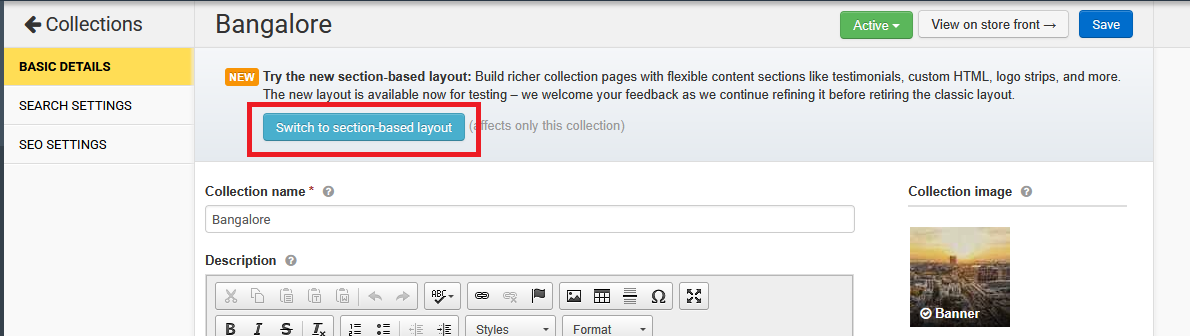
Once activated, a new option called Content Sections will appear on the left side menu.
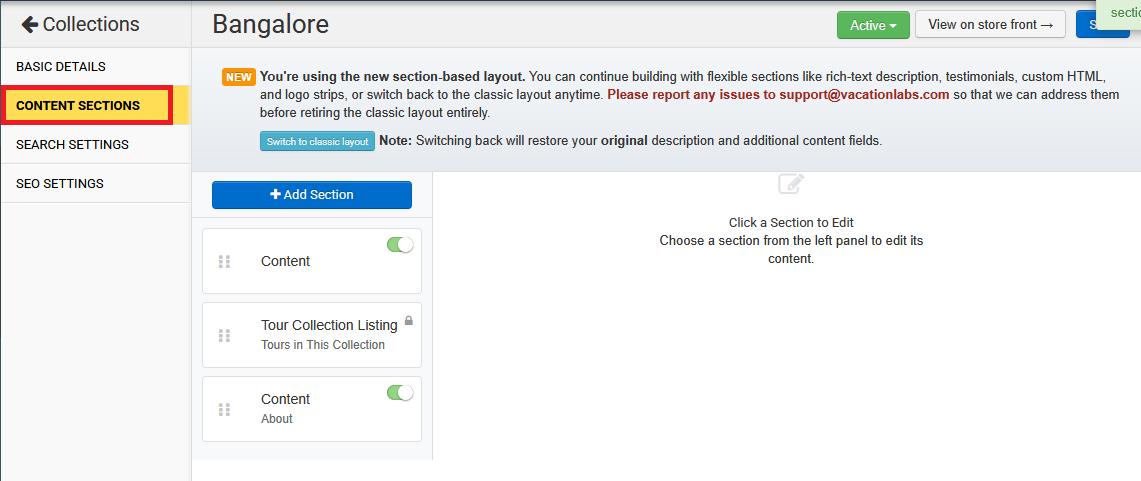
Now you can click the + Add Section button to add multiple and different types of sections to the collection page.
Info
Please Note: To switch back to the classic layout, click the Switch to Classic Layout button in the callout at the top of the page.
