
Promoting Coupons on the Trip and Collection Page
Once you have created a coupon, you can display it on your website so visitors know about the offer. A promoted coupon appears as a card or banner on the pages you choose, encouraging visitors to book.
Create the coupon first. To learn how, see Creating coupons from discounts and offers.
Promoting a coupon on your website
- Go to Products and click Promotions.
- Find the coupon you want to promote and click Edit.
- Open the Promote on Website tab.
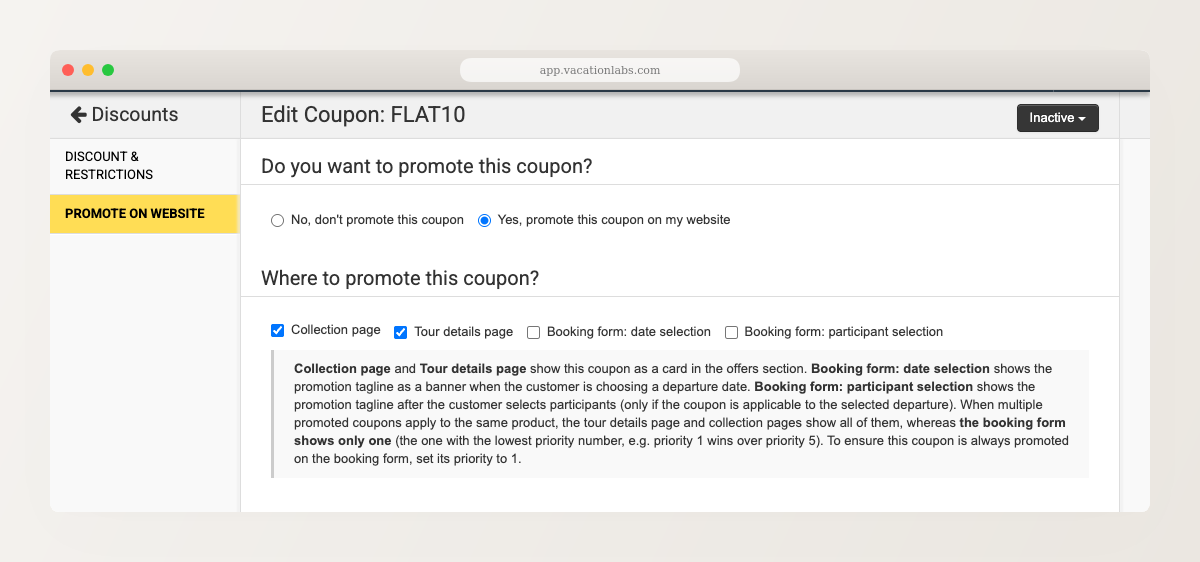
- Select Yes, promote this coupon on my website.
- Under Where to promote this coupon?, choose the pages where the coupon should appear — the collection page, the tour details page, and/or the booking form.
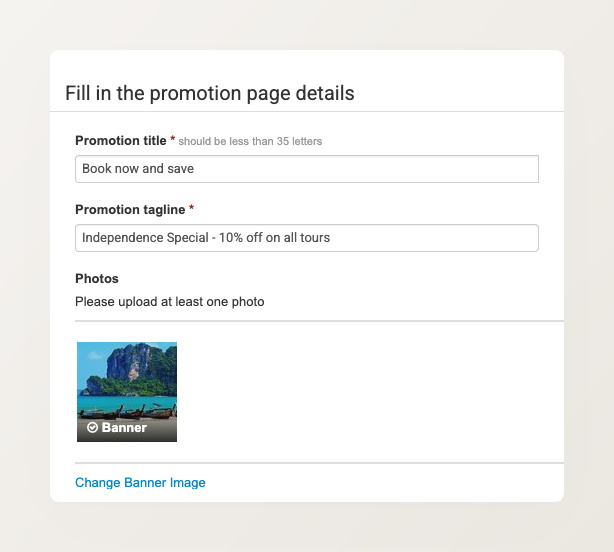
- Under Fill in the promotion page details, enter a Promotion title and Promotion tagline, and upload at least one photo. This is the content visitors see on the coupon card or banner.
- Click Save.
Setting the promotion page’s URL
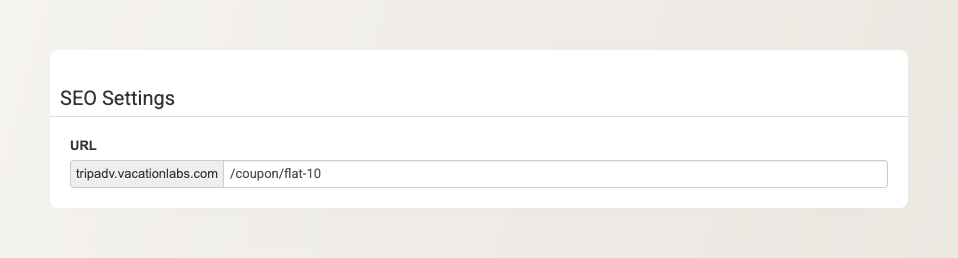
When you promote a coupon, it gets a dedicated promotion page on your website. You control that page’s web address from the SEO Settings section — near the bottom of the Promote on Website tab — where you set its URL along with the meta title and description.
You can give the page any URL you like, and if you change it later, the old URL automatically redirects to the new one — so existing links keep working.
Where your coupon appears
Once your coupon is promoted and saved, it shows up on your website in the locations you selected under Where to promote this coupon?:
- Collection pages and tour pages — the coupon appears as a card in an Offers section, showing the code, title, and tagline.
- The booking form — the promotion tagline appears as a banner during checkout, on the departure date selection step and the participant selection step.
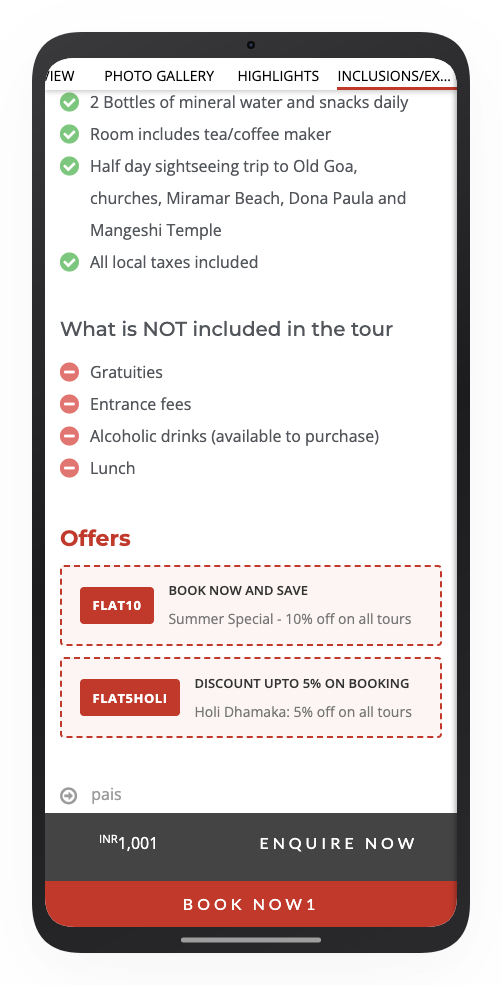
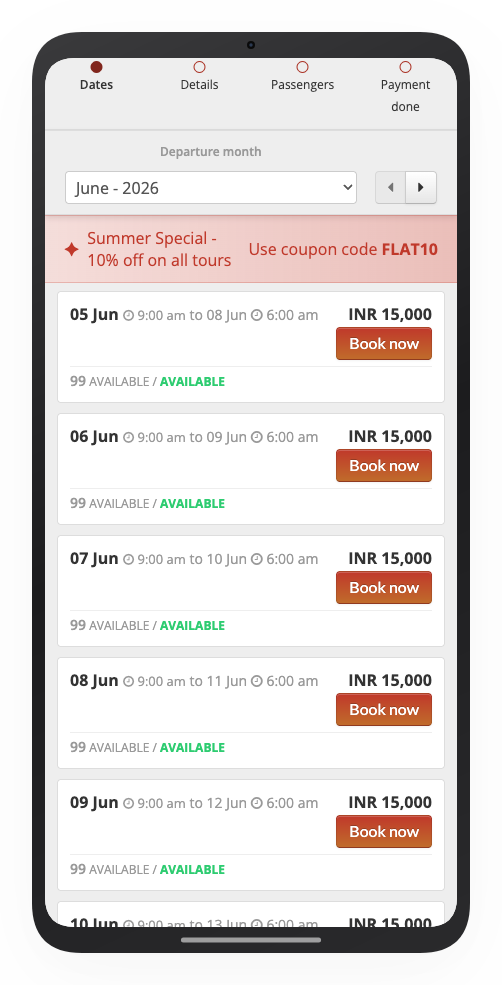
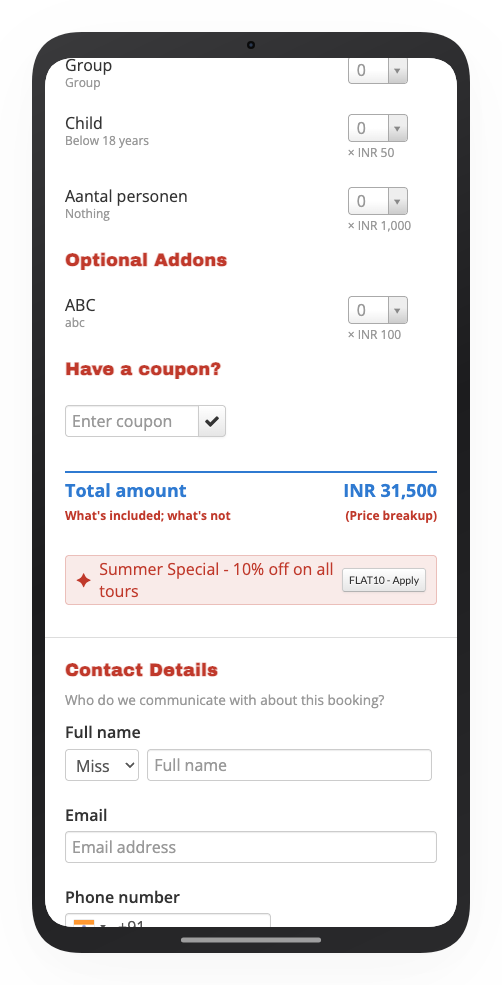
When several promoted coupons apply to the same page, collection and tour pages show all of them, while the booking form shows only the highest-priority one (set a coupon’s priority to 1 to make sure it always wins there).